

Passwords remain one of the most common ways people access online accounts, but managing dozens or even hundreds of unique credentials has become increasingly difficult. Reusing the same password across multiple services creates unnecessary risk because a breach at one website can expose accounts elsewhere.
A password manager solves this problem by creating, storing, and autofilling strong, unique passwords inside an encrypted vault. Modern password managers in 2026 can do much more than store passwords. Many now support passkeys, multi-factor authentication, secure sharing, breach monitoring, emergency access, and synchronization across computers, phones, tablets, and browsers.
Choosing the right password manager, however, is not simply a matter of selecting the product with the longest feature list. Security architecture, ease of use, platform compatibility, recovery options, pricing, passkey support, and the ability to move your data to another service all matter.
The password-manager ecosystem is also becoming more flexible. Services such as 1Password, Bitwarden, Proton Pass, and Dashlane now support passkeys in addition to traditional passwords, while newer industry standards are making it easier to transfer credentials between compatible password managers. This reduces vendor lock-in and gives users more control over where their credentials are stored.
In this guide, we compare 10 of the best password managers in 2026 and examine their security features, passkey support, device compatibility, free and paid plans, sharing options, and overall suitability for different types of users.
The goal is not to identify one password manager that is perfect for everyone. Instead, we will help you understand the strengths and tradeoffs of each option so you can choose the password manager that best matches your devices, budget, security needs, and everyday workflow.
Best Password Managers in 2026: Quick Overview
The best password manager depends on how much control you want, which devices you use, whether you need family or team sharing, and whether features such as passkeys, breach monitoring, local storage, or open-source software matter to you.
For this guide, we selected 10 password managers that represent different approaches to credential security, from polished cloud-based services to privacy-focused and locally managed options.
The 10 Password Managers We Compare
These products do not all follow the same model. 1Password, Bitwarden, Proton Pass, Dashlane, NordPass, Keeper, and RoboForm primarily emphasize convenient encrypted synchronization across devices. Enpass gives users more control over where synchronized vault data is stored, while KeePassXC is designed around a locally managed password database. Apple Passwords is deeply integrated into the Apple ecosystem rather than operating as a traditional standalone subscription service.
Passkey support has also become an increasingly important part of password-manager selection. 1Password supports creating, storing, using, organizing, and sharing passkeys, while Dashlane supports storing and synchronizing passkeys across devices. Dashlane also supports moving credentials and passkeys between compatible services through the Credential Exchange standard. (1password.com) (support.dashlane.com)
What We Compare
Each password manager will be evaluated on:
- Security architecture
- Encryption and vault protection
- Passkey support
- Multi-factor authentication
- Autofill reliability
- Browser and device compatibility
- Password and breach monitoring
- Secure sharing
- Import and export options
- Free-plan availability
- Paid-plan value
- Account-recovery options
- Ease of switching to another password manager
No single password manager leads in every category. A technically advanced product may be unnecessary for someone who simply wants secure passwords across a phone and laptop, while users managing business credentials, family accounts, or sensitive information may benefit from stronger administrative and sharing features.
The most important requirement is that the password manager makes it practical to use a unique credential for every account while keeping the vault itself strongly protected.
Table of Contents
1. 1Password — Best for a Polished Premium Experience
1Password is one of the most mature premium password managers available in 2026. It combines a polished interface, strong cross-platform support, secure sharing, passkeys, breach alerts, and a security model designed around end-to-end encryption.
Security Architecture
1Password uses end-to-end encryption so that vault contents are encrypted before they reach the company’s servers. Its security model combines an account password with a separate Secret Key, adding an additional layer of protection beyond the master password alone. 1Password states that it cannot decrypt customers’ vault contents because the required keys are not available to the service itself.
The company also publishes security documentation, independent assessments, and information about its bug-bounty program, which helps make its security model relatively transparent compared with services that provide fewer technical details.
Passkey Support
Passkeys are a major strength of 1Password in 2026.
Users can create, save, manage, and sign in with passkeys on supported websites and applications. Saved passkeys can also be organized and shared in much the same way as other vault items.
1Password also uses Watchtower to identify accounts that may support upgrading from passwords to passkeys, helping users gradually adopt phishing-resistant authentication.
Devices and Browser Support
A 1Password membership works across a wide range of platforms, including:
- Windows
- macOS
- Linux
- iOS
- Android
- Chrome
- Firefox
- Edge
- Brave
- Safari
There is no stated device limit for personal memberships, so users can install the application across their computers, phones, tablets, and browsers.
This makes 1Password particularly convenient for people who regularly switch between different operating systems.
Autofill and Everyday Use
1Password can generate strong passwords, save credentials, and autofill them on supported websites and applications.
Its browser extension also supports passwords, passkeys, and other authentication methods. In 2026, 1Password introduced a more unified sign-in experience designed to reduce the number of steps required when websites support different login methods.
For users who value convenience, the combination of browser extensions, desktop applications, mobile apps, and automatic synchronization creates a relatively consistent experience across devices.
Sharing and Family Features
1Password allows users to share selected credentials and vault items without exposing the rest of the vault.
The Families plan supports up to five family members and includes shared vaults and administrative controls.
This can be useful for securely sharing:
- Streaming-service logins
- Wi-Fi credentials
- Household accounts
- Emergency information
- Shared financial or subscription credentials
Users can keep private vaults separate from shared family information.
Watchtower and Security Alerts
1Password includes Watchtower, which can alert users about weak, reused, or compromised credentials and identify accounts that may support stronger authentication methods.
These alerts can make it easier to prioritize which passwords should be changed first rather than manually reviewing every account.
Pricing and Value
As of September 2026, 1Password lists promotional first-year pricing of approximately:
- Individual: $2.99 per month when billed annually
- Families: $4.49 per month when billed annually
The Families plan supports up to five family members. A 14-day free trial is available, but 1Password is primarily a paid subscription product rather than a permanently free password manager. Promotional pricing and renewal pricing can change, so users should confirm current rates before subscribing.
This makes 1Password less attractive for users whose main priority is obtaining a strong password manager at no cost. However, users who value polished apps, family sharing, broad platform support, and an integrated security ecosystem may find the subscription worthwhile.
Key Strengths
- Strong end-to-end encryption
- Additional protection through the Secret Key
- Excellent multi-device support
- Strong passkey support
- Reliable autofill and browser integration
- Secure family and vault sharing
- Watchtower security monitoring
- Detailed security documentation and independent assessments
Limitations
- No permanent full-featured free plan
- Requires an ongoing subscription for normal use
- The Secret Key adds security but also introduces an additional recovery responsibility
- Users who prefer fully local or self-hosted vaults may prefer alternatives such as KeePassXC
Best for: Individuals and families who want a polished, easy-to-use premium password manager with strong security, passkeys, sharing, and broad device support.
Consider before choosing: 1Password provides one of the more complete premium experiences, but users focused primarily on price or open-source software may find alternatives such as Bitwarden more attractive.
2. Bitwarden — Best for Open-Source Value and a Strong Free Plan
Bitwarden is one of the strongest choices for users who want a secure password manager without committing to an expensive subscription. Its combination of open-source software, a generous free plan, passkey support, broad device compatibility, and optional self-hosting makes it especially attractive to technically minded users and anyone focused on value.
Security Architecture
Bitwarden uses end-to-end, zero-knowledge encryption. Vault data is encrypted locally on the user’s device before it is sent to Bitwarden’s servers, and Bitwarden states that it cannot access or decrypt the contents of a user’s vault. Its current vault encryption uses AES-256 with HMAC-SHA-256 for integrity protection. (bitwarden.com)
Bitwarden is also open source, which means its code can be reviewed publicly. The company says its products undergo third-party security audits and independent security research. (bitwarden.com)
For users who want more control, Bitwarden also supports self-hosting, allowing the server component to run on privately managed infrastructure rather than relying on the Bitwarden cloud.
Passkey Support
Bitwarden supports passkey management and use across its password-manager ecosystem.
Users can save passkeys, sign in with them on compatible websites and services, and manage them alongside traditional passwords. Passkey support is available as part of Bitwarden’s core password-management functionality.
This makes Bitwarden suitable for users gradually moving from passwords toward phishing-resistant authentication without changing password managers.
Free Plan
Bitwarden’s free plan is one of its biggest advantages.
The free tier includes:
- Unlimited passwords
- Unlimited devices
- Browser, desktop, and mobile apps
- Passkey management and usage
- Password and username generation
- Encrypted vault storage
- Sharing with one other Bitwarden user
- Bitwarden Send for encrypted text sharing
For many individual users, the free plan may be sufficient for everyday password management. (bitwarden.com)
This distinguishes Bitwarden from services that require a subscription simply to synchronize passwords across several devices.
Premium Features
The Premium plan adds features such as:
- Integrated TOTP authenticator
- Encrypted file attachments
- Emergency access
- Advanced vault health reports
- Support for hardware security keys and additional two-step login methods
- Priority support
- File sharing through Bitwarden Send
Bitwarden also provides password-health information that can help identify weak, reused, or exposed credentials.
Devices and Browser Support
Bitwarden supports major platforms, including:
- Windows
- macOS
- Linux
- iOS
- Android
- Major web browsers
- Web vault access
The service allows unlimited devices, which is especially valuable for users who regularly move between several computers, phones, or tablets.
Sharing and Bitwarden Send
Bitwarden supports secure credential sharing through organizations and provides a separate feature called Bitwarden Send.
Bitwarden Send allows users to share encrypted text through a generated link, while paid users can also share encrypted files. Recipients do not necessarily need a Bitwarden account to access a Send. (bitwarden.com)
This can be useful for securely transmitting temporary information, recovery codes, confidential notes, or documents.
Family Features
The Families plan supports up to six users and includes premium features for each member.
It provides:
- Six Premium accounts
- Unlimited sharing between family members
- Shared collections
- Family organization storage
- Premium security features for each user
This makes Bitwarden particularly competitive for households that want a lower-cost shared password-management system.
Pricing and Value
As of September 2026, Bitwarden lists:
- Free: $0
- Premium: $1.65 per month, billed annually at $19.80
- Families: $3.99 per month, billed annually at $47.88 for up to six users
Pricing can change, so users should confirm the latest rates before subscribing. (bitwarden.com)
The Premium plan is significantly less expensive than many competing password managers while still including advanced security features.
Open Source and Self-Hosting
Bitwarden’s open-source approach is an important differentiator.
Its codebase is publicly available for review, and advanced users can deploy Bitwarden on their own infrastructure. This can be attractive to privacy-conscious users, organizations with data-residency requirements, and technical users who prefer greater control over where encrypted vault data is stored. (bitwarden.com)
However, self-hosting also introduces additional responsibility. Users must secure, update, back up, and maintain the server environment themselves.
Emergency Access
Premium users can designate trusted Bitwarden users as emergency contacts.
Emergency Access can allow a trusted person to request access to the vault if the account owner becomes unavailable. This can be useful for families and individuals who want a controlled succession or recovery mechanism without sharing their master password in advance.
Key Strengths
- Excellent free plan
- Low-cost Premium subscription
- Open-source software
- Zero-knowledge, end-to-end encryption
- Passkey support
- Unlimited devices
- Optional self-hosting
- Strong family value
- Bitwarden Send for encrypted sharing
- Emergency Access on paid plans
Limitations
- Interface may feel less polished than some premium competitors
- Some advanced security features require Premium
- Self-hosting requires technical knowledge and ongoing maintenance
- Family sharing and organization concepts may initially feel more complex than simpler consumer-focused services
Best for: Users who want strong security, open-source transparency, excellent value, unlimited devices, and a genuinely useful free plan.
Consider before choosing: Bitwarden offers exceptional value, but users who prioritize the most polished interface and simplified family management may prefer a premium-focused alternative such as 1Password.
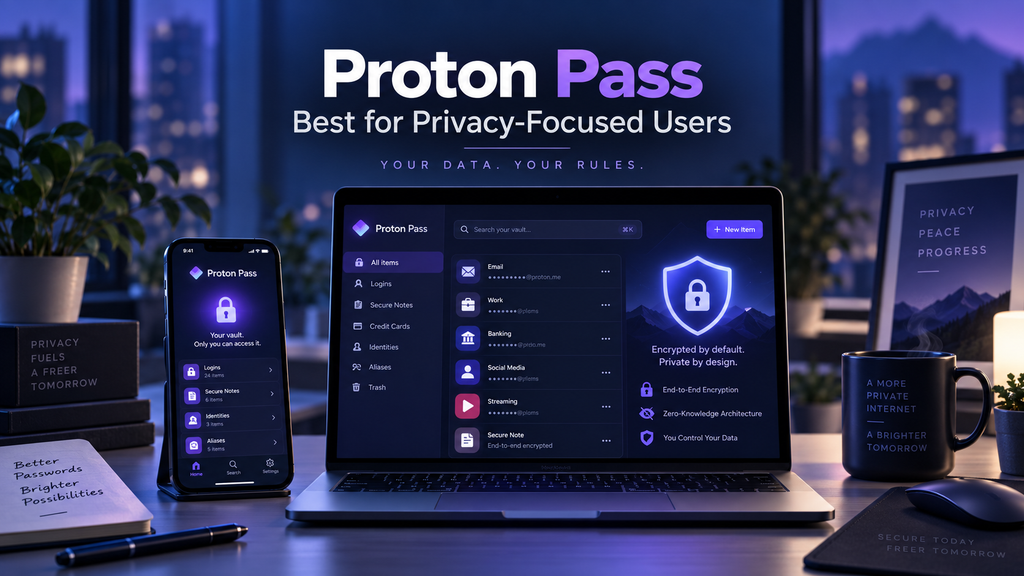
3. Proton Pass — Best for Privacy-Focused Users
Proton Pass is a strong option for users who want password management combined with broader privacy protection. It comes from Proton, the Swiss company behind Proton Mail, Proton VPN, Proton Drive, and Proton Calendar, and it uses the same zero-knowledge, end-to-end encryption approach across its ecosystem.
Security Architecture
Proton Pass encrypts passwords, passkeys, credit-card information, usernames, website addresses, and other vault data with end-to-end encryption. Proton states that it cannot access the contents of a user’s vault because decryption happens on the user’s devices.
For privacy-conscious users, Proton’s Swiss jurisdiction is also part of the appeal because the company operates under Swiss privacy laws.
Hide-My-Email Aliases
One of Proton Pass’s biggest differentiators is its integrated email-alias system.
Instead of giving websites your real email address, Proton Pass can generate a unique alias that forwards messages to your normal inbox. This makes it easier to reduce spam, limit tracking, and identify which service may have leaked or shared an email address.
The free plan currently includes up to 10 hide-my-email aliases, while paid plans provide unlimited aliases. Paid users can also use custom domains and additional mailboxes for alias management.
Passkey Support
Proton Pass supports passkeys across its password-management ecosystem.
Users can create, save, manage, share, and export passkeys, and passkey support is available across all Proton Pass plans. Proton currently supports passkeys through its browser extension and on supported Android and iOS devices.
On Android, passkey support requires Android 14 or later, while iPhone and iPad support requires iOS 17 or later.
This makes Proton Pass a good fit for users who want to adopt passwordless authentication gradually while keeping traditional credentials in the same vault.
Free Plan
Proton Pass offers a useful free tier that includes:
- Unlimited logins
- Unlimited notes
- Unlimited credit cards
- Unlimited devices
- Browser, mobile, and desktop apps
- Password generator
- 10 hide-my-email aliases
- Alerts for weak and reused passwords
- Passkey support
- Password importing
For an individual user who mainly needs password storage, synchronization, and passkeys, the free plan may already cover most everyday requirements.
Pass Plus Features
The paid Pass Plus plan adds several advanced features, including:
- Unlimited hide-my-email aliases
- Integrated 2FA authenticator
- Secure vault sharing
- Secure individual-item sharing
- Dark Web Monitoring
- File attachments
- Emergency Access
- Proton Sentinel advanced account protection
- Custom domains for aliases
- Additional forwarding mailboxes
- Command-line interface support
These features make the paid tier more attractive to users who want a privacy-focused identity-management system rather than only a password vault.
Devices and Browser Support
Proton Pass is available on:
- Windows
- macOS
- Linux
- Android
- iOS
- Web
- Chrome
- Safari
- Edge
- Firefox
- Brave
Automatic synchronization across devices is included, including on the free plan.
Autofill and Everyday Use
Proton Pass can recognize login forms and autofill usernames, passwords, passkeys, and other saved information.
Its browser extension can also generate strong passwords and create email aliases directly while a user is registering for a new website.
This combination of autofill and alias generation can be especially convenient for privacy-conscious users who do not want to expose the same email address across dozens of services.
Dark Web Monitoring and Pass Monitor
Paid Proton Pass plans include Dark Web Monitoring and Pass Monitor features.
These can alert users when credentials appear in known data breaches, identify weak or reused passwords, and highlight accounts that may be missing two-factor authentication.
This helps users move from simply storing credentials to actively monitoring account-security risks.
Proton Ecosystem Integration
Proton Pass may offer more value to people who already use other Proton services.
The Proton Unlimited plan combines premium versions of:
- Proton Pass
- Proton Mail
- Proton VPN
- Proton Drive
- Proton Calendar
For users who already want encrypted email, cloud storage, and VPN protection, bundling these services into one subscription may be more convenient than paying for several separate providers.
Pricing and Value
Proton offers:
- Proton Free: $0
- Pass Plus: Paid subscription
- Pass Family: Premium features for up to six users
- Proton Unlimited: Bundles Proton Pass with Proton Mail, VPN, Drive, and Calendar
Proton’s pricing page can change promotional and regional prices dynamically, so users should verify the current rate before subscribing. The important distinction is that the free plan already includes unlimited logins, unlimited devices, passkeys, and 10 email aliases, while the paid tiers focus on advanced sharing, unlimited aliases, integrated 2FA, monitoring, and recovery features.
Key Strengths
- Strong privacy-focused design
- Zero-knowledge, end-to-end encryption
- Excellent free plan
- Unlimited devices
- Passkey support
- Hide-my-email aliases
- Dark Web Monitoring on paid plans
- Integrated 2FA on paid plans
- Strong integration with the wider Proton ecosystem
- Swiss jurisdiction
Limitations
- Some advanced features require Pass Plus
- Best value is strongest for users who already like the Proton ecosystem
- Passkey support can depend on OS and browser compatibility
- Users who do not need email aliases may prefer a simpler password manager
- The interface and ecosystem may feel more privacy-focused than family-oriented compared with 1Password
Best for: Privacy-conscious users who want password management, passkeys, email aliases, and security monitoring in one encrypted ecosystem.
Consider before choosing: Proton Pass is especially compelling if privacy and email-identity protection matter to you. Users who mainly want the most polished family-sharing experience may prefer 1Password, while users focused primarily on open-source value may prefer Bitwarden.
4. Dashlane — Best for Security Extras and Modern Passkey Support
Dashlane is a premium password manager that combines traditional credential management with additional security tools such as Dark Web Monitoring, phishing alerts, secure sharing, VPN access, and increasingly strong passkey support.
Its biggest strength in 2026 is that it is evolving beyond password storage toward broader credential protection, including easier migration of passwords and passkeys between compatible password managers.
Security Architecture
Dashlane uses a zero-knowledge security architecture. Vault data is encrypted locally on the user’s device before being synchronized, and Dashlane states that neither the company nor third parties can decrypt the contents of a user’s vault.
Dashlane’s current architecture uses AES-256 encryption with additional integrity protection, while vault decryption occurs only on authorized devices.
This means that even if Dashlane’s cloud infrastructure were compromised, encrypted vault contents are designed to remain inaccessible without the user’s encryption keys.
Passkey Support
Dashlane supports creating, storing, managing, and using passkeys on compatible websites and applications.
Passkeys stored in Dashlane synchronize across supported devices, allowing users to sign in without relying on a traditional reusable password.
Dashlane also emphasizes that passkeys are phishing-resistant because authentication is tied cryptographically to the legitimate service rather than relying on a password that can be copied or entered into a fake website.
Passkey support is available across Dashlane plans.
Credential Exchange and Easier Switching
One of Dashlane’s most notable developments in 2026 is support for the Credential Exchange Protocol.
Credential Exchange allows users to securely move:
- Passwords
- Passkeys
- Verification codes
- Other compatible credential types
between Dashlane and participating password managers.
Supported services currently include options such as Apple Passwords, 1Password, Bitwarden, and Google Password Manager on compatible platforms.
This is a major improvement over older migration methods that relied on unencrypted CSV files.
Instead of exporting credentials into readable plaintext, Credential Exchange uses a secure transfer process designed to keep data protected during migration.
For users worried about vendor lock-in, this is an important advantage.
Autofill and Everyday Use
Dashlane can store and autofill:
- Usernames
- Passwords
- Passkeys
- Payment information
- Addresses
- Personal information
The browser extension can recognize login forms and automatically provide saved credentials.
Dashlane also supports automatic login on compatible websites, allowing users to move from a saved vault entry directly into an authenticated session without manually typing credentials.
Dark Web Monitoring
Dashlane Premium includes Dark Web Monitoring.
This feature can monitor selected email addresses for information appearing in known breach datasets and notify users when exposure is detected.
This adds a monitoring layer beyond simple password storage and can help users identify accounts that may need credentials changed.
Real-Time Phishing Protection
Dashlane has expanded its security capabilities with real-time phishing alerts.
These protections are designed to warn users when they encounter suspicious or potentially fraudulent websites while browsing.
Dashlane states that its AI-powered phishing protections operate under its zero-knowledge privacy principles, with relevant detection designed to preserve user privacy rather than exposing vault contents.
This makes Dashlane somewhat broader than password managers focused only on storing credentials.
Built-In VPN
Dashlane Premium includes VPN access for the individual account holder.
This can be useful for users who want password management and VPN protection under one subscription rather than paying separately for both services.
However, users should not select Dashlane solely because it includes a VPN. A dedicated VPN provider may offer more advanced networking features, server options, or configuration controls.
For users who simply want occasional protection on public Wi-Fi, the bundled VPN can still add value.
Personal Plans
As of September 2026, Dashlane’s current consumer lineup consists primarily of:
- Premium
- Friends & Family
Dashlane no longer sells several older plans, including its previous Free, Essentials, Advanced, and Premium Plus options.
New users can currently try selected Premium features through a 14-day trial.
Premium Plan
Dashlane Premium includes features such as:
- Unlimited password storage
- Unlimited devices
- Password and passkey management
- Secure sharing
- Dark Web Monitoring
- Real-time phishing alerts
- VPN protection
- Password generation
- Two-factor authentication support
- Secure Notes
- Encrypted document storage
- Password-history features
The plan is designed for an individual user who wants password management combined with additional security tools.
Friends & Family
Dashlane’s Friends & Family plan supports up to 10 accounts under one subscription.
Each family member receives their own private account and vault.
The plan includes many Premium features for members, although the VPN benefit is primarily associated with the plan manager rather than every family member.
This makes Dashlane competitive for larger households because many competing family plans support fewer users.
Unlimited Devices
Both current personal plans allow access across unlimited devices.
Users can synchronize Dashlane across computers, tablets, mobile phones, and supported wearable platforms.
This is important for users who regularly switch between multiple devices and operating systems.
Secure Sharing
Dashlane supports secure credential sharing between users.
Instead of sending passwords through email, messaging apps, or documents, users can share selected credentials while keeping the rest of their vault private.
This can be useful for:
- Family accounts
- Shared subscriptions
- Household services
- Work credentials
- Temporary access
Account Recovery Options
Dashlane provides recovery mechanisms designed to reduce the risk of permanently losing access to the vault.
Depending on account configuration, recovery options may include recovery keys and other supported account-recovery mechanisms.
Users should still keep recovery information secure because any recovery system is part of the overall security model.
Key Strengths
- Zero-knowledge encryption architecture
- Strong passkey support
- Secure Credential Exchange migration
- Unlimited devices
- Dark Web Monitoring
- Real-time phishing alerts
- Built-in VPN for Premium users
- Secure sharing
- Family plan supporting up to 10 accounts
- Modern autofill and passkey synchronization
Limitations
- No permanent free personal plan for new users
- Premium subscription is required after the trial
- Some users may not need bundled extras such as VPN access
- Family members do not all receive the same VPN benefit
- Users focused only on password storage may find Bitwarden or Proton Pass more economical
Best for: Users who want a premium password manager that combines strong credential management with additional security features such as phishing protection, Dark Web Monitoring, VPN access, and modern passkey portability.
Consider before choosing: Dashlane is most compelling when you will actually use its security extras. If your primary goal is inexpensive password storage, Bitwarden may provide better value; if privacy and email aliases are priorities, Proton Pass may be a stronger fit.
For a broader security setup beyond password management, see our guide to the best cybersecurity tools in 2026, which covers multi-factor authentication, VPNs, secure DNS, backups, phishing protection, and identity monitoring.
5. NordPass — Best for Simplicity and Everyday Usability
NordPass is designed for users who want a straightforward password manager without a complicated interface. It combines encrypted credential storage, autofill, passkey support, secure sharing, breach monitoring, and multi-device synchronization in a relatively simple package.
For users who prioritize ease of use over highly technical configuration options, NordPass is one of the more approachable choices in 2026.
Security Architecture
NordPass uses a zero-knowledge architecture, meaning vault data is encrypted locally before being uploaded to its servers.
The service uses the XChaCha20 encryption algorithm to protect vault contents. NordPass also uses Argon2id in its key-derivation process and additional asymmetric cryptography to protect encryption keys.
The company states that only the user can decrypt vault contents and that NordPass itself cannot read the passwords and other sensitive information stored inside the vault.
NordPass has also undergone independent security auditing and maintains security certifications for parts of its service infrastructure.
Passkey Support
NordPass supports storing, managing, sharing, and using passkeys.
Users can save passkeys in the same vault as traditional passwords and use them to authenticate to compatible websites and services.
This allows people to gradually transition toward passwordless authentication without abandoning their existing password manager.
Passkeys are included across NordPass plans, making the feature accessible even to users who are not subscribed to a premium tier.
Autofill and Everyday Use
Ease of use is one of NordPass’s strongest qualities.
The service can automatically:
- Save new login credentials
- Generate strong passwords
- Autofill usernames and passwords
- Autofill payment details
- Store secure notes
- Store credit-card information
- Detect saved credentials across supported websites
The interface is relatively clean and simple, making it suitable for users who may find more advanced password managers overwhelming.
Devices and Browser Support
NordPass is available on major platforms, including:
- Windows
- macOS
- Linux
- Android
- iOS
- Web Vault
- Chrome
- Firefox
- Edge
- Safari
- Other Chromium-based browsers
Premium and Family subscribers can synchronize their vault across multiple devices.
The Free plan is more limited in multi-device access, making the paid plans more practical for users who regularly switch between computers and mobile devices.
Password Health
Premium and Family plans include Password Health.
This feature analyzes stored credentials and can help identify:
- Weak passwords
- Reused passwords
- Old passwords
- Credentials that may need attention
Rather than manually inspecting every saved login, users can use Password Health to prioritize accounts that should be updated first.
Data Breach Scanner
NordPass also includes a Data Breach Scanner in its paid personal plans.
This feature can monitor information associated with the user and identify potential exposure in known data breaches.
If exposed credentials are detected, users can take action by changing passwords and enabling stronger authentication methods.
This makes NordPass more useful as an ongoing security-monitoring tool rather than simply a storage vault.
Email Masking
NordPass provides email-masking functionality that can create alternative email addresses for online registrations.
Using aliases instead of a primary email address can help reduce unwanted exposure, limit spam, and make it easier to identify which services may be sharing or leaking contact information.
This feature places NordPass closer to privacy-oriented competitors such as Proton Pass, although Proton Pass remains more deeply focused on email-identity protection.
Secure Sharing
NordPass allows users to securely share stored credentials and other vault information with trusted people.
Secure sharing can be useful for:
- Family subscriptions
- Household accounts
- Streaming services
- Shared work accounts
- Wi-Fi credentials
- Other sensitive login information
This is safer than sending passwords through email, SMS, or messaging applications.
Free Plan
NordPass offers a permanent Free plan.
The Free tier includes essential features such as:
- Password storage
- Autosave
- Autofill
- Passkeys
- Secure vault storage
- One user account
However, the current Free plan does not include some features available to paid subscribers, including:
- Multi-device access
- Password Health
- Data Breach Scanner
- File attachments
For users who rely on several devices, this limitation makes the Premium plan significantly more practical.
Premium Plan
The Premium plan adds:
- Access across multiple devices
- Password Health
- Data Breach Scanner
- Secure file attachments
- Additional premium password-management features
It is designed for individual users who want synchronization and monitoring features beyond the basic free vault.
NordPass frequently changes promotional pricing depending on subscription length and current offers, so users should verify the current purchase and renewal prices directly before subscribing.
Family Plan
The NordPass Family plan supports up to six user accounts.
Each family member receives a separate private account while gaining access to premium functionality.
This can make the plan suitable for households that want:
- Individual private vaults
- Multi-device access
- Password-health monitoring
- Breach scanning
- Secure sharing between family members
File Attachments
Paid NordPass plans allow users to store encrypted file attachments alongside vault information.
This can be useful for sensitive documents that users want to keep close to related credentials or secure notes.
However, a password manager should not necessarily replace a dedicated encrypted cloud-storage service for large collections of documents.
Importing Existing Passwords
NordPass supports importing credentials from other password managers and browsers.
This reduces the friction involved in switching services because users do not need to manually recreate every saved login.
Before deleting an old password manager, users should verify that imported credentials, secure notes, and other important items have transferred correctly.
Key Strengths
- Simple and approachable interface
- Zero-knowledge architecture
- XChaCha20 encryption
- Passkey support
- Strong autofill functionality
- Password Health on paid plans
- Data Breach Scanner
- Email masking
- Secure sharing
- Family plan for up to six users
- Broad platform support
Limitations
- Free plan has limited multi-device functionality
- Several useful monitoring features require Premium
- Promotional pricing and renewal costs can vary
- Advanced users may prefer the greater control offered by Bitwarden or KeePassXC
- Privacy-focused users may find Proton Pass’s alias ecosystem more comprehensive
Best for: Users who want a simple, modern password manager with strong security, passkeys, reliable autofill, and an interface that is easy to understand.
Consider before choosing: NordPass is particularly attractive for ease of use, but users who want strong free multi-device synchronization may find Bitwarden or Proton Pass more flexible.
6. Keeper — Best for Advanced Security Features and Families
Keeper is a security-focused password manager designed for individuals, families, and organizations that want more than basic password storage. It combines zero-knowledge encryption, passkey support, secure sharing, emergency access, encrypted file storage, dark-web monitoring, and strong multi-device synchronization.
In 2026, Keeper remains particularly attractive to users who want a password manager with an emphasis on advanced security controls and family account management.
Security Architecture
Keeper uses a zero-knowledge security model, meaning vault data is encrypted and decrypted locally on the user’s device rather than on Keeper’s servers.
Vault records are protected using AES-256 encryption, while Keeper also uses elliptic-curve cryptography for parts of its security architecture.
Each record and folder can be protected with its own encryption key, which helps limit the impact if a single record or sharing relationship is compromised.
Keeper states that it cannot access or decrypt users’ vault contents because the required encryption keys are controlled by the user.
Passkey Support
Keeper supports passkeys alongside traditional passwords.
Users can store and manage passkeys inside the Keeper Vault and use them on compatible websites and applications.
Keeper also supports modern authentication methods including:
- Passkeys
- FIDO2 WebAuthn security keys
- Face ID
- Touch ID
- Windows Hello
- Multi-factor authentication
This gives users several options for strengthening access to both their Keeper account and supported online services.
Devices and Synchronization
Keeper supports synchronization across unlimited devices on its personal plans.
Users can access their vault through:
- Windows
- macOS
- Linux
- Android
- iOS
- Web browsers
- Keeper Web Vault
Vault changes synchronize across connected devices, making Keeper suitable for users who regularly move between computers, phones, and tablets.
Offline Access
Keeper supports offline vault access on trusted devices when Offline Mode has been enabled in advance.
This can be useful when users need access to stored credentials while traveling or when an internet connection is temporarily unavailable.
Secure Sharing
Keeper allows users to securely share individual records without exposing the rest of their vault.
Shared items can include:
- Passwords
- Login credentials
- Secure notes
- Payment information
- Files
- Other sensitive records
This is safer than sending credentials through email, text messages, or chat applications.
Keeper also supports One-Time Share, which allows a user to generate temporary access to a selected record without giving the recipient permanent vault access.
BreachWatch
Keeper offers BreachWatch, a dark-web monitoring feature designed to alert users when stored credentials may have been exposed in known breaches.
When compromised credentials are detected, users can take action by changing affected passwords and enabling stronger authentication.
BreachWatch is available as an additional security feature and may depend on the specific subscription or bundle selected.
Emergency Access
Keeper includes Emergency Access for personal and family users.
This allows users to designate trusted contacts who may receive access to the vault under predefined conditions.
Emergency Access can be especially useful for:
- Families
- Estate planning
- Medical emergencies
- Account recovery
- Business continuity
It provides a controlled alternative to sharing a master password with another person.
Family Plan
The Keeper Family plan includes five private vaults.
Each family member receives a separate personal vault, while selected records can still be shared securely when needed.
The plan also includes:
- Unlimited password storage
- Unlimited identity and payment storage
- Unlimited devices and synchronization
- Secure record sharing
- Emergency Access
- 10 GB of secure file storage
- Web and mobile access
- 24/7 customer support
This makes Keeper particularly suitable for households that want individual privacy while still being able to share selected credentials securely.
Secure File Storage
Keeper can store encrypted files and documents alongside credentials.
Examples include:
- Identification documents
- Contracts
- Recovery codes
- Important certificates
- Sensitive images
- Financial documents
The Family plan currently includes 10 GB of secure file storage.
Identity and Payment Storage
Keeper can also store information beyond passwords, including:
- Payment cards
- Addresses
- Personal identities
- Secure notes
- Custom fields
- TOTP authentication codes
This makes the vault useful as a broader encrypted repository for sensitive personal information.
Personal Plan
Keeper’s individual plan, commonly known as Keeper Unlimited, includes:
- Unlimited password storage
- Unlimited devices
- Secure record sharing
- Identity and payment storage
- Emergency Access
- Browser and web access
- Biometric login
- 24/7 customer support
Additional features such as BreachWatch and expanded secure file storage may be available separately or as part of bundled plans.
Pricing and Value
Keeper offers separate personal and family plans, with pricing billed annually.
The company frequently changes promotional pricing by region and subscription bundle, so users should verify the current rate directly before subscribing.
The important distinction is that Keeper focuses on a paid subscription model rather than offering a full permanent free tier comparable to Bitwarden or Proton Pass.
Its value comes primarily from advanced security features, family vaults, secure sharing, emergency access, and encrypted file storage.
Independent Security and Compliance
Keeper maintains a strong focus on external security validation and compliance.
Its security documentation references certifications and frameworks including:
- SOC 2
- ISO 27001
- ISO 27017
- ISO 27018
- FedRAMP authorization
This may be especially relevant to security-conscious users and organizations that value documented security controls and independent assessments.
Key Strengths
- Zero-knowledge architecture
- AES-256 encryption
- Record-level encryption
- Passkey support
- FIDO2 security-key support
- Unlimited devices
- Secure sharing
- One-Time Share
- Emergency Access
- BreachWatch dark-web monitoring
- Encrypted file storage
- Five private family vaults
- Strong compliance and security documentation
Limitations
- No strong permanent free tier comparable to Bitwarden
- Some advanced features may require add-ons or bundled plans
- Pricing structure can be more complex than simpler competitors
- The interface includes many security options that may feel excessive for basic users
- Family plan supports five vaults, fewer than some competitors
Best for: Families and security-conscious users who want advanced protection, encrypted sharing, emergency access, dark-web monitoring, and secure file storage.
Consider before choosing: Keeper provides a strong collection of security features, but users who mainly want simple password storage or a generous free plan may prefer Bitwarden, Proton Pass, or NordPass.
7. RoboForm — Best for Autofill and Form Filling
RoboForm is one of the longest-running password managers and remains especially strong in one area: fast, accurate autofill.
It is designed for users who want a password manager that can handle not only usernames and passwords, but also addresses, payment information, identities, and complex web forms with minimal effort.
In 2026, RoboForm also includes passkey support, breach monitoring, passwordless unlock, secure sharing, emergency access, and multi-device synchronization on paid plans.
Security Architecture
RoboForm uses a zero-knowledge security architecture.
Vault data is protected with AES-256 encryption, while PBKDF2-SHA-256 is used to strengthen the master password against brute-force and dictionary attacks.
Encryption and decryption happen on the user’s device, and RoboForm states that it does not know the user’s master password or have the ability to decrypt stored vault data.
Passkey Support
RoboForm supports storing and using passkeys across supported desktop applications, browser extensions, and mobile devices.
Once a passkey is saved in RoboForm, it can be synchronized and used across devices where RoboForm is installed.
The service currently supports passkeys on mobile devices running:
- iOS 17 or later
- Android 14 or later
Saved passkeys can also be securely shared with other RoboForm users.
Passwordless Unlock
RoboForm also supports Passwordless Unlock.
This feature allows users to unlock RoboForm using a passkey through technologies such as:
- Windows Hello
- Touch ID
- Face recognition
- Device PINs
This reduces the need to repeatedly type the master password while still keeping device-based authentication in place.
Advanced Two-Factor Authentication
RoboForm supports several forms of two-factor authentication, including:
- Email verification
- SMS
- TOTP authenticator apps
- Passkeys
- Trusted devices
- Hardware security keys
This provides flexibility for users who want stronger account protection beyond the master password.
Autofill and Form Filling
Autofill is where RoboForm has traditionally been strongest.
It can store and automatically fill:
- Usernames
- Passwords
- Names
- Addresses
- Phone numbers
- Payment-card details
- Identity information
- Other common web-form fields
This makes it particularly useful for users who frequently complete registration, checkout, shipping, or account-creation forms.
For people who spend significant time filling out repetitive web forms, RoboForm may provide more convenience than password managers that focus primarily on credential storage.
Security Center
RoboForm includes a Security Center that evaluates saved passwords.
It can help identify:
- Weak passwords
- Reused passwords
- Compromised passwords
Users can then replace risky credentials with stronger, unique alternatives.
This helps turn the vault into an active security-management tool rather than simply a place to store passwords.
Breach Monitoring
RoboForm can alert users when passwords or associated accounts appear in known breach data.
Paid plans also include Data Breach Monitoring for up to five email addresses.
This can help users identify exposed credentials and change them before attackers reuse them elsewhere.
Secure Sharing
RoboForm supports secure sharing of individual items and folders.
Users can share passwords or confidential information with trusted people while assigning appropriate access levels.
This is more secure than sending credentials through email, text messages, or ordinary chat applications.
Emergency Access
Paid RoboForm plans include Emergency Access.
Users can designate trusted contacts who may gain access to the vault under predefined circumstances.
This can be useful for:
- Account recovery
- Family emergencies
- Estate planning
- Medical situations
- Long-term account continuity
Local Only Mode
One unusual RoboForm feature is Local Only Mode.
Users who prefer not to synchronize their vault through RoboForm’s cloud can choose to keep data and backups stored locally on their own device.
This gives privacy-conscious users additional control over where their encrypted vault is stored.
However, choosing local-only storage also means the user takes on more responsibility for backups and device recovery.
Free Plan
RoboForm offers a permanent Free plan.
The current Free plan includes:
- Unlimited passwords on one device
- Password generation
- Autofill
- Passkey support
- Advanced 2FA options
- Password monitoring
- Integrated TOTP authenticator
- Passwordless Unlock
The main limitation is that the Free plan is restricted to a single device.
For users who want synchronization across computers, phones, and tablets, the Premium plan is the more practical option.
Premium Plan
As of September 2026, RoboForm lists Premium at approximately:
- $2.49 per month
- Billed annually
- Renewal at approximately $29.88 per year
Premium adds:
- Unlimited devices
- Cloud backup
- Web access
- Data Breach Monitoring
- Local Only Mode
- Emergency Access
- Secure sharing
- Priority support
Pricing and promotional offers can change, so users should verify the current rate before purchasing.
Family Plan
The Family plan supports up to five Premium accounts.
As of September 2026, RoboForm lists the Family plan at approximately:
- $3.98 per month
- Billed annually
- Renewal at approximately $47.75 per year
Each family member receives their own private Premium account while gaining access to the same core paid features.
Key Strengths
- Excellent autofill and form-filling capabilities
- Zero-knowledge architecture
- AES-256 encryption
- Passkey support
- Passwordless Unlock
- Multiple 2FA options
- Security Center
- Breach monitoring
- Secure sharing
- Emergency Access
- Local Only Mode
- Reasonably priced Premium plan
Limitations
- Free plan is limited to one device
- Interface may feel less modern than some newer competitors
- Family plan supports five users, fewer than some alternatives
- Users focused primarily on privacy aliases may prefer Proton Pass
- Users wanting open-source software may prefer Bitwarden or KeePassXC
Best for: Users who frequently fill out online forms and want reliable autofill combined with modern password-management features.
Consider before choosing: RoboForm is particularly strong for autofill and everyday convenience. Users who prioritize open-source software, a stronger free multi-device plan, or a more modern visual experience may prefer alternatives such as Bitwarden, Proton Pass, or 1Password.
8. Enpass — Best for Users Who Want More Control Over Where Vault Data Is Stored
Enpass takes a different approach from many cloud-based password managers. Instead of requiring users to store encrypted vaults on company-operated servers, Enpass allows users to decide where their vault data is stored and synchronized.
This makes it particularly attractive to privacy-conscious and technically experienced users who want greater control over their credential data without giving up modern features such as autofill, passkeys, multi-device synchronization, and security auditing.
Security Architecture
Enpass encrypts vault data locally on the user’s device before it is stored or synchronized.
The vault is protected with AES-256 encryption, and cryptographic operations such as encryption and decryption are performed locally. The user’s master password is used to protect access to the vault, and an optional keyfile can provide an additional layer of protection.
Because encrypted vault data does not need to be stored on Enpass-operated infrastructure, users retain more direct control over where their credentials reside.
Bring Your Own Storage
The defining feature of Enpass is its flexible synchronization model.
Users can synchronize their encrypted vault through storage services they already control, including Google Drive, Microsoft OneDrive, Dropbox, iCloud, Box, WebDAV, and Nextcloud.
For people who prefer to avoid cloud storage entirely, Enpass can also synchronize vaults over a local Wi-Fi network or through Folder Sync.
This flexibility is uncommon among mainstream password managers and gives users more control over data location and storage providers.
Offline Operation
Enpass can operate with a locally stored copy of the vault, allowing users to access credentials even when an internet connection is unavailable.
Users who choose local-only synchronization can keep their encrypted vault within their own devices or network environment.
This can be useful for users who work in restricted environments, travel frequently, or simply prefer minimizing dependence on external cloud services.
Passkey Support
Enpass supports creating, storing, managing, and using passkeys.
Passkeys can be stored alongside traditional usernames and passwords and synchronized between supported devices using the user’s selected synchronization method.
Enpass can also identify saved accounts that support passkeys, helping users gradually upgrade eligible logins from traditional passwords to phishing-resistant authentication.
Built-In Authenticator
Enpass can store TOTP secrets and generate time-based one-time authentication codes directly from the vault.
This allows users to keep passwords and authentication codes within the same application.
The Audit Dashboard can also identify accounts that support two-factor authentication, helping users find opportunities to strengthen account security.
Users with higher-risk accounts may still prefer keeping second-factor credentials separate from their password manager as part of a more segmented security strategy.
Autofill and Browser Integration
Enpass supports browser extensions that work together with the desktop application.
The browser integration can save and autofill:
- Usernames and passwords
- Passkeys
- Payment information
- Addresses
- Other saved web-form information
The browser extension must authenticate with the Enpass desktop application, creating a controlled connection between the browser and the encrypted vault.
Multiple Vaults
Enpass supports multiple encrypted vaults.
Users can separate credentials into different collections for purposes such as personal accounts, work accounts, family information, financial services, or other sensitive categories.
Different vaults can also use different synchronization locations, giving advanced users considerable flexibility over how their data is organized and stored.
Password Audit
Enpass includes an Audit Dashboard that can help identify security issues within stored credentials.
The dashboard can highlight weak, reused, or compromised passwords and identify accounts that support stronger authentication methods such as passkeys or two-factor authentication.
This helps users prioritize which accounts should be upgraded rather than manually reviewing every stored login.
Importing Existing Passwords
Enpass supports importing credentials from a variety of browsers and password managers.
This can make switching easier for users who already have large password collections.
Traditional password exports may sometimes use unencrypted formats such as CSV, so users should delete exported files securely after confirming that the migration has completed successfully.
Passkey portability remains more limited than password portability, so users should verify passkey migration options before changing password managers.
Pricing Model
Enpass offers personal and family licensing options, and its pricing model has historically included both subscription-based and longer-term licensing choices.
Because available plans, regional pricing, and promotional offers can change, users should verify current pricing directly before purchasing.
For users comparing Enpass with subscription-focused competitors, the more important consideration may be its storage model rather than price alone.
Family Use
Enpass offers a Family plan designed for multiple household members.
Family members can maintain their own password-management environment while benefiting from paid Enpass features.
Users considering the Family plan should compare the number of supported members, sharing workflow, and storage configuration with alternatives such as Bitwarden, 1Password, Keeper, and Dashlane.
Key Strengths and Limitations
Key Strengths
- Gives users control over where encrypted vault data is stored.
- Supports cloud storage, local Wi-Fi synchronization, and folder-based sync.
- Protects vaults with AES-256 encryption and local cryptographic operations.
- Supports both passkeys and TOTP authentication codes.
- Allows multiple vaults with flexible storage and synchronization configurations.
- Works offline and does not require Enpass-operated cloud storage for vault data.
Limitations
- Storage and synchronization setup can be more complex than fully managed cloud-based password managers.
- Users who choose local or self-managed storage are responsible for their own backups and recovery.
- Some credential migrations may still rely on unencrypted export files.
- Users who prefer simple, streamlined family sharing may find cloud-first services easier to manage.
Best for: Privacy-conscious and technically experienced users who want greater control over where their encrypted password vault is stored and synchronized.
Consider before choosing: Enpass provides unusual storage flexibility, but that flexibility also creates more responsibility. Users who prefer a completely managed cloud experience may find 1Password, Bitwarden, Proton Pass, or NordPass easier to configure and maintain.
9. Apple Passwords — Best Built-In Option for Apple Users
Apple Passwords is the built-in credential manager for users deeply invested in the Apple ecosystem.
Starting with iOS 18, iPadOS 18, macOS Sequoia, and visionOS 2, Apple separated password management into a dedicated Passwords app. It brings passwords, passkeys, verification codes, Wi-Fi credentials, security alerts, and shared credentials into one place.
For people who primarily use an iPhone, iPad, and Mac, it offers one of the simplest ways to manage credentials without paying for a separate password-management subscription.
Security and iCloud Keychain
Apple Passwords relies on iCloud Keychain to synchronize supported credentials across approved devices.
iCloud Keychain can store and synchronize:
- Passwords
- Passkeys
- Verification codes
- Wi-Fi passwords
- Payment information
- Other supported credential data
Apple requires two-factor authentication for the Apple Account when using iCloud Keychain, and synchronized data is protected using end-to-end encryption.
This means credential data is designed so that Apple cannot read the protected information stored in iCloud Keychain.
Passkey Support
Passkeys are deeply integrated into Apple Passwords.
Users can create, save, manage, and use passkeys on compatible websites and applications.
Passkeys can synchronize through iCloud Keychain across supported Apple devices, allowing someone to create a passkey on an iPhone and later use it from a Mac or iPad.
Because passkeys are cryptographically tied to legitimate websites and applications, they provide stronger resistance to phishing than reusable passwords.
Password and Passkey Sharing
Apple Passwords supports Shared Groups.
Users can create groups with trusted contacts and securely share:
- Passwords
- Passkeys
- Sign in with Apple credentials
When a shared credential is updated, the change can synchronize with other members of the group.
This is useful for:
- Family streaming accounts
- Household subscriptions
- Shared services
- Wi-Fi credentials
- Joint online accounts
Members must use compatible Apple devices and software versions to participate fully in shared password groups.
Verification Codes
Apple Passwords can store and generate time-based verification codes for accounts that use two-factor authentication.
This allows users to autofill both a password and its verification code without relying on a separate authenticator application.
For many everyday users, this creates a very smooth login experience.
However, users with especially sensitive accounts may prefer keeping passwords and second-factor authentication in separate applications to reduce dependence on a single credential store.
Security Recommendations
The Passwords app includes security recommendations that can identify credentials that may require attention.
Apple can warn users about passwords that are:
- Weak
- Reused across multiple accounts
- Potentially exposed in known data leaks
Users can then review affected accounts and replace compromised or weak passwords.
Autofill and Everyday Use
Apple Passwords integrates closely with Safari and supported applications.
It can automatically suggest, save, and fill:
- Usernames
- Passwords
- Passkeys
- Verification codes
Authentication can often be confirmed using Face ID, Touch ID, or the device passcode.
This tight operating-system integration is one of Apple Passwords’ biggest advantages because most of the experience works without requiring users to install or configure multiple extensions.
Windows Support
Apple Passwords is not limited entirely to Apple hardware.
Users can install iCloud for Windows and access iCloud Passwords from a Windows PC.
The Windows application can manage saved passwords and verification codes, while browser extensions allow credentials to be used in supported browsers such as Chrome and Microsoft Edge.
This makes Apple Passwords more practical for users who own an iPhone but also use a Windows computer.
However, the overall cross-platform experience remains more Apple-centric than password managers such as Bitwarden, 1Password, or Proton Pass.
No Separate Subscription Required
One of Apple Passwords’ biggest advantages is cost.
There is no separate Passwords subscription fee for users with compatible Apple devices and an Apple Account.
This makes it particularly attractive to people who already use Apple hardware and do not need the more advanced administrative, sharing, or privacy features offered by dedicated password managers.
Family and Trusted-Contact Sharing
Shared Groups can include family members and other trusted contacts.
Users can keep personal credentials private while placing selected passwords and passkeys into shared groups.
This provides much of the basic household-sharing functionality many people need without requiring a dedicated family password-manager subscription.
Importing and Switching
Users moving from another password manager can import supported credentials into Apple Passwords.
Likewise, users considering a future move away from the Apple ecosystem should review export capabilities and passkey portability before relying heavily on Apple Passwords.
Traditional passwords are generally easier to transfer between password managers than passkeys, although industry credential-exchange standards are steadily improving portability.
Key Strengths
- No separate subscription required
- Deep integration with iPhone, iPad, and Mac
- Strong passkey support
- iCloud Keychain synchronization
- Built-in verification codes
- Security recommendations
- Shared password and passkey groups
- Face ID and Touch ID integration
- Windows access through iCloud for Windows
- Very simple setup for existing Apple users
Limitations
- Best experience is still concentrated inside the Apple ecosystem
- Cross-platform support is less extensive than dedicated password managers
- Advanced family administration is limited compared with 1Password or Keeper
- No privacy-focused email-alias system comparable to Proton Pass
- Less suitable for users who regularly move between several non-Apple platforms
- Advanced users may want more control over storage and synchronization
Best for: iPhone, iPad, and Mac users who want a secure, convenient password and passkey manager without paying for an additional subscription.
Consider before choosing: Apple Passwords is extremely convenient inside the Apple ecosystem and now works with Windows through iCloud for Windows, but users who regularly switch between Windows, Linux, Android, and Apple devices may find a fully cross-platform service such as Bitwarden or 1Password more flexible.
10. KeePassXC — Best for Offline and Self-Managed Password Storage
KeePassXC is one of the strongest options for users who want complete control over where their password database is stored.
Instead of operating as a subscription-based cloud service, KeePassXC stores credentials inside an encrypted KDBX database file that the user manages directly. The database can remain only on a local computer or be synchronized through a storage service chosen by the user.
This makes KeePassXC particularly attractive to privacy-conscious, technically experienced, and security-focused users who prefer a self-managed approach.
Local and Self-Managed Storage
KeePassXC does not require users to create an online account or upload their password database to company-operated servers.
The encrypted KDBX file can be stored:
- On a local computer
- On an external drive
- On a private server
- In a synchronized folder
- Through services such as OneDrive, Dropbox, Google Drive, Nextcloud, or Syncthing
KeePassXC states that the database remains encrypted while stored on disk, including when the file is placed in cloud storage.
This gives users considerably more control than conventional cloud-first password managers.
Database Encryption
KeePassXC supports strong encryption for its KDBX databases.
Supported encryption options include:
- AES-256
- Twofish
- ChaCha20
For strengthening the master key, KeePassXC supports key-derivation functions including AES-KDF and Argon2. Its documentation recommends Argon2id for stronger resistance against GPU- and ASIC-based password-cracking attacks.
Users can also adjust key-derivation parameters to increase the computational effort required to unlock the database.
Additional Database Protection
A KeePassXC database can be protected by more than a master password.
Users can optionally add:
- A key file
- YubiKey challenge-response
- OnlyKey challenge-response
This can strengthen database protection by requiring possession of additional cryptographic material.
However, KeePassXC notes that YubiKey challenge-response is technically part of the database decryption process rather than conventional online two-factor authentication.
Losing an additional key file or hardware-key secret without a backup can permanently lock the user out of the database.
Passkey Support
KeePassXC officially supports passkeys.
Passkey support works through KeePassXC-Browser, allowing users to create, store, and use passkeys on compatible websites while keeping them inside the encrypted KeePassXC database.
The browser extension must be connected to an unlocked KeePassXC database, and passkey support must be enabled in the extension settings.
This is especially notable because KeePassXC combines modern passwordless authentication with a locally controlled storage model.
Browser Integration
KeePassXC provides a dedicated browser extension called KeePassXC-Browser.
It supports browsers including:
- Google Chrome
- Chromium
- Brave
- Vivaldi
- Mozilla Firefox
- Tor Browser
- Microsoft Edge
The extension communicates with the desktop KeePassXC application and can fill usernames and passwords directly into websites.
Unlike fully cloud-based password managers, the browser extension relies on the local KeePassXC application and database being available.
Autofill and Auto-Type
KeePassXC supports multiple methods for entering credentials.
Browser Integration can autofill supported websites, while Auto-Type can type stored credentials directly into applications and login fields.
Auto-Type is useful beyond web browsers because it can work with desktop applications and other interfaces where browser autofill is unavailable.
Password Generator
KeePassXC includes a configurable password generator.
Users can generate:
- Random passwords
- Passphrases
- Custom-length credentials
- Passwords with specific character requirements
Generated passwords can be stored immediately inside the encrypted database.
The browser extension can also generate passwords while creating or updating online accounts.
TOTP Authentication Codes
KeePassXC supports storing TOTP secrets and generating time-based one-time authentication codes.
This means users can store both login credentials and compatible verification codes inside the same database.
For especially sensitive accounts, some users may prefer keeping second-factor secrets in a separate authenticator to reduce dependence on a single encrypted vault.
Password Health and Breach Checking
KeePassXC includes database reports that can help users evaluate credential security.
Available reports can identify issues such as:
- Weak passwords
- Reused passwords
- Expired credentials
- Password-health concerns
- Credentials potentially appearing in Have I Been Pwned data
This provides useful security auditing without requiring a permanent cloud-monitoring subscription.
Importing from Other Password Managers
KeePassXC supports importing credentials from several formats and password managers.
Its current documentation lists import support for sources including:
- CSV
- 1Password
- Bitwarden
- Proton Pass
- KeePass 1
The import process can make it easier to migrate from a cloud password manager into a locally controlled database.
Users should still review imported records carefully and securely delete any unencrypted export files after migration.
Backups Are the User’s Responsibility
The biggest strength of KeePassXC is also one of its biggest responsibilities.
Because the user controls the database file, they must also ensure that reliable backups exist.
If the KDBX database is accidentally deleted, corrupted, or lost and no backup exists, the stored credentials may be unrecoverable. KeePassXC explicitly recommends keeping safe backups and suggests storage services with version-history functionality when cloud synchronization is used.
A sensible backup strategy may include:
- A primary encrypted database
- A synchronized copy
- An offline backup
- Version history
- Secure copies of key files or hardware-key recovery material
No Subscription Required
KeePassXC is free and open-source software.
There is no subscription required to unlock core functionality, and users can download the application directly from the project website. As of September 2026, the current stable release listed by KeePassXC is version 2.7.12.
This makes it one of the most cost-effective options in this comparison.
Open-Source Development
KeePassXC is open source, which allows its code to be publicly reviewed.
Its development model appeals to users who prefer transparent software and do not want password management tied to a proprietary subscription service.
The project also publishes detailed documentation covering encryption, browser integration, database protection, hardware-key support, and passkeys.
Key Strengths
- Free and open source
- No subscription required
- Local, user-controlled database
- AES-256, Twofish, and ChaCha20 encryption options
- Argon2-based key strengthening
- Passkey support
- Browser integration
- TOTP support
- Password-health reports
- YubiKey and key-file protection
- No mandatory cloud account
- Flexible backup and synchronization options
Limitations
- User is responsible for synchronization and backups
- Less convenient for beginners than cloud-first password managers
- No managed account-recovery service
- Losing the master password, key file, or required hardware key may permanently block access
- Mobile experience depends on compatible KeePass applications rather than one unified KeePassXC mobile app
- Family sharing requires more manual configuration than services such as 1Password or Keeper
Best for: Advanced users, privacy-conscious individuals, and anyone who wants offline or self-managed control over an encrypted password database.
Consider before choosing: KeePassXC provides exceptional control and avoids subscription dependence, but users must be comfortable managing their own backups, synchronization, and recovery strategy. People who prioritize convenience may find Bitwarden, 1Password, Proton Pass, or Apple Passwords easier to maintain.
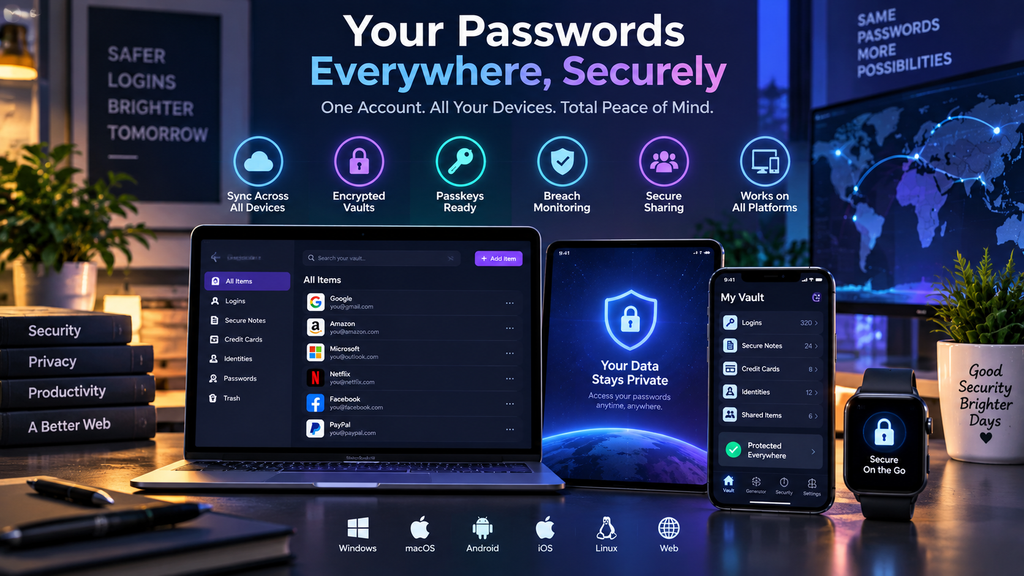
Quick Comparison of the Best Password Managers in 2026
The 10 password managers in this guide take different approaches to security, convenience, privacy, and data storage. The table below provides a quick comparison before we look at which type of user may benefit most from each option.
| Password Manager | Free Option | Passkeys | Cross-Platform | Family / Sharing | Storage Approach | Standout Feature |
|---|---|---|---|---|---|---|
| 1Password | 14-day trial | Yes | Excellent | Strong family sharing | Managed encrypted cloud | Polished premium experience |
| Bitwarden | Yes | Yes | Excellent | Up to 6 users on Families | Managed cloud or self-hosted | Open source and excellent value |
| Proton Pass | Yes | Yes | Excellent | Up to 6 users on Pass Family | Managed encrypted cloud | Privacy and email aliases |
| Dashlane | 14-day trial | Yes | Excellent | Up to 10 accounts | Managed encrypted cloud | Security monitoring and phishing protection |
| NordPass | Yes, limited | Yes | Excellent on paid plans | Up to 6 users | Managed encrypted cloud | Simple everyday experience |
| Keeper | Yes, highly limited | Yes | Excellent on paid plans | 5 private family vaults | Managed encrypted cloud | Advanced security features |
| RoboForm | Yes, one device | Yes | Excellent on paid plans | Up to 5 accounts | Cloud or Local Only Mode | Autofill and form filling |
| Enpass | Primarily paid | Yes | Excellent | Up to 6 family members | User-selected cloud or local storage | Control over vault location |
| Apple Passwords | Included with compatible Apple devices | Yes | Best on Apple; Windows support available | Shared Groups | iCloud Keychain | Deep Apple integration |
| KeePassXC | Yes | Yes | Strong on desktop | Manual sharing | Local user-managed database | Maximum local control |
Which Options Stand Out?
1Password offers one of the most polished premium experiences, particularly for families and users who want a password manager that works consistently across many devices.
Bitwarden stands out for open-source transparency, unlimited passwords and devices on the free tier, affordable paid plans, and optional self-hosting.
Proton Pass is particularly attractive to privacy-focused users because password management is combined with hide-my-email aliases and the broader Proton privacy ecosystem.
Dashlane places greater emphasis on proactive security features, including dark-web monitoring, phishing alerts, passkeys, secure sharing, and additional protection tools.
NordPass focuses on simplicity and ease of use, making it suitable for people who want modern password management without a complicated interface.
Keeper provides a broad collection of advanced security features, including secure sharing, emergency access, passkeys, family vaults, and optional breach monitoring.
RoboForm remains particularly useful for users who frequently fill out complex web forms and want strong autofill functionality in addition to password management.
Enpass gives users more control over where encrypted vault data is stored and synchronized, including personal cloud accounts and local storage options.
Apple Passwords is a convenient choice for users who primarily live inside the Apple ecosystem and want passwords, passkeys, verification codes, and sharing without a separate subscription.
KeePassXC provides the highest level of direct control over the password database, but users must manage their own synchronization, backups, and recovery strategy.
Convenience vs. Control
The comparison also highlights an important tradeoff.
Cloud-first services such as 1Password, Bitwarden, Proton Pass, Dashlane, NordPass, Keeper, and RoboForm generally provide easier synchronization and recovery across multiple devices.
Enpass and KeePassXC give users more control over where encrypted data is stored, but that control can also require more responsibility for backups, synchronization, and recovery.
Apple Passwords takes a different approach by integrating credential management directly into the operating system and iCloud Keychain.
There is therefore no single password manager that fits every user. The right choice depends on whether your priority is convenience, privacy, family sharing, open-source software, local storage, passkeys, price, or cross-platform compatibility.
Which Password Manager Should You Choose in 2026?
The best password manager depends less on which product has the longest feature list and more on which one fits your devices, security preferences, budget, and level of technical comfort.
For Most Premium Users
1Password is a strong choice for users who want a polished interface, broad device support, strong passkey integration, and straightforward family sharing.
It is especially suitable for people who are willing to pay for a premium experience and want minimal setup or maintenance.
For the Best Free and Open-Source Value
Bitwarden is one of the most compelling options for users who want strong security without a high subscription cost.
Its free plan supports unlimited passwords and unlimited devices, while the Premium tier remains relatively inexpensive. Open-source development and optional self-hosting also make it attractive to technically experienced users.
For Privacy-Focused Users
Proton Pass is particularly suitable for users who care about privacy beyond password storage.
Its combination of password management, passkeys, hide-my-email aliases, breach monitoring, and integration with the wider Proton ecosystem makes it a strong option for people who want to reduce the amount of personal information they expose online.
For Users Who Want Extra Security Features
Dashlane is a good fit for users who want password management combined with broader security tools.
Features such as Dark Web Monitoring, phishing alerts, passkey support, secure sharing, and bundled VPN access make it more than a simple credential vault.
For Simplicity and Ease of Use
NordPass is well suited to users who want a modern password manager with a clean interface and minimal complexity.
It offers strong security, passkeys, autofill, and monitoring tools while remaining relatively easy to configure and use.
For Families and Security-Conscious Households
Keeper is a strong choice for families that want private vaults, secure sharing, emergency access, encrypted file storage, and advanced security controls.
Its feature set is broader than many basic password managers, although some advanced capabilities may increase the overall cost.
For Autofill and Online Forms
RoboForm remains one of the strongest choices for users who frequently complete online forms.
Its ability to store and autofill addresses, payment details, identities, and other structured information can save significant time in addition to protecting passwords.
For Greater Control Over Vault Storage
Enpass is best suited to users who want to choose where their encrypted password database is stored.
Instead of relying entirely on a vendor-operated cloud, users can synchronize through their own cloud-storage provider, private server, or local network.
For Apple-Centric Users
Apple Passwords is a practical choice for people who primarily use iPhone, iPad, and Mac.
It provides strong passkey integration, verification codes, security alerts, and shared credential groups without requiring an additional subscription.
Users who frequently work across Android, Linux, and other non-Apple platforms may prefer a more platform-neutral service.
For Maximum Local Control
KeePassXC is a strong option for advanced users who want complete control over their encrypted password database.
It does not require a subscription or cloud account, but users are responsible for synchronization, backups, and recovery.
A Simple Selection Guide
If your priority is:
- Premium convenience: 1Password
- Free and open-source value: Bitwarden
- Privacy and email aliases: Proton Pass
- Security extras and monitoring: Dashlane
- Ease of use: NordPass
- Advanced family security: Keeper
- Autofill and form filling: RoboForm
- Control over storage location: Enpass
- Apple integration: Apple Passwords
- Offline and self-managed storage: KeePassXC
The most important factor is consistency. A password manager only improves security if it is convenient enough that you actually use it for every account.
Whichever option you choose, enable multi-factor authentication on the password-manager account itself, protect the vault with a strong and unique master password or supported passkey, store recovery information securely, and regularly review weak or reused credentials.
Free vs. Paid Password Managers in 2026
A free password manager can be enough for many users, especially if the main goal is to create unique passwords, store them securely, and synchronize credentials across a small number of devices. However, paid plans usually add features that become more valuable as the number of devices, family members, or sensitive accounts increases.
What You Can Expect from a Free Password Manager
A good free password manager may include:
- Unlimited password storage
- Password generation
- Autofill
- Passkey support
- Basic security alerts
- Browser extensions
- Mobile applications
- Some form of multi-device synchronization
- Limited secure sharing
However, free plans vary significantly.
For example, Bitwarden and Proton Pass offer especially strong free tiers, while RoboForm restricts its free plan to one device and NordPass places more limits on multi-device use and advanced monitoring.
When a Free Plan Is Enough
A free password manager may be sufficient if you:
- Manage only your own accounts
- Do not need advanced family sharing
- Do not require dark-web monitoring
- Do not need encrypted file storage
- Are comfortable with basic recovery options
- Do not require advanced administrative controls
For many individual users, a strong free plan can already provide a substantial security improvement over reusing passwords or storing them in a browser without a dedicated password-management strategy.
What Paid Plans Usually Add
Paid password managers often include:
- Unlimited multi-device synchronization
- Family or team sharing
- Emergency access
- Dark-web monitoring
- Password-health reports
- Advanced breach alerts
- Encrypted file storage
- Secure attachments
- Priority support
- Additional authentication options
- Expanded email aliases
- Advanced passkey management
- Administrative controls
These features can be valuable for users who manage many accounts or share credentials with family members.
Paid Plans Can Improve Convenience
One of the biggest advantages of a paid password manager is convenience.
If a password manager automatically synchronizes credentials, passkeys, secure notes, and verification codes across all devices, users are less likely to fall back to insecure habits such as reusing passwords or storing credentials in plain-text notes.
Convenience therefore has a direct impact on security.
Family Plans Can Offer Better Value
Family plans can provide better value than purchasing several individual subscriptions.
Depending on the provider, a family plan may include:
- Separate private vaults
- Shared collections
- Secure credential sharing
- Emergency access
- Family administration
- Premium features for every member
For households with several users, this can make a paid family plan more cost-effective than subscribing individually.
Free Software vs. Free Service
It is also important to distinguish between free software and a free cloud service.
Bitwarden provides a free cloud-based service with optional paid upgrades.
KeePassXC, on the other hand, is free and open source but does not provide a managed cloud synchronization service. Users must manage their own database file, backups, and synchronization.
The two products are therefore free in different ways.
Paid Does Not Automatically Mean More Secure
A paid password manager is not automatically more secure than a free one.
Security depends on factors such as:
- Encryption design
- Zero-knowledge architecture
- Independent security audits
- Open-source transparency
- Account-protection options
- Recovery systems
- Passkey support
- Secure software development practices
A well-designed free password manager can provide excellent protection.
The main advantage of paid plans is usually additional functionality, convenience, support, and family or business features rather than stronger encryption alone.
Which Users Benefit Most from Paid Plans?
A paid password manager may be worth considering if you:
- Use many devices
- Share accounts with family members
- Want emergency access
- Need breach monitoring
- Want encrypted file storage
- Prefer priority customer support
- Need advanced security reports
- Want centralized management
Users with simpler needs may be perfectly well served by a strong free option.
The Bottom Line
The best approach is to choose the password manager that gives you enough functionality to use it consistently.
If a free plan provides everything you need, there is no security requirement to upgrade simply because a paid tier exists.
If premium features make it easier to manage passwords securely across devices, family members, and online accounts, the subscription may be worth the cost.
The most important goal is still the same: use unique credentials for every account, protect the password-manager account itself with strong authentication, and keep recovery information secure.
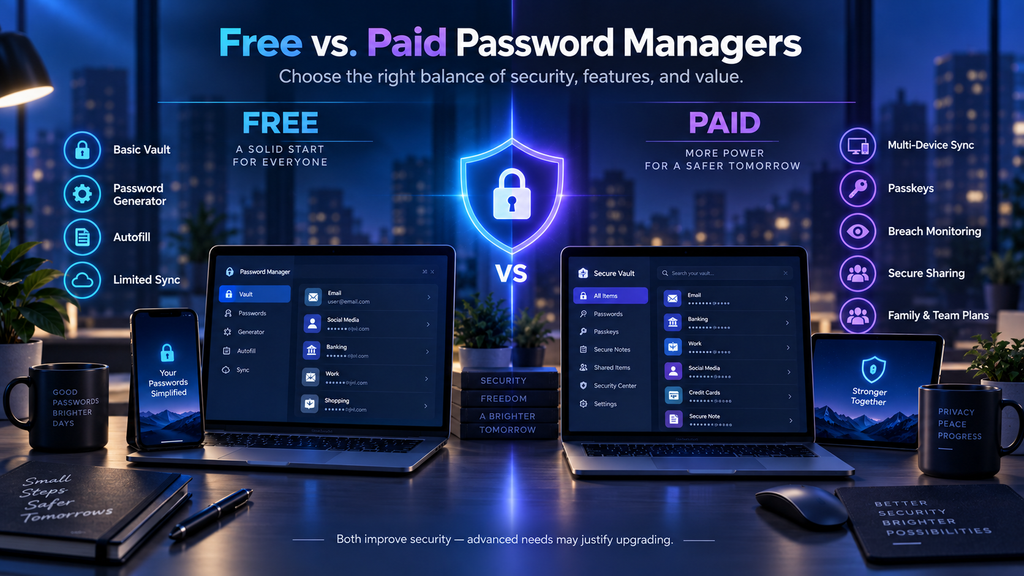
How to Choose the Best Password Manager in 2026
Choosing a password manager should not depend only on brand recognition or price. The best option is the one that matches your security needs, devices, privacy preferences, and level of technical comfort.
1. Look for Strong Encryption
A password manager should protect vault data with modern encryption and a zero-knowledge or equivalent architecture.
Strong options typically use encryption such as:
- AES-256
- XChaCha20
- ChaCha20
The important point is that passwords and other sensitive data should be encrypted before leaving your device.
2. Check Whether the Provider Uses a Zero-Knowledge Model
A zero-knowledge design means the provider should not have access to the information required to decrypt your vault.
This reduces the amount of useful data that could be exposed if the provider’s infrastructure were compromised.
However, zero-knowledge architecture also means account recovery may be more limited, so users should understand how recovery works before committing to a service.
3. Review Passkey Support
Passkeys are becoming increasingly important because they provide stronger resistance to phishing than reusable passwords.
A modern password manager should ideally support:
- Creating passkeys
- Saving passkeys
- Using passkeys
- Synchronizing passkeys across devices
- Importing or exporting passkeys where supported
Users who plan to adopt passwordless authentication should pay particular attention to passkey portability.
4. Compare Device and Browser Compatibility
Before choosing a service, confirm that it works across all the devices you actually use.
Check support for:
- Windows
- macOS
- Linux
- Android
- iOS
- Chrome
- Firefox
- Edge
- Safari
- Other Chromium-based browsers
A password manager that works perfectly on one device but poorly on another may encourage users to fall back to insecure habits.
5. Evaluate the Free Plan Carefully
Free plans vary significantly.
Some password managers provide unlimited passwords and devices for free, while others restrict:
- Device count
- Sharing
- Security reports
- Breach monitoring
- File storage
- Emergency access
Do not assume that every free plan provides the same level of functionality.
6. Compare Family and Sharing Features
If multiple people need access, compare family and sharing features carefully.
Look for:
- Separate private vaults
- Shared collections
- Secure credential sharing
- Emergency access
- Administrative controls
- Number of supported members
For households, family-plan structure can matter as much as price.
7. Consider Recovery Options
Account recovery is extremely important.
Before choosing a password manager, understand what happens if you:
- Forget the master password
- Lose your phone
- Lose a hardware security key
- Replace your computer
- Lose access to your primary email account
Some services offer emergency access or recovery mechanisms, while self-managed options such as KeePassXC place most recovery responsibility on the user.
8. Check Import and Export Options
A password manager should make it reasonably easy to move your data if you decide to switch services.
Look for support for:
- Password imports
- Password exports
- Secure credential transfer
- Passkey portability
- CSV or encrypted export formats
Avoid becoming dependent on a service that makes it unnecessarily difficult to move your credentials elsewhere.
9. Review Security Audits and Transparency
Security claims are more useful when they can be independently verified.
Look for providers that publish:
- Independent security audits
- Penetration-test information
- Open-source code
- Bug-bounty programs
- Security white papers
- Compliance documentation
Transparency does not guarantee perfect security, but it makes independent evaluation easier.
10. Consider Where Your Data Is Stored
Not every password manager uses the same storage model.
Some store encrypted vaults on company-managed cloud infrastructure.
Others allow:
- Self-hosting
- Personal cloud storage
- Local-only storage
- Private servers
- Offline databases
Users who care strongly about data location may prefer Enpass, Bitwarden self-hosting, or KeePassXC.
11. Review Breach Monitoring and Security Alerts
A password manager can do more than store passwords.
Some services can identify:
- Reused passwords
- Weak passwords
- Compromised credentials
- Exposed email addresses
- Accounts missing stronger authentication
- Sites that support passkeys
These tools can help users improve existing accounts instead of simply protecting new ones.
12. Look at Autofill Quality
Reliable autofill is one of the most important everyday features.
If autofill is slow, inaccurate, or frustrating, users may stop using the password manager consistently.
A good password manager should make it easy to:
- Save credentials
- Fill login forms
- Generate strong passwords
- Update existing passwords
- Use passkeys
- Fill payment and identity information
13. Consider Email Alias Support
Some password managers now include email-alias features.
Aliases can reduce exposure of a primary email address and help limit:
- Spam
- Tracking
- Credential-stuffing risk
- Unwanted marketing
Proton Pass is particularly strong in this area, while NordPass also offers email-masking features.
14. Review Multi-Factor Authentication Options
The password-manager account itself should be strongly protected.
Look for support for:
- Authenticator apps
- Hardware security keys
- Passkeys
- Biometrics
- Trusted-device controls
A password vault contains access to many other accounts, so protecting the vault account should be a priority.
15. Compare Price Over the Long Term
Promotional pricing can make a password manager look inexpensive initially.
Always compare:
- First-year price
- Renewal price
- Family-plan price
- Number of supported users
- Included features
- Add-on costs
A slightly more expensive plan may offer better long-term value if it includes features that would otherwise require separate subscriptions.
A Practical Rule
For most users, the best password manager is the one that combines:
- Strong encryption
- Reliable autofill
- Passkey support
- Multi-device synchronization
- Secure recovery
- Transparent security practices
- Reasonable pricing
- An interface simple enough to use every day
Technical sophistication is useful, but usability matters just as much. A password manager that is secure but too complicated to use consistently may provide less real-world protection than a simpler tool that becomes part of your daily routine.
Security and Privacy Considerations When Using a Password Manager
A password manager can significantly improve account security, but it also becomes one of the most important applications you use. Because it may contain access to dozens or hundreds of accounts, protecting the password manager itself is essential.
Use a Strong and Unique Master Password
Your master password should never be reused on another website or service.
A strong master password should be:
- Unique
- Long
- Difficult to guess
- Easy enough for you to remember
- Never shared through email, messages, or documents
A long passphrase made from several unrelated words can often provide a good balance between strength and memorability.
Enable Multi-Factor Authentication
Whenever possible, enable multi-factor authentication on the password-manager account.
Good options may include:
- Authenticator applications
- Hardware security keys
- Passkeys
- Device-based biometric authentication
Hardware security keys and passkeys can provide stronger phishing resistance than SMS-based verification.
Protect Recovery Information
Recovery codes, emergency kits, secret keys, and backup keys should be stored securely.
Do not store the only copy of recovery information inside the same password vault it is intended to recover.
Consider keeping a secure offline copy in a protected location.
Keep Devices Secure
A password manager cannot fully protect credentials if the device itself is compromised.
Keep your computer and mobile devices protected by:
- Operating-system updates
- Screen locks
- Device encryption
- Antivirus or anti-malware protection where appropriate
- Biometric authentication
- Strong device passcodes
Avoid installing unknown browser extensions or applications that could access sensitive information.
Be Careful with Browser Extensions
Password-manager browser extensions provide convenient autofill, but they also operate inside the browser environment.
Install extensions only from official stores or the password manager’s official website.
Regularly review browser extensions and remove any that you no longer use.
Do Not Approve Unexpected Login Requests
Multi-factor authentication can still be abused through approval fatigue.
If you receive an unexpected login prompt, verification notification, or device-approval request, do not approve it automatically.
Instead, check whether someone may be attempting to access your account.
Review Vault Security Regularly
Most modern password managers provide tools that can identify:
- Weak passwords
- Reused passwords
- Compromised credentials
- Old passwords
- Accounts without stronger authentication
Review these reports periodically and update high-risk accounts first.
Prefer Unique Credentials for Every Account
The main purpose of using a password manager is to eliminate password reuse.
Every important account should have a unique password or passkey.
If one service is breached, unique credentials help prevent attackers from using the same password elsewhere.
Use Passkeys Where Appropriate
Passkeys can provide stronger protection against phishing because they are tied cryptographically to legitimate websites and applications.
When a trusted service offers passkeys, consider upgrading from password-only authentication.
However, confirm that your password manager supports passkey synchronization and recovery before relying on passkeys extensively.
Understand the Tradeoff of Storing 2FA Codes in the Same Vault
Many password managers can store passwords and TOTP verification codes together.
This is convenient and still provides strong protection for many users.
However, users with highly sensitive accounts may prefer keeping second-factor codes in a separate authenticator or hardware security key to reduce reliance on a single vault.
Watch for Phishing
A password manager can help reduce phishing risk because autofill may refuse to fill credentials on a fake domain.
However, users should still inspect:
- Website addresses
- Login prompts
- Password-reset emails
- Security alerts
- Shared documents and links
Attackers increasingly use realistic phishing pages, fake support messages, and AI-generated content to imitate legitimate services.
Be Careful When Exporting Passwords
Password exports are often created in formats such as CSV.
These files may contain credentials in readable form.
If you export passwords:
- Store the file only temporarily.
- Import it into the new password manager.
- Confirm that the migration completed correctly.
- Delete the export securely.
- Empty temporary or cloud-storage copies where possible.
Never leave password-export files permanently in Downloads, email attachments, or ordinary cloud folders.
Back Up Self-Managed Vaults
Users of KeePassXC, Enpass local storage, self-hosted Bitwarden, or similar solutions must take backup responsibility seriously.
Maintain multiple encrypted backups and periodically confirm that they can be restored.
A perfectly encrypted password database is not useful if the only copy is lost.
Review Sharing Permissions
If you share credentials with family members or colleagues, periodically review who still has access.
Remove users who no longer need shared credentials and change passwords when ownership or responsibility changes.
Separate Personal and Work Credentials
Where possible, keep personal and work-related credentials separate.
Organizations may have specific policies regarding:
- Approved password managers
- Credential sharing
- Data residency
- Account recovery
- Employee offboarding
Using separate vaults or profiles can make access management easier and reduce accidental sharing.
Protect Your Email Account
Your primary email account is often used to reset passwords for other services.
Protect it with:
- A unique password
- Multi-factor authentication
- Recovery information
- Passkeys or hardware security keys where supported
Compromise of the email account can undermine the security of many other online accounts.
Privacy Matters Too
Password managers may collect some operational data even when vault contents are encrypted.
Before choosing a service, review its privacy policy and understand:
- What metadata is collected
- Where servers are located
- How telemetry is handled
- Whether analytics are optional
- Whether the provider sells or shares data
- How account deletion works
Strong encryption protects vault contents, but privacy policies determine how other account information is handled.
The Most Important Security Habit
A password manager is most effective when combined with good security habits.
Use unique credentials, enable strong authentication, keep software updated, maintain recovery information, and remain cautious about phishing.
The goal is not simply to store passwords. It is to create a security system that remains usable, recoverable, and resilient even when one account or device is targeted.
Frequently Asked Questions About Password Managers in 2026
Are password managers safe to use?
A well-designed password manager can significantly improve account security by helping users create and store unique credentials for every account.
Reputable password managers use strong encryption, local encryption and decryption, and zero-knowledge or similar architectures designed to prevent the provider from reading vault contents.
No system is risk-free, so users should still protect the password-manager account with a strong master password, multi-factor authentication, secure recovery information, and trusted devices.
What happens if a password manager is hacked?
If a password-manager provider experiences a security breach, attackers may obtain encrypted data or account metadata.
Strong encryption is designed to make encrypted vault contents unusable without the user’s decryption keys.
The real level of protection depends on factors such as the encryption design, the strength of the master password, key-derivation settings, and whether the user has enabled additional authentication.
This is why choosing a provider with transparent security practices and independent audits is important.
Is it safe to store all passwords in one place?
Storing passwords in one encrypted vault creates a single point of concentration, but it also makes it practical to use a unique password for every account.
For most users, the benefits of avoiding password reuse are substantial.
The key is to protect the vault itself with strong authentication and recovery practices.
Which password manager is best for free use?
Bitwarden and Proton Pass are among the strongest free options in this comparison because they provide substantial functionality without requiring an immediate subscription.
KeePassXC is also completely free and open source, although users must manage their own synchronization and backups.
The best free option depends on whether you prefer convenience, privacy features, or complete local control.
Which password manager is best for families?
Several services provide family plans.
1Password focuses on a polished family-sharing experience, Keeper provides strong family-security features and encrypted storage, Bitwarden offers good value for multiple users, and Dashlane supports a relatively large number of family accounts.
The best choice depends on how many users you need, whether you want shared vaults, and which premium features matter most.
Which password manager is best for privacy?
Proton Pass is especially attractive to privacy-focused users because it combines password management with hide-my-email aliases and the broader Proton privacy ecosystem.
Enpass and KeePassXC may also appeal to users who want more control over where encrypted vault data is stored.
Which password manager is best for open-source users?
Bitwarden and KeePassXC are the strongest open-source options in this comparison.
Bitwarden provides a managed cloud service with optional self-hosting, while KeePassXC focuses on a locally managed encrypted database.
Are passkeys better than passwords?
Passkeys can provide stronger phishing resistance because they use public-key cryptography and are tied to the legitimate website or application.
They cannot be reused across unrelated services in the same way as passwords.
However, passkeys still require secure device access, synchronization, and recovery mechanisms.
A modern password manager can help users manage both passwords and passkeys during the transition toward passwordless authentication.
Should I store passkeys in a password manager?
For many users, storing passkeys in a trusted password manager can make them easier to use across multiple devices.
Before relying heavily on passkeys, check whether the password manager supports:
- Passkey creation
- Synchronization
- Backup
- Sharing where appropriate
- Import and export
- Secure account recovery
Passkey portability is improving, but support still varies between platforms and providers.
Should I store two-factor authentication codes in my password manager?
Storing TOTP codes in the same password manager as passwords is convenient and can still provide strong protection for many users.
However, highly security-sensitive users may prefer a separate authenticator application or hardware security key so that the password and second factor are not stored in the same place.
Can password managers work offline?
Some can.
KeePassXC is designed around local storage and works without a cloud account.
Enpass can also operate using local or privately managed storage.
Cloud-first services generally keep a local encrypted copy of the vault so that previously synchronized credentials may remain available offline, although exact behavior varies by provider.
Can I use a password manager on multiple devices?
Yes, most modern password managers support synchronization across multiple devices.
However, free-plan restrictions differ.
Bitwarden and Proton Pass offer particularly flexible free multi-device use, while some competitors reserve full multi-device access for paid subscribers.
Is a free password manager secure enough?
A free password manager can be secure enough if it uses strong encryption, supports secure authentication, and provides the features you need.
Paying for a subscription does not automatically make encryption stronger.
Paid plans usually add convenience features such as family sharing, breach monitoring, encrypted storage, recovery options, and premium support.
What is the difference between a password manager and a browser password manager?
Browser password managers are integrated directly into browsers or operating systems, making them convenient for users who stay within one ecosystem.
Dedicated password managers often provide broader cross-platform compatibility, advanced sharing, security reports, emergency access, self-hosting, or privacy features.
Apple Passwords sits somewhere between these two models because it is deeply integrated into Apple devices while also providing a dedicated application and Windows access.
Can password managers be used for business accounts?
Yes, many password-manager providers offer dedicated business products with features such as:
- User provisioning
- Role-based access
- Shared vaults
- Security policies
- Administrative controls
- Audit logs
- Single sign-on integration
- Employee offboarding
Business credentials should generally be managed according to the organization’s approved security policies rather than through an employee’s personal password-manager account.
What happens if I forget my master password?
The answer depends on the provider.
Some services offer account-recovery mechanisms, emergency access, recovery keys, or family-administrator recovery.
Others, especially self-managed solutions, may provide little or no recovery if the master password and backup credentials are lost.
Before choosing a password manager, understand exactly how recovery works and store any required recovery information securely.
Should I switch from browser-saved passwords to a dedicated password manager?
A dedicated password manager may be worthwhile if you use multiple browsers or operating systems, need family sharing, want advanced security monitoring, or prefer stronger control over where credentials are stored.
Users who remain within a single ecosystem and need only basic credential management may find built-in tools sufficient.
How often should I change my passwords?
Passwords do not need to be changed on a fixed schedule simply because time has passed.
They should be changed when there is evidence or reasonable suspicion that they have been exposed, reused, shared insecurely, or compromised.
The better long-term strategy is to use unique credentials, enable multi-factor authentication, and respond quickly to breach alerts.
Can a password manager protect me from phishing?
A password manager can reduce phishing risk because autofill may recognize the legitimate domain and refuse to fill credentials on a look-alike website.
Passkeys provide even stronger phishing resistance because authentication is cryptographically tied to the legitimate service.
However, users still need to be cautious about fake login pages, social-engineering messages, malicious attachments, and fraudulent support requests.
Is it difficult to switch password managers?
Moving traditional passwords is usually straightforward because most services support importing and exporting credentials.
However, migration can become more complicated for:
- Passkeys
- Secure notes
- File attachments
- Shared vaults
- TOTP codes
- Custom fields
Newer credential-exchange standards are making migration easier, but users should confirm what data can be transferred before switching.
Which password manager should I choose in 2026?
The best choice depends on your priorities.
For premium convenience, 1Password is strong. For open-source value, Bitwarden stands out. Proton Pass is attractive for privacy, Dashlane for security extras, NordPass for simplicity, Keeper for advanced family features, RoboForm for autofill, Enpass for storage control, Apple Passwords for Apple-centric users, and KeePassXC for maximum local control.
The most important requirement is choosing a service you will actually use consistently across all of your important accounts.
Final Thoughts
Password managers have become essential security tools in 2026 because they make it practical to use unique credentials across dozens or hundreds of accounts while also supporting newer authentication methods such as passkeys.
The best option depends on what matters most to you.
1Password provides a polished premium experience, Bitwarden offers excellent open-source value, Proton Pass focuses strongly on privacy, Dashlane adds broader security features, NordPass emphasizes simplicity, Keeper provides advanced family protection, RoboForm excels at autofill, Enpass gives users more control over vault storage, Apple Passwords integrates deeply with Apple devices, and KeePassXC offers maximum local control.
For most users, the most important factors are strong encryption, reliable autofill, passkey support, secure recovery, multi-device access, and an interface that is easy enough to use every day.
Whichever password manager you choose, protect the vault itself with strong authentication, keep recovery information secure, enable multi-factor authentication where available, and avoid reusing passwords across different accounts.
A password manager should not only store credentials. It should make stronger security habits easier to maintain.
Sources and Further Reading
- 1Password — Passkeys and Passwordless Authentication
- Bitwarden — Password Manager Plans, Features, and Pricing
- Proton Pass — Plans, Privacy Features, and Passkey Support
- Dashlane — Passkey Sharing, Import, Export, and Credential Exchange
- NordPass — Security Architecture and Encryption
- Keeper — Password Manager Security Architecture
- RoboForm — Password Manager Security
- Enpass — Creating and Storing Passkeys
- Apple — Passwords App, Passkeys, and Credential Sharing
- KeePassXC — User Guide, Browser Integration, and Passkeys





Comments 1