

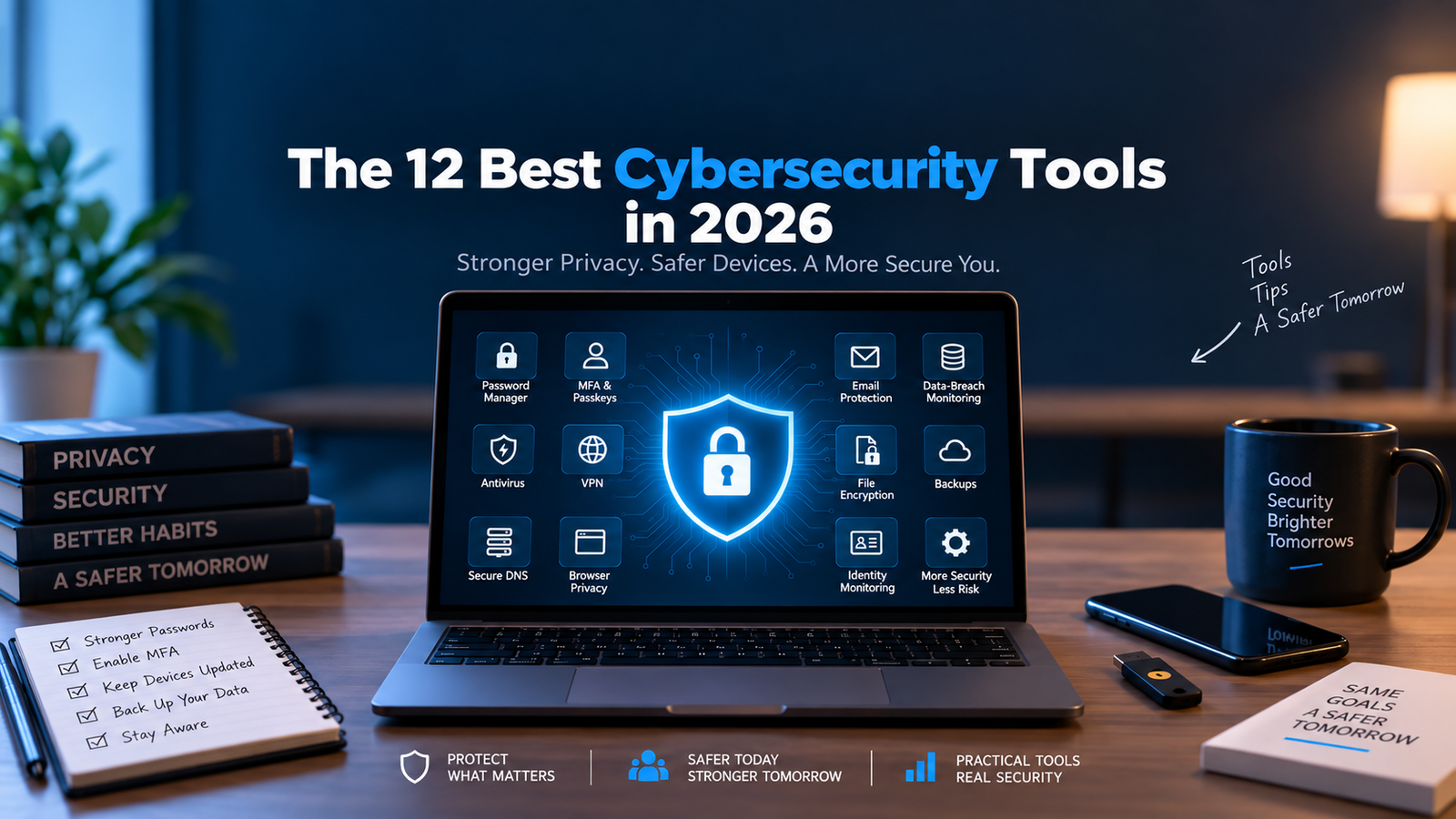
Protecting your digital life in 2026 requires more than installing a single antivirus program. Personal cybersecurity now involves protecting passwords, online accounts, devices, internet connections, personal information, and sensitive files from phishing, malware, account takeovers, data breaches, identity theft, and other online threats.
The good news is that effective protection does not need to be complicated. A small collection of carefully chosen cybersecurity tools can significantly reduce everyday risks while making secure habits easier to maintain.
In this guide, we examine 12 essential cybersecurity tools for personal protection in 2026. We look at what each type of tool protects, who benefits from it, what features matter most, and when free protection may be sufficient compared with a paid service.
The goal is not to install as many security applications as possible. Instead, the best cybersecurity tools in 2026 are the ones that work together to protect the most important parts of your digital life without creating unnecessary complexity.
Best Cybersecurity Tools in 2026: Quick Overview
A strong personal cybersecurity setup should cover several different layers of protection. No single security product can protect every account, device, connection, and piece of personal information.
The right combination depends on how you use technology. Someone who mainly browses the web and uses email may need a simpler setup, while users who manage financial accounts, cloud files, remote work systems, multiple devices, or valuable online accounts may benefit from stronger protection across several layers.
The 12 security areas covered in this guide include:
Table of Contents
1. Password Managers — Foundation of Account Security
A password manager is one of the most valuable cybersecurity tools for personal protection because many successful account attacks begin with weak, reused, or exposed passwords. Instead of trying to remember dozens of credentials, a password manager stores them in an encrypted vault and can generate strong, unique passwords for each account.
The biggest security advantage is password uniqueness. If the same password is reused across several websites and one service suffers a data breach, attackers may try the exposed credentials on email accounts, shopping sites, social networks, cloud storage, and financial services. Using a different randomly generated password for every account significantly reduces this risk.
Modern password managers can also make secure behavior easier. Browser extensions and mobile apps can automatically fill credentials on saved websites, reducing the temptation to use short or memorable passwords. Many services also include password generators, security alerts, breach monitoring, secure notes, credential sharing, and support for passkeys.
Popular options include 1Password, Bitwarden, Proton Pass, Apple Passwords, and Google Password Manager. The best option depends on the devices and ecosystems you already use.
1Password is particularly suitable for users who want polished cross-platform apps, family sharing, organized vaults, security alerts, and strong protection across computers and mobile devices. Its security architecture uses end-to-end encryption, and its Watchtower feature can alert users to compromised or vulnerable credentials.
Bitwarden is another strong option, particularly for users who value open-source transparency, broad device support, and flexible free and paid plans. It encrypts vault information on the user’s device before synchronized data is stored on its servers.
Proton Pass may appeal to users already using Proton services or those who place a high priority on privacy. Meanwhile, Apple Passwords and Google Password Manager can provide convenient password and passkey management for people who primarily remain inside Apple or Google ecosystems.
What to Look for in a Password Manager
A good password manager should provide more than simple password storage. Important features include:
- End-to-end or zero-knowledge encryption
- Strong password generation
- Automatic password filling
- Support for multiple devices and browsers
- Multi-factor authentication for the password-manager account
- Passkey support
- Breach or compromised-password alerts
- Secure account recovery options
- Easy importing and exporting of credentials
- Family or trusted-person sharing when needed
The security of the password manager itself is also important. Your vault is protected by one primary account credential, so the master password or account password should be long, unique, and never reused anywhere else.
Where supported, enable multi-factor authentication on the password-manager account. Users with higher security requirements may also consider protecting the account with a hardware security key.
Browser Password Managers vs. Dedicated Password Managers
Built-in password managers from Apple, Google, Microsoft, and major browsers have improved significantly and may be sufficient for many users. They are especially convenient when someone primarily uses devices from one ecosystem.
A dedicated password manager can become more useful when you regularly switch between Windows, macOS, Android, iPhone, multiple browsers, or several family devices. Dedicated services may also provide more advanced vault organization, secure sharing, security reports, emergency access, and administrative controls.
The important point is not whether the password manager is built into a browser or provided by a separate company. The goal is to make sure every important account uses a strong, unique credential that you do not have to memorize or reuse.
Best for: Almost everyone with multiple online accounts.
Key strengths: Strong unique passwords, encrypted credential storage, autofill, password generation, breach alerts, and easier account management.
Consider before choosing: Device compatibility, recovery options, family sharing, passkey support, subscription cost, and whether you prefer an ecosystem-integrated or independent password manager.
For most users, adopting a reliable password manager is one of the simplest changes that can produce a major improvement in everyday cybersecurity.
2. Multi-Factor Authentication — Stronger Protection Beyond Passwords
Multi-factor authentication, commonly called MFA, adds an additional layer of protection to an online account by requiring more than one type of proof before access is granted. Instead of relying only on a password, MFA may combine something you know, something you have, or something you are.
Typical authentication factors include:
- A password or PIN
- A code generated by an authenticator app
- A physical security key
- A trusted device
- A fingerprint or facial recognition
- A passkey stored on a phone or computer
The main advantage of MFA is that a stolen password alone is often no longer enough to access the account. If an attacker obtains a password through phishing, credential stuffing, malware, or a data breach, the second authentication factor can prevent the login from succeeding.
Authenticator Apps vs. SMS Codes
Not all MFA methods provide the same level of protection.
SMS verification is still better than using only a password, but text-message codes can be exposed to risks such as SIM-swapping, social engineering, or phishing. One-time codes from authenticator apps generally provide stronger protection because they do not depend on the mobile network.
Popular authenticator options include Google Authenticator, Microsoft Authenticator, 2FAS, and built-in authentication features available in some password managers.
However, one-time codes still require users to manually enter a temporary code. That means a convincing phishing website may potentially trick someone into entering both a password and the temporary code.
For accounts that support stronger authentication, passkeys and hardware security keys can provide better resistance to phishing because authentication is cryptographically tied to the legitimate website rather than relying on a code that users manually type.
Which Accounts Should Have MFA Enabled?
MFA should be enabled wherever it is available, but it is especially important for accounts that can be used to reset passwords, access financial information, or expose sensitive personal data.
Prioritize MFA for:
- Primary email accounts
- Password managers
- Banking and financial services
- Apple, Google, or Microsoft accounts
- Cloud storage
- Social media accounts
- Shopping accounts that store payment information
- Work and university accounts
- Domain registrars and website administration accounts
- Cryptocurrency or investment accounts
Your email account deserves particular attention because password-reset messages for many other services are often delivered there. If an attacker gains control of the primary email account, they may be able to compromise several additional accounts.
Protect Your MFA Recovery Options
Enabling MFA is only part of the process. Recovery methods should also be protected carefully.
Many services provide backup or recovery codes when MFA is enabled. Store these codes somewhere secure rather than keeping the only copy on the same phone used for authentication.
A password manager can be a convenient place to store recovery information, while users with higher security requirements may keep an additional offline copy in a secure physical location.
It is also worth reviewing old phone numbers, unused trusted devices, and outdated recovery email addresses. Leaving an abandoned recovery method connected to an important account can weaken otherwise strong authentication.
Best for: Protecting important online accounts even if a password is compromised.
Key strengths: Adds another barrier to account takeover, reduces reliance on passwords alone, and is widely supported by major online services.
Consider before choosing: Prefer stronger authentication methods when available. Authenticator apps are generally preferable to SMS codes, while passkeys or hardware security keys can provide stronger phishing resistance for sensitive accounts.
For most users, enabling MFA on email, password-manager, financial, cloud, and social accounts is one of the highest-value cybersecurity improvements they can make.
3. Passkeys and Hardware Security Keys — Phishing-Resistant Account Protection
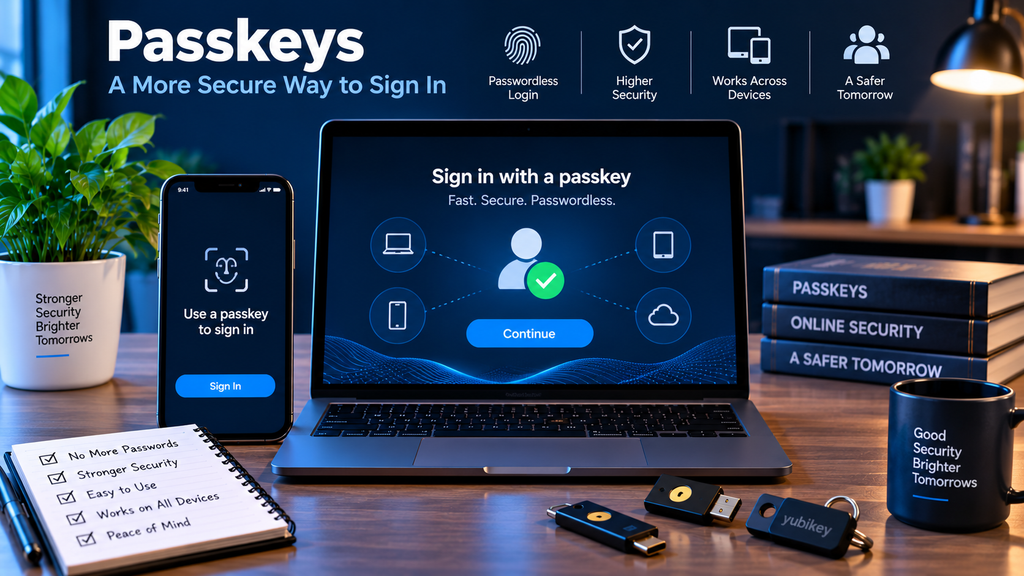
Passkeys and hardware security keys provide some of the strongest protection available for personal online accounts because they replace or strengthen traditional password-based authentication with cryptographic credentials that are resistant to phishing.
A passkey uses public-key cryptography instead of a reusable password. The private credential remains protected on the user’s device or security key, while the online service stores only the corresponding public key. Because there is no password to type into a website, attackers cannot simply steal the credential through a fake login page.
Passkeys are supported across major operating systems, browsers, and many online services. Users can typically authenticate with a fingerprint, face recognition, device PIN, or screen lock rather than remembering and typing a password. FIDO Alliance describes passkeys as phishing-resistant by design and notes that both synchronized and device-bound passkeys can protect users from credential theft and phishing attacks.
Synced Passkeys vs. Device-Bound Passkeys
There are two common ways passkeys are stored.
Synced passkeys can be securely synchronized across trusted devices through platforms or credential providers. This makes them convenient for everyday users because a passkey created on one device may also become available on another trusted device.
Device-bound passkeys remain attached to a specific physical authenticator, such as a hardware security key. These are particularly useful for users who need stronger assurance that authentication credentials cannot be copied or synchronized elsewhere.
Hardware-backed device-bound passkeys generally provide the highest level of assurance because the private key remains inside the physical security key. Microsoft also notes that FIDO2 security keys keep the private key on the authenticator and provide strong protection against remote phishing attacks.
What Is a Hardware Security Key?
A hardware security key is a small physical authentication device that may connect through USB, NFC, or other supported interfaces.
Examples include products from vendors such as Yubico, Google Titan, and other FIDO-certified security-key manufacturers.
When signing in, the user may insert or tap the key and complete a local verification step. Because the key communicates directly with the legitimate website using FIDO2/WebAuthn protocols, a fake phishing site cannot successfully use the credential for the real service.
Hardware security keys are especially useful for:
- Primary email accounts
- Password managers
- Administrator accounts
- Developer and cloud accounts
- Financial or investment accounts
- Domain registrar accounts
- Business or university accounts
- Accounts belonging to users at elevated risk of targeted attacks
Google’s Advanced Protection Program, for example, uses passkeys or security keys as part of its strongest account-protection option for users at higher risk of targeted attacks.
Why Passkeys Are Stronger Against Phishing
Traditional passwords and one-time authentication codes can be entered into a fraudulent website by mistake. Passkeys work differently because authentication is tied cryptographically to the legitimate website or service.
FIDO classifies passkeys as phishing-resistant, while passwords and manually entered one-time codes remain susceptible to phishing. This means that even a convincing fake login page cannot simply capture and reuse a passkey in the same way it can steal a password or OTP code.
Google similarly explains that passkeys cannot be copied, written down, or accidentally handed to a phishing site in the same way passwords can.
Use Backup Authentication Carefully
Strong authentication is only as secure as the recovery process surrounding it.
If an account supports passkeys but still allows weak password-based recovery or insecure fallback methods, attackers may attempt to bypass the passkey by targeting the recovery process instead.
For important accounts:
- Register more than one trusted passkey or security key when possible.
- Keep a backup security key in a secure location.
- Review account-recovery email addresses and phone numbers.
- Remove old devices that are no longer used.
- Store recovery codes securely.
- Avoid leaving weaker recovery methods enabled unnecessarily.
For users with higher security requirements, using two hardware security keys can be practical: one for everyday use and one stored securely as a backup.
Best for: Important accounts, users at higher risk of phishing, administrators, professionals, and anyone who wants stronger protection than passwords and temporary codes alone.
Key strengths: Strong phishing resistance, no reusable password to steal, cryptographic authentication, broad platform support, and compatibility with modern FIDO2/WebAuthn services.
Consider before choosing: Check whether your important services support passkeys or FIDO2 security keys, whether you need cross-device synchronization, and how you will recover access if a device or key is lost.
For many users, passkeys are becoming the preferred modern authentication method. For highly sensitive accounts, a hardware security key provides an additional level of control and protection.
4. Antivirus and Anti-Malware Protection — Defending Devices from Malicious Software
Antivirus and anti-malware software remain important parts of personal cybersecurity in 2026 because malicious software continues to target computers through downloads, email attachments, compromised websites, fake applications, malicious documents, and software vulnerabilities.
Modern protection goes far beyond detecting traditional computer viruses. Security products may now monitor files, applications, browser activity, suspicious behavior, ransomware activity, malicious websites, potentially unwanted applications, and other indicators of compromise.
Is Built-In Windows Security Enough?
For many Windows users, the built-in Windows Security platform provides a strong baseline of protection. Microsoft Defender Antivirus is integrated directly into Windows and provides real-time malware scanning, behavior monitoring, cloud-delivered protection, firewall management, and additional security features through the Windows Security app.
Microsoft states that Defender Antivirus continuously monitors devices for viruses, malware, spyware, and other threats, while Windows Security also includes tools such as Windows Firewall and Smart App Control.
Independent testing also continues to evaluate Microsoft Defender alongside commercial security products. AV-TEST included Microsoft Defender Antivirus Consumer in its 2026 Windows 11 home-security evaluations, showing that built-in protection remains part of the current competitive antivirus landscape.
For users who keep Windows, browsers, and applications updated and practice careful browsing habits, Microsoft Defender may provide sufficient everyday protection without requiring an additional paid antivirus subscription.
When a Dedicated Security Suite May Be Useful
A third-party security product may provide additional value when users want features beyond basic malware protection.
Depending on the product, additional features may include:
- Advanced ransomware protection
- Malicious website blocking
- Exploit protection
- Identity monitoring
- Password management
- Parental controls
- VPN services
- Email protection
- Dark-web monitoring
- Multi-device management
Products from vendors such as Bitdefender, ESET, Norton, Malwarebytes, F-Secure, Avast, and others offer different combinations of these capabilities.
However, users should avoid assuming that installing multiple real-time antivirus products automatically provides better protection. Running several security programs that perform the same low-level monitoring can sometimes create compatibility problems or reduce system performance.
Microsoft notes that Defender Antivirus automatically disables itself when another compatible antivirus application is installed and active.
Malwarebytes also warns that running its application alongside another antivirus product can sometimes cause conflicts, including software interference or connectivity problems, depending on the configuration.
Real-Time Protection vs. On-Demand Scanning
Real-time protection continuously watches activity while the computer is being used. It can inspect files when they are opened, downloaded, or executed and respond when suspicious activity is detected.
This should generally remain enabled.
On-demand scanners are different. They can be useful when you suspect a device may already be infected or when you want an additional manual check.
For example, Malwarebytes offers free scanning capabilities, while some of its continuous real-time protections require a paid plan.
This means an on-demand scanner can be useful as a secondary diagnostic tool without necessarily replacing the primary real-time antivirus solution.
Keep Security Software Updated
Antivirus software is most effective when the operating system, browser, applications, and security engine are all current.
Attackers frequently exploit outdated software, and security products depend on updated detection systems, cloud intelligence, behavior models, and application patches to recognize emerging threats.
Users should therefore:
- Enable automatic operating-system updates
- Keep browsers updated
- Update installed applications regularly
- Leave antivirus definition and engine updates enabled
- Remove unsupported software
- Avoid downloading cracked or untrusted applications
- Scan suspicious files before opening them
- Treat unexpected attachments and downloads cautiously
Antivirus Is Not a Replacement for Safe Behavior
Even strong antivirus software cannot prevent every type of cyberattack.
Phishing attacks may attempt to steal passwords without installing malware. Fake support calls may persuade users to provide remote access voluntarily. Account takeovers may occur because of reused credentials rather than malicious software.
Antivirus should therefore be treated as one layer in a broader security strategy that also includes password management, multi-factor authentication, secure browsing, backups, and phishing awareness.
Best for: Protecting computers and devices against malware, ransomware, malicious downloads, and suspicious software behavior.
Key strengths: Real-time scanning, behavior monitoring, malicious-file detection, ransomware protection, and web-threat blocking.
Consider before choosing: Built-in Windows protection may be sufficient for many users. Paid security suites are most useful when their additional features solve a real need rather than simply duplicating protection already present on the device.
For most users, one well-maintained real-time security solution combined with regular updates and careful online behavior provides a stronger setup than installing several overlapping antivirus programs.
5. VPN Protection for Untrusted Networks
A virtual private network, or VPN, creates an encrypted tunnel between your device and a VPN server. This can be useful when connecting through public or otherwise untrusted networks because it reduces the amount of traffic that local network operators or nearby attackers can inspect directly.
VPNs are particularly useful for remote work, travel, hotels, airports, cafés, shared networks, and situations where users do not fully trust the network they are connected to.
However, a VPN should be viewed as one security layer rather than a complete privacy or cybersecurity solution.
What a VPN Actually Protects
When a VPN is active, internet traffic between your device and the VPN server is encrypted. This makes it more difficult for someone on the same local network to monitor or interfere with that traffic.
NIST describes VPN technologies as a way to provide secure remote access by protecting communications across public infrastructure with authentication and encryption.
A VPN can therefore help with:
- Protecting traffic on untrusted networks
- Reducing exposure to local network monitoring
- Securing remote connections to business systems
- Hiding your public IP address from websites behind the VPN server’s address
- Creating an additional encrypted layer between your device and the VPN provider
Public Wi-Fi Is Safer Than It Used to Be
It is important not to exaggerate the danger of public Wi-Fi.
Today, most reputable websites use HTTPS, which already encrypts information between the browser and the website. The U.S. Federal Trade Commission notes that widespread HTTPS adoption means public Wi-Fi is generally safer than it was in the past.
That means a VPN is not always required simply because you are connected to a coffee-shop or airport network.
However, risks still exist. Users can connect to fake hotspots, misconfigured networks, or networks operated by untrusted parties. CISA recommends using an authorized VPN or secure remote-access solution when accessing sensitive organizational resources over public connections.
A VPN Does Not Make You Anonymous
One of the most common misunderstandings is that a VPN makes someone completely anonymous online.
It does not.
A VPN changes which party can see certain parts of your traffic. Instead of the local internet provider or Wi-Fi operator seeing your destination traffic directly, the VPN provider becomes an important intermediary.
Websites may still identify users through:
- Account logins
- Browser cookies
- Device fingerprinting
- Advertising identifiers
- Tracking scripts
- Payment information
- Email addresses
- Social-media accounts
Therefore, choosing a trustworthy VPN provider matters.
What to Look for in a VPN
A good consumer VPN should offer:
- Modern encryption protocols
- Clear privacy policies
- Independent security audits where available
- Reliable applications for your devices
- A kill switch
- DNS leak protection
- Strong account security
- Multi-device support
- Transparent ownership and jurisdiction information
- Reliable performance
Common modern protocols include WireGuard, OpenVPN, and IKEv2/IPsec, depending on the service and device.
Users should be cautious with unknown free VPN services. Operating a VPN network costs money, and some free services may monetize users through advertising, data collection, restrictive limits, or other business models.
VPNs for Remote Work
VPNs remain particularly important in business environments because they can provide authenticated remote access to internal systems.
Organizations may require employees to use a corporate VPN before accessing internal resources, administrative tools, file servers, or applications that are not exposed directly to the public internet.
In these situations, users should follow the organization’s approved VPN configuration rather than installing a personal consumer VPN as a substitute.
When a VPN Is Most Useful
Consider using a VPN when:
- Connecting to unfamiliar or untrusted Wi-Fi
- Traveling and using hotel or airport networks
- Accessing company systems remotely
- Your organization requires encrypted remote access
- You want to reduce exposure of your public IP address
- You want an additional privacy layer from your local internet provider
A VPN is less important for basic web browsing on trusted networks when HTTPS is already protecting the connection, although some users may still prefer one for privacy reasons.
What a VPN Cannot Protect You From
A VPN does not automatically stop:
- Phishing websites
- Malware
- Weak passwords
- Account takeovers
- Malicious downloads
- Tracking after you log into an account
- Social engineering
- Data breaches at online services
For example, if a user enters credentials into a fake banking website, the VPN will securely encrypt the connection to the phishing site. It cannot determine that the user is voluntarily giving information to an attacker.
This is why VPN protection should be combined with password management, MFA, browser security, antivirus protection, and safe browsing habits.
Best for: Public or untrusted networks, travel, remote work, and users who want an additional layer of network privacy.
Key strengths: Encrypts traffic to the VPN server, protects against some forms of local network monitoring, supports secure remote access, and hides the user’s direct public IP address from destination websites.
Consider before choosing: A VPN transfers trust from the local network or internet provider to the VPN provider. Choose a reputable service, read its privacy policy, and avoid treating a VPN as a substitute for HTTPS, antivirus, MFA, or phishing awareness.
For most users, a VPN is useful in specific situations rather than something that automatically solves every online privacy or security problem.
6. Secure DNS and Web Filtering — Blocking Dangerous Domains Earlier
The Domain Name System, or DNS, is often described as the internet’s address book. When you enter a website name, DNS helps your device find the IP address required to connect to that service.
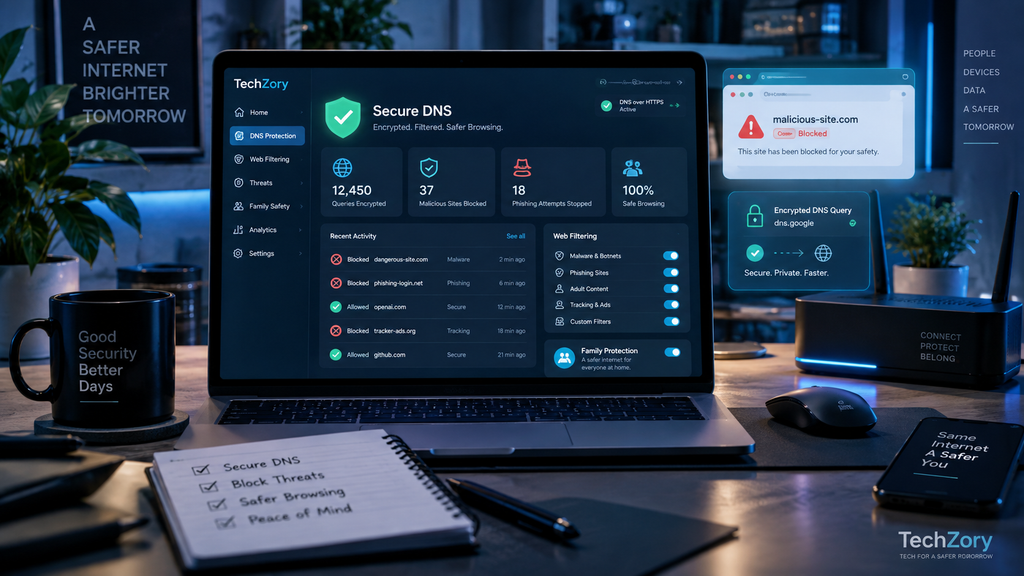
Because DNS requests occur before many internet connections begin, DNS can also provide an additional layer of cybersecurity. Secure DNS can protect the confidentiality of DNS lookups, while filtered or protective DNS services can prevent devices from connecting to domains that are known to distribute malware, host phishing pages, or support other malicious activity.
Encrypted DNS and DNS Filtering Are Not the Same Thing
These two features are related but serve different purposes.
Encrypted DNS uses technologies such as DNS over HTTPS (DoH) or DNS over TLS (DoT) to encrypt DNS queries between your device and the DNS resolver. This makes it more difficult for parties between you and the resolver to monitor or modify the domain names your device is requesting.
DNS filtering, on the other hand, checks requested domains against security intelligence and blocks domains classified as malicious.
A DNS provider may support encryption without filtering, filtering without a particular encrypted configuration, or both.
For the strongest practical setup, users can choose a reputable resolver that supports both encrypted DNS and security-based domain filtering.
How Protective DNS Can Reduce Risk
Many malicious activities require a device to contact an attacker-controlled domain.
For example, a phishing link may send a user to a fraudulent login page, malware may attempt to contact a command-and-control server, or a compromised application may try to download additional malicious files.
A protective DNS resolver can block the connection if the requested domain is already recognized as dangerous.
This creates an additional defensive layer before the browser or application successfully connects to the destination.
Examples of Security-Focused DNS Services
Several public DNS providers offer security-focused options.
Quad9 provides a threat-blocking DNS service that uses multiple threat-intelligence sources to identify malicious domains. When a blocked domain is requested, the resolver prevents the device from receiving the normal destination address.
Cloudflare 1.1.1.1 for Families provides a malware-filtering option that can block domains associated with malware and phishing. Cloudflare also supports encrypted DNS through DoH and DoT.
Other DNS security services may provide additional capabilities such as:
- Malware and phishing blocking
- Adult-content filtering
- Custom allow and block lists
- Tracking protection
- Parental controls
- Security reporting
- Device-specific policies
- Business network controls
The best choice depends on whether the goal is simply encrypted DNS, security filtering, family filtering, or more advanced policy management.
Configure Secure DNS on the Device or Router
Secure DNS can often be configured directly in modern browsers, operating systems, mobile devices, or home routers.
Configuring it at the router level can protect many devices on the home network automatically, including devices that may not offer their own DNS settings.
Configuring it directly on a laptop or smartphone, however, can provide protection when that device leaves the home network and connects elsewhere.
Modern browsers such as Chrome, Edge, Firefox, and Brave also support secure DNS options that can use DNS over HTTPS.
DNS Filtering Has Important Limitations
DNS filtering is useful, but it should not be treated as a complete web-security solution.
A DNS service primarily makes decisions based on domain names. It may not be able to distinguish between a safe and malicious page hosted under the same permitted domain.
It also cannot reliably stop every new phishing or malware domain before threat-intelligence providers discover and classify it.
False positives are possible as well. A legitimate domain may occasionally be blocked incorrectly, while a newly created malicious domain may temporarily remain accessible.
For these reasons, DNS filtering should complement rather than replace browser protections, antivirus software, MFA, phishing awareness, and safe browsing habits.
Encrypted DNS Does Not Hide All Internet Activity
DoH and DoT protect DNS queries from being read in transit between the device and the selected DNS resolver.
However, encrypted DNS does not make a user anonymous and does not encrypt all network traffic.
Websites can still identify users through accounts, cookies, device characteristics, and other mechanisms. Network connections also expose information beyond the DNS lookup itself.
If users require broader network encryption, a VPN serves a different purpose by encrypting more of the device’s traffic to the VPN server.
Consider Who You Trust as Your DNS Provider
Changing DNS providers shifts part of the trust relationship from the internet service provider to the chosen DNS resolver.
Before selecting a provider, consider:
- Privacy and data-retention policies
- Security practices
- Support for encrypted DNS
- Malware and phishing filtering
- Independent audits or transparency information
- Reliability and geographic availability
- Whether filtering can be customized
- How incorrectly blocked domains can be reported
Users should avoid choosing a resolver solely because it promises faster browsing. Security, privacy, transparency, and reliability are equally important.
Best for: Adding an extra layer of protection against known phishing, malware, and dangerous domains while improving DNS privacy.
Key strengths: Can block dangerous domains before a connection is completed, supports network-wide protection, and can encrypt DNS queries through DoH or DoT.
Consider before choosing: Encrypted DNS and filtered DNS solve different problems. Look for a trustworthy service that provides the combination of privacy and threat protection you actually need.
Secure DNS is not a replacement for other cybersecurity tools, but it is a relatively simple layer that can quietly prevent some dangerous connections before they ever reach the browser or application.
7. Browser Privacy and Anti-Tracking Protection
The web browser is one of the most exposed applications on any personal device. It handles websites, downloads, logins, cookies, advertising scripts, embedded content, extensions, and large amounts of personal browsing data.
For this reason, browser privacy and anti-tracking protection should be considered an important layer of personal cybersecurity.
Modern browsers increasingly include built-in protections that can block known trackers, restrict cross-site cookies, isolate website data, warn about dangerous pages, and reduce the amount of information advertisers and tracking networks can collect while users move across the web.
Why Cross-Site Tracking Matters
Many websites contain scripts, advertising systems, analytics tools, and embedded content operated by third parties.
If the same third-party tracker appears across many websites, it may be able to build a profile of browsing behavior over time, including:
- Websites visited
- Interests
- Search behavior
- Advertising interactions
- Shopping activity
- Approximate location
- Device characteristics
Blocking or isolating cross-site trackers reduces how easily unrelated websites can combine browsing activity into a larger profile.
Use the Browser’s Built-In Tracking Protection
Modern browsers now provide significant privacy protections without requiring additional software.
Firefox Enhanced Tracking Protection blocks known tracking technologies and includes Total Cookie Protection, which isolates cookies by website so they cannot easily be used to follow users from one site to another.
Mozilla states that cross-site tracking cookies are blocked by default and that Total Cookie Protection gives each website its own separate cookie storage.
Brave Shields takes a more aggressive default approach by blocking trackers, cross-site cookies, fingerprinting techniques, and other unwanted page elements. Brave enables Shields automatically on websites while still allowing users to adjust protection when a page does not work correctly.
Other major browsers also provide privacy, cookie, tracking, and security controls, so users should review the settings available on the browser they already use before installing additional privacy tools.
Privacy Protection Can Occasionally Break Websites
Blocking trackers and third-party resources can sometimes prevent legitimate website features from working.
Examples may include:
- Sign-in buttons
- Embedded videos
- Payment systems
- Shopping carts
- Social login options
- Comments
- Interactive widgets
Firefox, for example, maintains compatibility exceptions for situations where blocking a tracking-related resource would otherwise break an important website feature. These exceptions do not necessarily disable all protection for the site.
If a website stops functioning after stronger privacy protection is enabled, temporarily relaxing protection for that specific site is usually better than disabling tracking protection globally.
Private Browsing Is Not Full Anonymity
Private or Incognito mode is frequently misunderstood.
Private browsing mainly limits what is stored locally after the browsing session. Depending on the browser, it may avoid saving browsing history, form information, or some cookies after the private window is closed.
It does not automatically hide activity from:
- Websites
- Internet service providers
- Employers or schools
- Network administrators
- VPN providers
- Online accounts you sign into
If you log into an account in a private window, that service can still recognize the account.
Private browsing is therefore useful for local privacy on a shared device, but it should not be treated as an anonymity tool.
Fingerprinting Is Harder to Block Than Cookies
Even when cookies are restricted, websites may attempt to distinguish devices using browser fingerprinting.
Fingerprinting can combine characteristics such as:
- Browser version
- Screen size
- Operating system
- Language
- Fonts
- Graphics capabilities
- Time zone
- Hardware characteristics
The combination may help create a relatively distinctive identifier.
Some privacy-focused browsers include fingerprinting protections, but there is no perfect solution. Users should avoid installing large numbers of unusual extensions or heavily customizing every browser setting if anonymity is the goal, because a highly unusual browser configuration can itself become distinctive.
Be Selective with Browser Extensions
Extensions can improve privacy and security, but they also receive varying levels of access to browser activity.
Depending on the permissions granted, an extension may be able to:
- Read website content
- Modify pages
- Access browsing history
- Interact with downloads
- View data entered into websites
Install extensions only from trusted developers and official browser stores.
Periodically remove extensions that are no longer needed and review permissions after major updates.
Users who already have strong built-in tracking protection may not need multiple extensions that perform the same function.
Enable Dangerous-Site and Download Warnings
Most mainstream browsers include systems designed to warn users about known phishing pages, malware sites, dangerous downloads, or deceptive content.
Keep these protections enabled.
They provide an additional layer that can stop users before they interact with a website already identified as malicious.
However, no blacklist or reputation system detects every newly created phishing website immediately. Users should still inspect URLs carefully and avoid entering credentials after following unexpected links.
Use HTTPS-Only Protection Where Practical
HTTPS encrypts traffic between the browser and the website.
Modern browsers increasingly prefer HTTPS automatically, and some include an HTTPS-Only mode that attempts to upgrade connections and warns users when an encrypted connection is unavailable.
Firefox, for example, includes HTTPS-Only mode among its privacy and security features.
Users should be cautious when a website handling passwords, payments, or sensitive information cannot provide a secure HTTPS connection.
Keep the Browser Updated
Browser vulnerabilities can be valuable targets because browsers process complex and sometimes untrusted content from the internet.
Enable automatic updates and restart the browser when required to finish installing security patches.
Also keep the underlying operating system current, because browsers rely on system security features, certificate stores, networking components, and hardware protections.
Best for: Reducing tracking, cross-site profiling, malicious-site exposure, and unnecessary collection of browsing data.
Key strengths: Tracker blocking, cookie isolation, anti-fingerprinting features, phishing warnings, safer downloads, HTTPS protections, and built-in privacy controls.
Consider before choosing: Stronger blocking may occasionally break websites. Start with reputable built-in browser protections and add extensions only when they provide a clear benefit.
A privacy-conscious browser configuration cannot eliminate every online threat, but it can significantly reduce passive tracking and provide another defensive layer against malicious or deceptive websites.
8. Data-Breach Monitoring — Know When Your Information Is Exposed
Data-breach monitoring helps users discover when an email address, password, phone number, or other personal information appears in a known security breach.
This matters because users often have no direct control over the security of the websites and services they use. Even if you create a strong password and secure your own device, a company can still suffer a breach that exposes customer data.
The purpose of breach monitoring is therefore not to prevent the breach itself, but to warn you when your information may have been exposed so you can respond quickly.
How Data-Breach Monitoring Works
Breach-monitoring services collect or analyze information from publicly disclosed and verified breach datasets.
Users typically enter an email address, and the service checks whether that address appears in known breaches.
Some services also offer continuous monitoring and send alerts when new breach data is added.
Have I Been Pwned is one of the most widely known services for this purpose. It allows users to check whether an email address appears in known breaches and offers free notifications when the address is found in newly added breach data. (haveibeenpwned.com)
Mozilla Monitor provides a similar consumer-focused experience and uses Have I Been Pwned breach data to identify exposures. Mozilla says the service can continuously monitor verified email addresses and provide guidance on what users should do after a breach. (support.mozilla.org)
What to Do After a Breach Alert
A breach alert should trigger action, not panic.
The correct response depends on what information was exposed.
If a password was compromised:
- Change the password for the affected account immediately.
- Change it anywhere else the same password was reused.
- Use a unique replacement generated by a password manager.
- Enable MFA or passkeys if available.
- Sign out of unfamiliar sessions or devices.
- Review recent login activity.
If only an email address was exposed, the risk may be lower, but users should expect an increase in phishing or spam attempts.
If more sensitive information such as phone numbers, addresses, financial details, or identity information was exposed, additional monitoring may be necessary.
Password Reuse Makes Breaches More Dangerous
One of the biggest reasons breaches become serious is password reuse.
If an attacker obtains one email-and-password combination, they may try the same credentials on other websites. This technique is commonly called credential stuffing.
This is why breach monitoring works best when combined with a password manager.
A password manager helps ensure that one compromised password affects only one account rather than creating a chain reaction across email, social media, shopping, banking, and cloud services.
Mozilla specifically recommends changing exposed passwords and updating any other accounts that reuse the same password. (support.mozilla.org)
Breach Monitoring Does Not Mean the Password Is Still Valid
Finding an email address in a breach does not automatically mean an attacker can still sign into the account today.
The password may already have been changed, the service may have reset affected credentials, or the account may no longer exist.
The alert simply indicates that certain information appeared in a known breach.
Users should review the breach date, the type of data exposed, and whether protective steps have already been taken.
Not Every Breach Is Immediately Public
Breach-monitoring services can only alert users about information that has been discovered, verified, and added to their datasets.
Some incidents may remain unknown for months. Others may never become publicly available.
Therefore, a clean breach-monitoring result does not prove that an account has never been exposed.
Users should still maintain strong passwords, MFA, passkeys, software updates, and secure browsing practices.
Use More Than One Email Address Carefully
Many people use multiple email addresses for work, shopping, social media, newsletters, or older accounts.
A monitoring service that supports multiple verified addresses can provide better coverage.
Mozilla Monitor, for example, currently allows users to monitor multiple email addresses and automatically checks them for known breaches. (support.mozilla.org)
Users should also remember to monitor older addresses that may still be connected to forgotten accounts.
Be Careful with Fake Breach Alerts
Attackers know that security warnings create urgency.
A phishing email may claim that your password was leaked and then provide a fake link asking you to “secure your account.”
Instead of clicking links inside unexpected breach notifications:
- Open the service directly from a trusted bookmark.
- Visit the company’s official website manually.
- Check the account security dashboard.
- Verify whether the breach has been publicly confirmed.
- Avoid entering passwords into links received through unsolicited email or SMS.
Security alerts themselves can be used as phishing bait.
Breach Monitoring and Password Managers Work Well Together
Many password managers now include compromised-password or breach-monitoring features.
This can make it easier to identify accounts that need attention without checking each service separately.
The most useful combination is:
- Unique passwords
- A password manager
- MFA or passkeys
- Breach notifications
- Regular review of account activity
Together, these tools make it much easier to react quickly when a third-party service suffers a security incident.
Best for: Anyone who uses email accounts, online services, shopping sites, cloud storage, or financial platforms.
Key strengths: Early warning of known breaches, exposure details, continuous monitoring, and guidance on which accounts need attention.
Consider before choosing: Breach-monitoring services only know about breaches that have been discovered and added to their databases. They are an alerting tool, not proof that an account is completely safe.
For most users, free breach monitoring is a simple and valuable way to discover exposures early and take action before leaked information is reused in additional attacks.
9. Email and Phishing Protection — Stop Deceptive Messages Before They Become Account Takeovers
Email remains one of the most common ways attackers try to steal passwords, deliver malware, impersonate trusted organizations, or trick users into sending money or sensitive information.
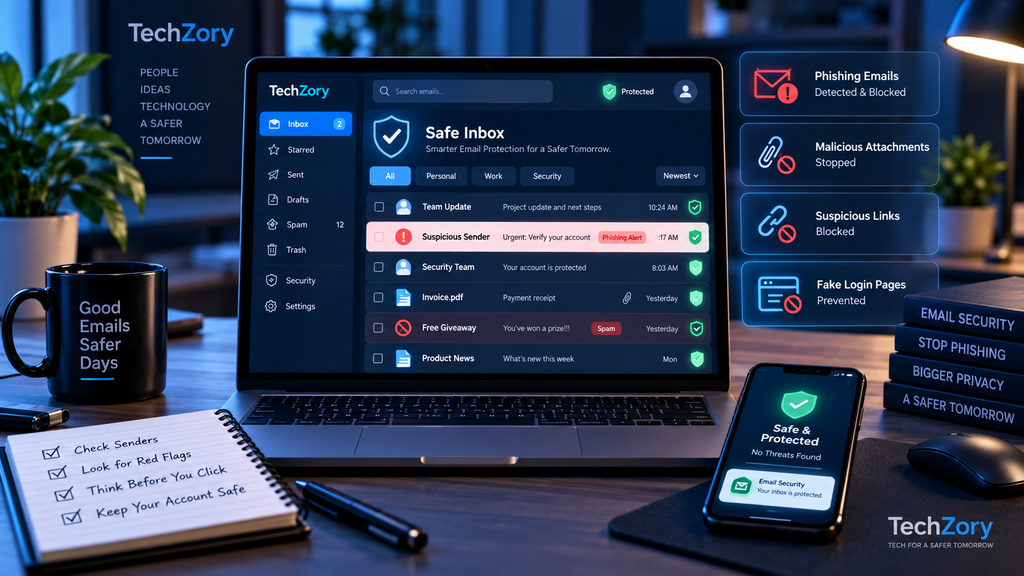
A phishing message may look like it comes from a bank, employer, cloud service, delivery company, or even someone you know. The message usually creates urgency and encourages the recipient to click a link, open an attachment, approve a login, or provide private information.
Modern email services include strong automated protections, but no filter catches every malicious message. Users still need to recognize suspicious behavior and verify important requests independently.
Use the Security Features Built Into Your Email Provider
Major email providers already include anti-phishing and anti-spam systems.
Gmail, for example, automatically identifies many phishing messages and warns users about potentially dangerous emails, attachments, and websites. Google also recommends checking sender addresses, link destinations, and authentication information when a message appears suspicious.
Outlook similarly uses email authentication and spoof-intelligence systems to identify suspicious senders and warn users when a message may not come from the person or organization it claims to represent.
Keep these built-in protections enabled rather than disabling warnings because they occasionally create inconvenience.
Verify the Sender, Not Just the Display Name
The sender name shown in an inbox can be misleading.
An attacker can create a message that displays a familiar name while using a completely different email address.
Before acting on a sensitive request, check:
- The full sender email address
- The domain name
- Whether the domain contains subtle misspellings
- Whether the message was expected
- Whether the tone or request is unusual
- Whether the email provider marks the sender as unverified
Microsoft specifically warns that attackers often use look-alike or spoofed domains to impersonate legitimate companies.
Inspect Links Before Clicking
Phishing links frequently use text that looks legitimate while pointing somewhere else.
On a desktop browser, hover over the link before clicking and compare the destination with the organization’s real domain.
On mobile devices, press and hold the link when possible to preview the destination.
Be cautious if:
- The domain is unfamiliar
- The domain includes misspellings
- The link uses a URL shortener unexpectedly
- The message asks you to log in urgently
- The destination does not match the organization named in the email
If the message claims to come from a bank, cloud provider, or shopping service, it is usually safer to open a new browser tab and visit the official site manually instead of using the link in the message.
Do Not Enter Sensitive Information After Following an Unexpected Link
Legitimate organizations rarely ask users to provide passwords, payment details, government identifiers, or other highly sensitive information directly through an unexpected email.
Google explicitly advises users not to respond to requests for private information and warns against entering credentials into suspicious pages reached through email links.
If a request might be genuine, verify it through another channel.
For example:
- Call the organization using a number from its official website
- Open the official mobile app
- Use a saved bookmark
- Contact the sender through a separate message or phone call
Microsoft recommends confirming suspicious requests through an independent communication method rather than trusting the message itself.
Be Cautious with Attachments
Unexpected attachments can contain malware, malicious macros, fake login forms, or links to dangerous downloads.
Be especially careful with:
- ZIP archives
- Executable files
- Office documents from unknown senders
- Password-protected archives you did not request
- Files that ask you to enable macros or editing
- Attachments that claim to be invoices or urgent account notices
Even if an attachment appears to come from someone you know, verify it when the message is unexpected.
A compromised email account can be used to send convincing malicious files to real contacts.
Use MFA or Passkeys on Your Email Account
Your primary email account is one of the most important accounts to protect because it can often be used to reset passwords for other services.
Enable MFA, preferably with an authenticator app, passkey, or hardware security key where supported.
If an attacker steals the email password, a strong second factor can prevent the account takeover.
Report Phishing Messages
Reporting suspicious messages helps email providers improve their filtering systems.
In Gmail, users can report phishing directly from the message interface.
Outlook also provides a Report phishing option, and Microsoft notes that reporting can help improve filtering and remove the suspicious message from the inbox.
Do not simply delete every suspicious message if a reporting option is available.
Phishing Can Also Arrive Outside Email
The same techniques are increasingly used through:
- SMS messages
- Messaging apps
- Social media
- QR codes
- Collaboration platforms
- Fake support chats
- Phone calls
The security principle remains the same: do not trust urgency, identity claims, or login requests without independent verification.
AI Makes Phishing More Convincing
AI-powered phishing attacks can now produce messages that are grammatically correct, personalized, and visually similar to legitimate communications.
Users should therefore avoid relying only on obvious spelling mistakes as a warning sign.
Instead, focus on:
- Whether the request is expected
- Whether the sender can be independently verified
- Whether the link points to the legitimate domain
- Whether the requested action makes sense
- Whether the message creates artificial urgency
The more important the request, the more valuable independent verification becomes.
Best for: Protecting email accounts, financial information, cloud services, work accounts, and users who receive large volumes of messages.
Key strengths: Built-in phishing detection, sender verification, malicious-link warnings, suspicious-attachment detection, reporting tools, and support for strong authentication.
Consider before choosing: Good email security is not a separate product for every user. Strong built-in protections from reputable providers, combined with MFA, careful link verification, and safe handling of attachments, provide effective protection for most people.
The most important rule is simple: if an email asks you to act urgently, log in, send money, or provide sensitive information, verify the request through another channel before doing anything.
10. File Encryption and Secure Storage — Protect Sensitive Data at Rest
File encryption protects information when a device, drive, or storage account is lost, stolen, accessed without permission, or exposed through another security incident.
This matters because cybersecurity is not only about stopping attackers from entering an account. Sensitive files should also remain unreadable if someone gains physical access to a laptop, removes a drive, or obtains encrypted cloud data without the correct keys.
Full-Disk Encryption Protects the Entire Device
Full-disk encryption protects data stored on a computer by encrypting the drive.
On Windows, Device Encryption and BitLocker can protect the operating-system drive and other fixed drives. Microsoft explains that BitLocker is designed to prevent offline access to the contents of an encrypted disk, which is especially valuable if a device is lost or stolen.
On compatible Windows devices, Device Encryption may be enabled automatically when the device is set up with a Microsoft, work, or school account. More advanced BitLocker management is available on supported Windows editions.
macOS provides a similar capability through FileVault, which encrypts the startup disk so data remains protected if someone gains physical access to the Mac without authorization.
Full-disk encryption is one of the most important protections for laptops because portable devices are more likely to be lost or stolen.
Back Up Your Recovery Key
Encryption is only useful if the legitimate owner can still recover access when something goes wrong.
For BitLocker-protected Windows devices, Microsoft recommends making sure the recovery key is backed up.
Store recovery information somewhere separate from the encrypted device.
Good options may include:
- A trusted password manager
- A secure cloud account
- A printed copy stored in a safe location
- An organization-managed recovery system
Do not keep the only recovery key in a file stored on the same encrypted computer.
Encrypt Sensitive Files Before Uploading Them to the Cloud
Cloud storage providers already use security controls to protect customer data, but users with higher privacy requirements may want an additional layer of client-side encryption.
Tools such as Cryptomator allow users to create encrypted vaults before files are synchronized to a cloud provider. Cryptomator states that it encrypts file contents, filenames, and folder structures before the encrypted data is stored in the cloud.
This can reduce the risk that a cloud provider or unauthorized third party can read the stored files.
Cryptomator can work with many existing cloud-storage services, allowing users to keep their preferred provider while adding their own encryption layer.
End-to-End Encrypted Cloud Storage
Another option is to choose a storage provider that offers end-to-end encryption by design.
For example, Proton states that Proton Drive encrypts file contents and important metadata so that the provider itself cannot decrypt end-to-end encrypted files.
This can be useful for users who want a simpler experience than manually encrypting files before synchronization.
However, users should still understand what is and is not encrypted, how account recovery works, and which metadata the provider may still need to operate the service.
Encryption Does Not Protect an Unlocked Device
Encryption is strongest when the device is powered off, locked, or otherwise inaccessible.
If malware is already running on an unlocked computer, it may be able to read files after the user has decrypted them.
Cryptomator, for example, explicitly notes that client-side encryption cannot protect files from malware running on the local computer while an encrypted vault is unlocked.
This is why encryption should be combined with:
- Antivirus and anti-malware protection
- Operating-system updates
- Strong device passwords or PINs
- Automatic screen locking
- MFA for cloud accounts
- Secure backups
Encrypt External Drives and USB Storage
Portable drives can contain large amounts of sensitive data and are easy to lose.
If you store backups, business documents, financial records, photographs, or other confidential files on an external drive, consider encrypting it.
BitLocker Drive Encryption can manually encrypt supported drives on Windows Pro, Enterprise, and Education editions.
Other operating systems and third-party tools provide similar capabilities.
The important principle is that portable storage containing sensitive information should not be readable by anyone who simply plugs it into another computer.
Do Not Confuse Encryption With Backup
Encryption and backup solve different problems.
Encryption protects confidentiality.
Backup protects availability.
An encrypted file can still be deleted, corrupted, overwritten, or damaged by ransomware.
For important information, users should have both:
- Encryption to prevent unauthorized access
- Backups to recover lost or damaged data
What to Look for in Secure Storage
When evaluating secure file-storage tools, consider:
- Full-disk or file-level encryption
- End-to-end encryption
- Recovery options
- Multi-factor authentication
- Secure sharing
- Version history
- Device compatibility
- Transparent security documentation
- Independent audits where available
- Clear privacy and data-retention policies
Do not choose a service based only on the phrase “encrypted.” Many services use encryption in transit and at rest but still retain the technical ability to decrypt user content.
For highly sensitive information, client-side or end-to-end encryption provides stronger privacy because the encryption keys remain under the user’s control.
Best for: Laptops, external drives, confidential files, cloud storage, financial records, business documents, and users who want protection if a device or storage account is compromised.
Key strengths: Protects data at rest, reduces risk from lost or stolen devices, supports secure cloud storage, and helps prevent unauthorized offline access.
Consider before choosing: Encryption does not replace backups, malware protection, account security, or safe recovery practices. Keep recovery keys secure and separate from the encrypted device.
For most users, enabling full-disk encryption on computers and using encrypted storage for especially sensitive files provides a strong and practical layer of protection.
11. Device Backup and Ransomware Recovery — Protect Your Data Before Disaster Strikes
Backups are one of the most important cybersecurity protections because they give users a way to recover when prevention fails.
A device can be damaged, stolen, infected with ransomware, affected by a failed update, or lose important files through accidental deletion. Antivirus software and account security can reduce these risks, but they cannot guarantee that data will never be lost.
A reliable backup strategy protects availability by keeping additional copies of important information somewhere separate from the original device.
Why Backups Matter Against Ransomware
Ransomware is designed to make data unavailable, typically by encrypting files or systems and demanding payment for restoration.
Some ransomware also searches for connected backup drives or network storage and attempts to encrypt or delete those copies as well.
CISA therefore recommends maintaining offline, encrypted backups of critical data and regularly testing that they can actually be restored. The agency specifically warns that accessible backups may also be targeted by ransomware.
For personal users, this means that keeping only one external drive permanently connected to the computer may not provide enough protection.
Use the 3-2-1 Backup Principle
A practical backup strategy follows the 3-2-1 principle:
- Keep at least three copies of important data.
- Store them on at least two different types of storage.
- Keep at least one copy separate or off-site.
For example:
- The original files on your computer.
- A backup on an external drive.
- A second copy stored in a reputable cloud-backup or cloud-storage service.
CISA has referenced the 3-2-1 approach in ransomware guidance as a useful method for keeping multiple copies across different media and locations.
Keep One Backup Offline or Protected From Modification
One of the strongest ransomware protections is a backup that malware on the computer cannot easily modify.
An offline backup may be an external drive that is connected only when the backup is being created and then disconnected afterward.
Some cloud services also provide immutable or protected storage, version history, or object-lock features that can make it harder for malicious software or compromised accounts to erase every recovery copy.
CISA recommends encrypted and immutable backups where appropriate and emphasizes testing restoration procedures regularly.
Windows Backup and OneDrive Recovery
Windows users can combine local backups with cloud-based protection.
OneDrive includes version history for stored files, allowing users to restore previous versions when a document is modified or corrupted. Microsoft also provides ransomware detection and recovery capabilities for eligible Microsoft 365 subscribers, including the ability to restore OneDrive files to an earlier point after certain malicious or destructive events.
This can be useful when ransomware encrypts or modifies synchronized files, provided that older versions remain available.
However, cloud synchronization should not be confused with a complete backup strategy.
If a file is deleted or corrupted and that change synchronizes everywhere, users still depend on version history, recycle bins, or backup retention to recover the original.
macOS and Time Machine
Apple provides Time Machine as a built-in backup system for Mac computers.
Time Machine can automatically back up files to an external storage device and can restore individual files, earlier versions, or large parts of a system after data loss.
Apple explains that Time Machine can be used to recover files and restore information from a previous backup after a Mac is damaged, erased, or replaced.
Time Machine also creates local snapshots in supported configurations, which can provide short-term recovery options when the external backup drive is temporarily unavailable.
For stronger protection against ransomware or physical loss, users should still consider keeping additional copies outside the Mac itself.
Cloud Sync Is Not Always the Same as Backup
Services such as OneDrive, iCloud Drive, Google Drive, Dropbox, and similar platforms are useful for synchronizing files between devices.
However, synchronization and backup solve different problems.
Sync keeps copies consistent across devices. If a file is intentionally deleted or maliciously encrypted and the change is synchronized, every connected device may receive the same modification.
A proper backup system should provide:
- Historical versions
- Deleted-file recovery
- Independent copies
- Sufficient retention time
- Protection against mass deletion
- A recovery method that does not depend on the original device
Cloud storage can be part of a backup strategy, but users should verify the service’s recovery and retention features.
Back Up More Than Documents
Many people remember to copy photos and documents but forget other information that may be difficult to replace.
Consider protecting:
- Family photographs and videos
- Work and school documents
- Financial records
- Password-manager recovery information
- Important email archives
- Website files and databases
- Personal creative projects
- Software configuration files
- Device settings
- Important messages
- Encryption recovery keys
- Authentication recovery codes
For website owners, database backups are especially important because content, users, settings, and configuration may not exist in ordinary file backups alone.
Encrypt Backup Drives
Backups often contain a complete copy of someone’s most sensitive information.
If an external backup drive is lost or stolen, an unencrypted backup may expose more information than the original computer.
Use encryption when supported, especially for portable drives containing:
- Financial records
- Identity documents
- Business information
- Personal photos
- Password or recovery data
Remember that encryption introduces another responsibility: keep the recovery key somewhere secure and separate.
Test Your Backups
A backup that cannot be restored is not a useful backup.
Periodically test recovery by restoring a few files or confirming that the backup system can access recent versions.
Check:
- Whether backups are actually running
- The date of the most recent successful backup
- Whether important folders are included
- Whether recovery credentials are available
- Whether the external drive is readable
- Whether cloud versions can be restored
- Whether there is enough storage capacity
CISA specifically recommends regularly testing backup availability and integrity as part of ransomware preparedness.
What to Do If Ransomware Is Detected
If you suspect ransomware:
- Disconnect the affected device from the network.
- Disconnect removable drives that are still safe.
- Avoid continuing to work on the infected system.
- Use a clean device to change important passwords if credential theft may have occurred.
- Contact organizational IT or security staff if the device belongs to an employer.
- Preserve important evidence where appropriate.
- Restore only from backups that were created before the infection.
- Make sure the system is clean before reconnecting restored backups.
Do not immediately reconnect every backup drive to an infected computer, because malware may encrypt those copies as well.
Avoid Relying on a Single Backup
A common mistake is assuming that one external drive equals a complete backup strategy.
A drive can fail, be stolen with the computer, become corrupted, or be encrypted by ransomware while connected.
The strongest personal setup usually combines:
- Automatic local backup
- Cloud or off-site backup
- Version history
- At least one copy that ransomware cannot easily modify
Best for: Everyone with important personal, financial, business, school, creative, or family data.
Key strengths: Recovery from ransomware, hardware failure, accidental deletion, file corruption, theft, and failed updates.
Consider before choosing: Backup location, encryption, version history, retention period, recovery speed, storage capacity, and whether at least one copy is protected from ransomware.
A good backup strategy is not something users should think about only after data is lost. It should run automatically, be tested occasionally, and remain independent enough that one compromised device cannot destroy every copy.
12. Identity and Account Monitoring — Detect Suspicious Activity Early
Identity and account monitoring tools help users detect signs that someone may be misusing personal information, accessing accounts without permission, or attempting to open new financial accounts in their name.
These services do not prevent every form of identity theft, but they can provide early warning when suspicious activity appears.
What Identity Monitoring Can Detect
Depending on the service, identity monitoring may watch for:
- New credit accounts
- Changes to credit reports
- Personal information appearing in public or underground databases
- Suspicious login activity
- Unrecognized devices
- New phone numbers or addresses
- Unusual bank or card transactions
- Changes to account recovery information
- Personal information appearing in search results
The FTC explains that identity monitoring services can check databases for new or inaccurate information associated with a person, including information that may not appear on a traditional credit report.
Credit Monitoring and Identity Monitoring Are Different
Credit monitoring focuses mainly on credit-report activity.
It may alert users when:
- A new account is opened
- A lender checks a credit report
- A credit limit changes
- Personal information changes
- A new collection account appears
Identity monitoring is broader and may also check non-credit sources.
However, neither type of monitoring covers every possible form of fraud.
The FTC notes that credit monitoring may not alert users when someone withdraws money from a bank account or uses stolen identity information for tax fraud.
Consider a Credit Freeze
For users in the United States, a credit freeze can provide stronger protection than monitoring alone.
A credit freeze prevents new creditors from accessing a credit report, which makes it much harder for someone to open a new credit account in your name.
The FTC states that credit freezes are free to place and lift, do not affect credit scores, and can be used by anyone at any time.
This can be especially useful after:
- A data breach
- A lost wallet
- Exposure of a Social Security number
- Suspected identity theft
- Theft of sensitive personal documents
A freeze must generally be placed separately with each major credit bureau.
Fraud Alerts Are Another Option
A fraud alert tells lenders to take additional steps to verify your identity before opening new credit in your name.
Unlike a credit freeze, a fraud alert does not completely prevent access to your credit report.
The FTC explains that initial fraud alerts are free and typically last one year, while other types of fraud alerts are available for specific circumstances.
Monitor Important Accounts Directly
Many important online services now provide their own security alerts.
Enable notifications for:
- New sign-ins
- Password changes
- Recovery email changes
- New devices
- MFA changes
- Large financial transactions
- New payment methods
- Suspicious login attempts
These account-level alerts can detect problems more quickly than a general identity-monitoring service.
Users should review the security dashboards of important email, banking, cloud, social, and password-manager accounts.
Search for Exposed Personal Information
Monitoring can also include checking whether personal contact information appears publicly online.
Google’s Results about you feature can monitor search results for personal information such as phone numbers, home addresses, or email addresses and notify eligible users when matching results appear.
This does not remove information automatically from the source website, but it can help users discover exposed personal data and request removal from Google Search where eligible.
Watch Financial Statements
Identity-monitoring tools should not replace manual review.
The FTC recommends regularly checking:
- Bank statements
- Credit-card statements
- Bills
- Credit reports
Unknown charges, withdrawals, or accounts can be early warning signs of identity theft.
For U.S. users, checking free credit reports regularly can help identify accounts that were opened without permission.
What to Do If You Detect Identity Theft
If suspicious activity appears:
- Change affected passwords immediately.
- Enable or strengthen MFA.
- Contact the financial institution or service provider.
- Freeze credit if appropriate.
- Review recent account activity.
- Remove unknown devices or sessions.
- Report fraudulent transactions.
- Preserve relevant evidence.
- File an identity-theft report when appropriate.
In the United States, the FTC recommends using IdentityTheft.gov to report identity theft and receive a personalized recovery plan.
Paid Identity Protection Is Not Always Necessary
Some paid identity-protection services bundle:
- Credit monitoring
- Dark-web monitoring
- Identity restoration assistance
- Insurance
- Family monitoring
- Financial alerts
These can be convenient, but users should compare the cost with free tools already available through banks, credit bureaus, email providers, search engines, and breach-monitoring services.
The FTC specifically recommends understanding what a paid credit or identity-monitoring service actually covers before subscribing.
Best for: Users concerned about identity theft, account takeover, credit fraud, or misuse of personal information.
Key strengths: Early warning of suspicious activity, credit alerts, account notifications, exposed-data monitoring, and identity-recovery support.
Consider before choosing: Monitoring detects problems after warning signs appear. It works best when combined with strong passwords, MFA, passkeys, credit freezes where applicable, and regular review of important accounts.
For most users, a combination of account alerts, breach monitoring, regular financial review, and strong authentication provides a practical foundation. Paid identity monitoring can add convenience, but it should not replace basic security habits.
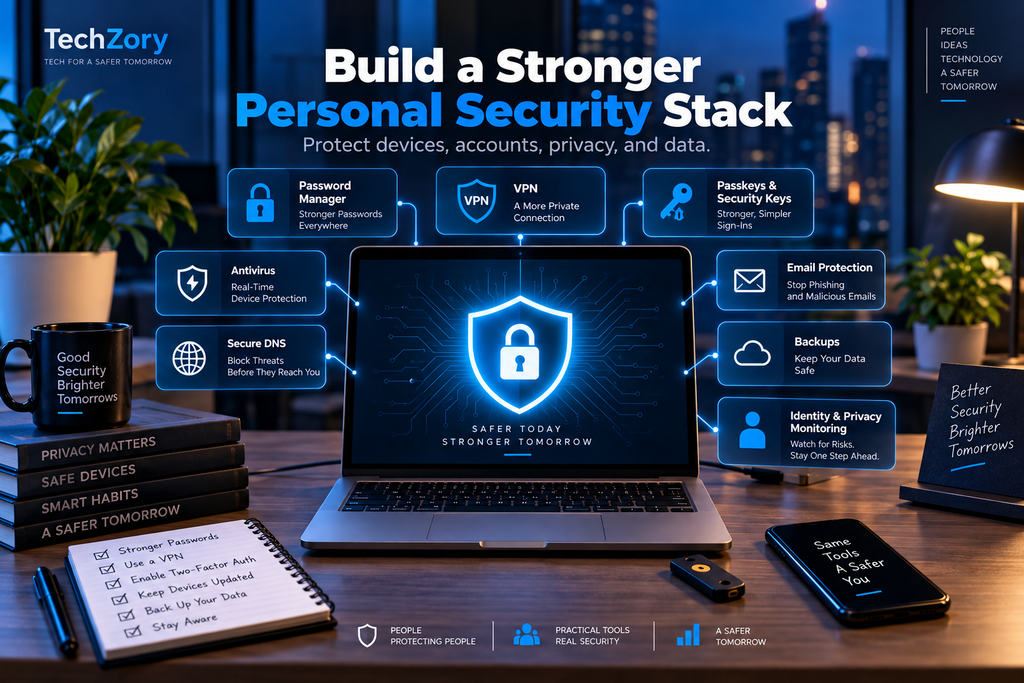
Quick Comparison of the Best Cybersecurity Tools in 2026
The best cybersecurity tools in 2026 work most effectively as layers rather than isolated products. A password manager protects credentials, MFA strengthens account access, antivirus protects devices, secure DNS can block known malicious domains, backups protect availability, and identity monitoring helps detect suspicious activity after exposure.
| Security Tool | Primary Purpose | Priority for Most Users |
|---|---|---|
| Password Manager | Create and store unique passwords | Essential |
| Multi-Factor Authentication | Protect accounts after password theft | Essential |
| Passkeys / Security Keys | Phishing-resistant authentication | High |
| Antivirus / Anti-Malware | Protect devices from malicious software | Essential |
| VPN | Protect traffic on untrusted networks | Situational |
| Secure DNS | Block known malicious domains and improve DNS privacy | Useful |
| Browser Privacy Protection | Reduce tracking and malicious-site exposure | High |
| Data-Breach Monitoring | Detect exposed account information | High |
| Email / Phishing Protection | Reduce credential theft and malicious messages | Essential |
| File Encryption | Protect sensitive data at rest | High |
| Backup / Ransomware Recovery | Recover lost, deleted, or encrypted files | Essential |
| Identity / Account Monitoring | Detect suspicious account or identity activity | Useful to High |
Which Cybersecurity Tools Should You Prioritize?
Most people do not need twelve separate paid subscriptions.
The strongest personal-security setup usually begins with a few foundational protections that cover the highest-risk areas.
Start With These Five Protections
For most users, prioritize:
- A password manager for unique passwords.
- MFA or passkeys on important accounts.
- Reliable malware protection on computers and mobile devices.
- Automatic backups of important files.
- Strong email and phishing protection combined with careful browsing habits.
These five layers protect against many of the most common personal cybersecurity problems: credential theft, phishing, malware, ransomware, accidental data loss, and account takeover.
Add Passkeys or Hardware Security Keys for Important Accounts
Users who manage valuable accounts, websites, financial services, administrative systems, cloud platforms, or sensitive work information should strongly consider phishing-resistant authentication.
Passkeys are increasingly convenient for everyday use, while hardware security keys provide additional control for accounts that require stronger assurance.
Use a VPN When the Situation Justifies It
A VPN can be valuable when traveling, using unfamiliar networks, or accessing remote business resources.
However, users should not assume that paying for a VPN automatically provides complete online security or anonymity. If most browsing occurs on trusted home networks and HTTPS websites, other security investments may provide greater value first.
Add Secure DNS for an Extra Defensive Layer
Protective DNS is relatively easy to deploy and can block some known malicious or phishing domains before the device connects to them.
It works well as an additional layer but should not replace browser warnings, antivirus protection, or phishing awareness.
Monitor Breaches Instead of Waiting for an Attack
Free services can notify users when email addresses or other information appear in known breaches.
This becomes much more valuable when combined with unique passwords and MFA because users can immediately replace compromised credentials without worrying that the same password was reused elsewhere.
Prioritize Backups Before Paying for Extra Security Features
Many commercial security suites include additional features such as VPNs, password managers, identity monitoring, and cloud storage.
Before purchasing a large security bundle, make sure critical files are already backed up properly.
Recovering photographs, documents, work, or personal records after ransomware or hardware failure is often more important than adding another overlapping security scanner.
Free vs. Paid Cybersecurity Tools
A strong cybersecurity setup does not necessarily require expensive subscriptions.
Many excellent protections are available for free or already included with devices and online services.
Examples include:
- Built-in Windows security
- Browser phishing protection
- Free password managers
- Authenticator apps
- Passkeys
- Free breach monitoring
- Secure DNS services
- Operating-system encryption
- Account security alerts
Paid services become more useful when they provide meaningful additional value such as:
- Family password sharing
- Cross-platform management
- Advanced security reporting
- Larger backup capacity
- Identity-restoration assistance
- Multi-device administration
- Premium VPN infrastructure
- Business or enterprise controls
- Longer version history
- Priority technical support
Avoid paying for several services that duplicate the same function.
How to Choose the Right Cybersecurity Tools
Before installing or purchasing a security product, ask:
- What specific risk does this tool reduce?
- Do I already have a feature that provides similar protection?
- Will I actually keep this protection enabled and maintained?
- Does the provider have a clear security and privacy policy?
- Can I recover access if I lose a device or authentication method?
- Does the product work across all of my important devices?
Cybersecurity tools provide the most value when they are simple enough to use consistently.
A sophisticated security system that users regularly disable because it is too complicated can be less effective than a smaller collection of well-configured protections that operate automatically.
Privacy and Security Considerations When Choosing Cybersecurity Tools
Cybersecurity software often receives unusually broad access to devices and personal information. Password managers store credentials, antivirus products inspect files and processes, VPN providers handle network traffic, backup services store copies of personal data, and identity-monitoring services may process highly sensitive information.
For this reason, choosing a security product should involve evaluating the provider itself, not only the features advertised on the product page.
Understand What Data the Tool Can Access
Before installing or subscribing to a security service, review what information it can collect or process.
Depending on the product, this may include:
- Browsing activity
- Website domains
- Device information
- IP addresses
- Uploaded files
- Email addresses
- Login metadata
- Location information
- Diagnostic data
- Payment information
- Identity-related information
A security tool should receive only the permissions required to perform its function.
For example, a browser extension that claims to provide simple phishing warnings should not receive unnecessary access to unrelated information without a clear reason.
Prefer Providers With Clear Security Documentation
Reputable security companies should explain how they protect customer information.
Look for information about:
- Encryption
- Account authentication
- Security audits
- Vulnerability-disclosure programs
- Incident-response procedures
- Data retention
- Third-party access
- Recovery processes
- Privacy policies
Security claims such as “military-grade encryption” are less useful than specific explanations of how encryption keys, authentication, and account recovery actually work.
Enable MFA on Security Accounts
Security services themselves can become valuable targets for attackers.
Enable strong authentication on:
- Password managers
- VPN accounts
- Cloud-backup services
- Identity-monitoring accounts
- Security dashboards
- Domain registrars
Where supported, prefer passkeys, authenticator apps, or hardware security keys over SMS alone.
Be Careful With Browser Extensions
Security extensions can sometimes read or modify website content.
Install extensions only from trusted providers and official browser stores.
Periodically review installed extensions and remove tools that are no longer needed.
Avoid installing several extensions that perform the same security or privacy function, because overlapping permissions can increase complexity without providing meaningful additional protection.
Avoid Unknown Free Security Products
Free security tools can be useful, but users should understand how the provider supports the service financially.
Be cautious when a free VPN, antivirus program, browser extension, or identity-monitoring product has:
- Unclear ownership
- No meaningful privacy policy
- Excessive permissions
- Aggressive advertising
- Unexplained data collection
- Poor update history
- Little security documentation
A free tool provided by a reputable organization can be an excellent choice. The concern is not that every free product is unsafe, but that “free” should not replace due diligence.
Keep Security Tools Updated
Security software must evolve as threats change.
Enable automatic updates for:
- Antivirus engines
- Password managers
- VPN clients
- Browsers
- Authentication applications
- Backup software
- Security extensions
An outdated security application can contain vulnerabilities of its own.
Remove Tools You No Longer Use
Unused software still creates maintenance and security responsibilities.
Periodically review:
- Old antivirus products
- VPN applications
- Browser extensions
- Authentication apps
- Cloud-backup clients
- Security utilities
Remove products that are no longer necessary and revoke their account permissions where appropriate.
Do Not Give One Tool More Trust Than Necessary
Cybersecurity works best through multiple independent layers.
Avoid designing a setup where one provider controls every password, backup, network connection, authentication method, and recovery option unless there is a clear reason to do so.
Keeping recovery methods independent can prevent one compromised account from affecting every other security layer.
For example, storing the only recovery code for a password manager inside that same password manager creates an obvious recovery problem.
Security Should Remain Usable
The strongest theoretical protection is not always the best practical solution.
If a security system is so complicated that users disable protections, reuse passwords, avoid backups, or lose recovery information, it may reduce security rather than improve it.
Choose tools that can operate reliably with minimal daily effort.
A good personal cybersecurity setup should make secure behavior easier, not harder.
Key principle: Security tools deserve the same scrutiny as any other service that handles sensitive information. Choose reputable providers, minimize permissions, use strong authentication, keep software updated, and maintain independent recovery options.
Frequently Asked Questions
What are the most important cybersecurity tools for most people?
For most users, the highest-priority protections are a password manager, multi-factor authentication or passkeys, reliable malware protection, automatic backups, and strong email and phishing protection. These tools cover many of the most common personal cybersecurity risks.
Do I need to pay for cybersecurity tools?
Not always. Many strong protections are free or already included with operating systems and online services. Paid tools become more useful when they add features such as family sharing, advanced monitoring, larger backup capacity, premium VPN infrastructure, identity-restoration services, or centralized device management.
Is antivirus still necessary in 2026?
Yes, malware protection is still important. However, many users may already have adequate protection through built-in tools such as Microsoft Defender on Windows. A paid antivirus suite is most useful when it provides additional features that you actually need.
Is a VPN necessary for everyday browsing?
Not necessarily. HTTPS already protects most web traffic, and many users on trusted home networks may not need a VPN all the time. A VPN becomes more useful on untrusted networks, during travel, for remote work, or when additional network privacy is desired.
Are passkeys safer than passwords?
Passkeys provide stronger protection against phishing because they use cryptographic authentication instead of a reusable password. They are increasingly supported by major services and can be combined with hardware security keys for especially sensitive accounts.
What should I do if my email appears in a data breach?
Change any exposed password immediately, replace the same password anywhere else it was reused, enable MFA or passkeys, review recent account activity, and monitor for suspicious messages or login attempts. A password manager can help ensure each account uses a unique credential.
Can cybersecurity tools completely prevent identity theft?
No. Monitoring and security tools can reduce risk and provide early warnings, but they cannot prevent every possible form of fraud. Strong authentication, careful handling of personal information, credit monitoring where relevant, and regular review of important accounts remain necessary.
How often should I review my cybersecurity setup?
A full review once or twice a year is a good starting point, with additional reviews after major events such as a data breach, device replacement, new job, change of phone number, or major account-security incident. Remove unused apps, old recovery methods, inactive devices, and unnecessary permissions during each review.
Final Thoughts
The best cybersecurity tools in 2026 are not necessarily the most expensive or the most complicated. The strongest personal security setup usually comes from combining a few well-chosen protections that cover different risks without creating unnecessary overlap.
For most users, the foundation should be simple: use unique passwords stored in a password manager, enable MFA or passkeys on important accounts, keep devices protected and updated, maintain reliable backups, and treat unexpected links, attachments, and login requests with caution.
Additional tools such as VPNs, secure DNS, breach monitoring, file encryption, identity monitoring, and hardware security keys can provide valuable extra protection when they match a real need. However, installing more security software does not automatically make a device safer. Too many overlapping tools can increase complexity, create conflicts, and make important protections harder to manage.
Cybersecurity also requires regular maintenance. Review old devices, unused accounts, recovery methods, browser extensions, backup status, and security settings periodically. Remove access that is no longer required and update important protections as your devices and online accounts change.
Most importantly, remember that security tools work best when they support good habits. No antivirus product, VPN, password manager, or monitoring service can completely eliminate risk on its own. Strong authentication, careful verification, software updates, backups, and good judgment remain essential.
If you are improving your security from scratch, start with the highest-value protections first rather than trying to configure everything at once. A small number of well-maintained cybersecurity tools can provide significantly better protection than a complicated collection of products that are poorly configured or rarely used.
Sources and Further Reading
- NIST — Multi-Factor Authentication and Cybersecurity Guidance
- FIDO Alliance — Passkeys and Phishing-Resistant Authentication
- Microsoft — Windows Security and Device Protection
- CISA — Ransomware Guide and Backup Recommendations
- Cloudflare — Secure DNS and 1.1.1.1 for Families
- Mozilla — Enhanced Tracking Protection
- Have I Been Pwned — Data Breach Monitoring
- Federal Trade Commission — Identity Theft, Credit Freezes, and Fraud Alerts





Comments 1