

Passwords are still widely used across the internet, but they remain one of the weakest points in personal account security. Weak passwords, password reuse, phishing attacks, credential theft, and large-scale data breaches can all expose online accounts. Passkeys were designed to address many of these problems by replacing traditional passwords with cryptographic credentials that are significantly harder to steal or reuse.
In 2026, passkeys are becoming increasingly common across major technology platforms, password managers, financial services, and online accounts. Instead of typing a password, users can often sign in with a fingerprint, face recognition, device PIN, or a trusted security device. The private cryptographic credential remains protected on the user’s device or within a secure passkey provider rather than being transmitted to the website during authentication.
Hardware security keys take this concept a step further. Devices such as FIDO2-compatible security keys can store authentication credentials on dedicated hardware and provide strong protection against phishing, credential theft, and many account takeover techniques. For users who manage sensitive accounts, administrator access, financial services, or high-value business systems, a physical security key can provide an additional layer of protection beyond synced passkeys.
However, not every passkey solution works the same way. Some passkeys synchronize across phones, tablets, and computers through services such as Apple, Google, Microsoft, or password managers. Others remain tied to a specific device or physical security key. Recovery options, cross-platform compatibility, privacy, pricing, and ease of use can also vary considerably.
This guide compares the best passkey solutions and hardware security keys in 2026. We will examine their security models, compatibility, recovery options, privacy features, everyday usability, and the situations where a dedicated hardware key may provide better protection than a synchronized passkey.
Best Passkeys and Security Keys in 2026: Quick Overview
For most users, the best passwordless security setup depends on how many devices they use, which operating systems they rely on, and how much protection their accounts require.
Apple Passwords and iCloud Keychain provide one of the simplest passkey experiences for users primarily inside the Apple ecosystem. Passkeys can synchronize across supported Apple devices through iCloud Keychain, allowing users to authenticate with Face ID, Touch ID, or their device passcode.
Google Password Manager provides integrated passkey support across Android and Chrome-based environments and can synchronize credentials between supported devices connected to the same Google account.
1Password offers passkey support inside a dedicated cross-platform password manager, making it useful for users who regularly move between Windows, macOS, Android, iOS, and multiple browsers.
Bitwarden provides another cross-platform option for users who want password and passkey management within the same security platform, including users who prefer a strong open-source ecosystem.
Microsoft’s passkey ecosystem integrates passwordless authentication with Windows Hello, Microsoft accounts, and supported enterprise identity environments, making it particularly relevant for Windows users and organizations adopting phishing-resistant authentication.
For stronger account protection, hardware security keys remain an important option. Products such as YubiKey, Google Titan Security Keys, and other FIDO2-compatible devices can store device-bound credentials on dedicated hardware. Because the authentication secret does not need to synchronize through a cloud account, hardware keys can provide stronger isolation for sensitive accounts.
A practical approach for many users is to combine both methods: use synchronized passkeys for convenient everyday access and keep one or two hardware security keys for critical accounts, account recovery, and high-security authentication.
The sections below explain how each approach works, where the main differences lie, and how to choose the right combination for your personal or professional security needs.
Table of Contents
What Is a Passkey and How Does It Work?
A passkey is a password replacement based on public-key cryptography. Instead of storing a reusable secret such as a password, the authentication system creates a cryptographic key pair.
The public key is registered with the website or application, while the private key remains protected on the user’s device, security key, or passkey provider. When the user signs in, the service sends a cryptographic challenge that can only be completed with the matching private key.
Because the private key is never sent to the website, a server breach does not expose a reusable password that attackers can steal and try elsewhere. Google and FIDO both emphasize that the service stores only the public key, while the private credential remains under the user’s control.
In everyday use, passkeys are usually unlocked with the same method used to unlock the device, such as:
- Fingerprint recognition
- Face recognition
- Device PIN
- Screen-lock password
- Hardware security key
This means users can authenticate without remembering or typing a traditional password.
Passkeys are built on FIDO standards, including WebAuthn and related FIDO2 technologies. They are supported across major operating systems, browsers, and third-party credential managers.
Why Passkeys Are More Secure Than Passwords
The biggest security advantage of passkeys is that there is no reusable shared secret for an attacker to steal.
Traditional passwords can be exposed through:
- Phishing websites
- Credential-stuffing attacks
- Password reuse
- Malware
- Database breaches
- Weak or predictable passwords
- Social engineering
Passkeys reduce many of these risks by using cryptographic authentication instead of text-based credentials.
Strong Resistance to Phishing
A passkey is bound to the legitimate website or application that created it.
The browser or operating system verifies the service identity before allowing authentication, which makes it much harder for a fake login page to capture a usable credential.
FIDO classifies both synced and device-bound passkeys as phishing-resistant authentication methods.
No Password Database to Steal
Websites using passkeys store public keys rather than reusable passwords.
If an attacker compromises the server database, the public key alone cannot be used to impersonate the user because successful authentication still requires the private key.
No Password Reuse
Each passkey is unique to the service for which it was created.
This prevents the common problem where one breached password is reused to attack accounts on unrelated websites.
Strong Credentials by Default
Users do not need to create or remember a complex password.
The cryptographic credential is generated automatically, removing risks associated with weak passwords such as names, dates, dictionary words, or predictable patterns.
Better Protection Than Many Traditional MFA Methods
FIDO notes that passkeys can provide stronger phishing resistance than combinations such as password plus OTP or password plus push approval, because one-time codes and approval prompts can still be captured or abused in phishing attacks.
Passkeys are not immune to every security risk. Device theft, compromised recovery processes, insecure passkey-provider accounts, and malware can still create problems. However, they remove several of the most common weaknesses associated with passwords.
Synced Passkeys vs. Device-Bound Passkeys
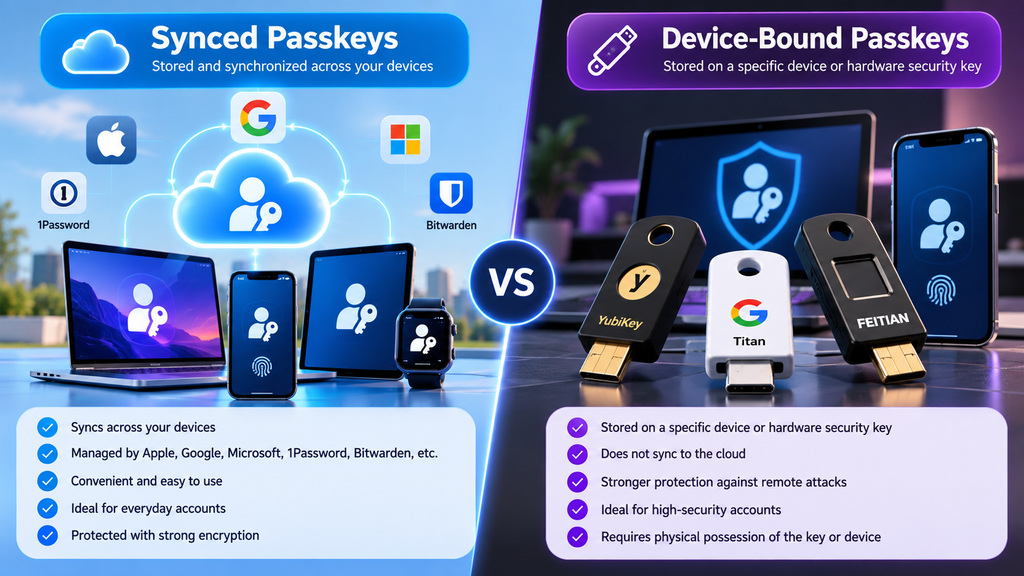
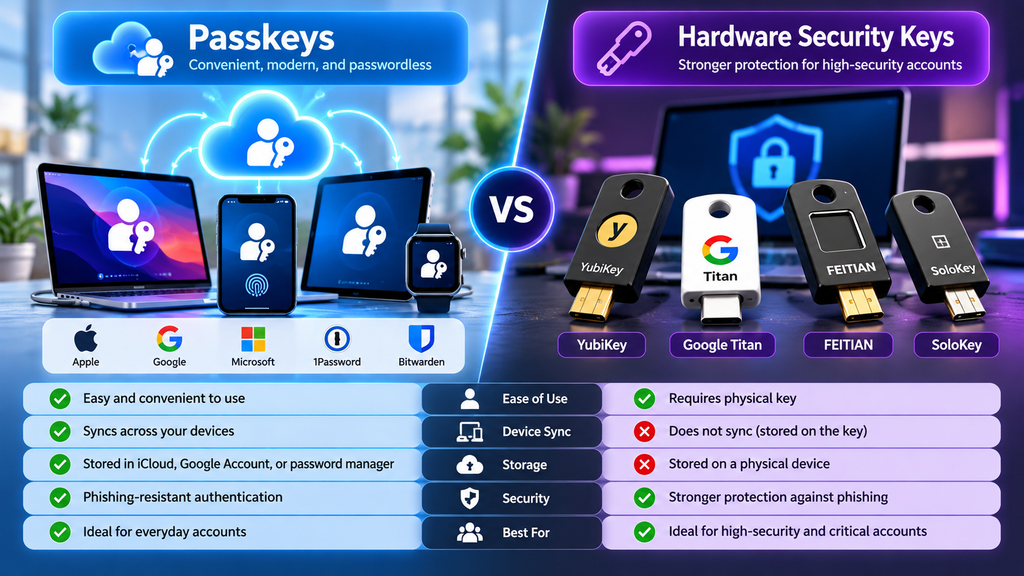
Passkeys can generally be divided into two categories: synced passkeys and device-bound passkeys.
Both use FIDO authentication and both are designed to resist phishing, but they differ in how the private credential is stored and recovered.
Synced Passkeys
Synced passkeys are stored by a passkey provider and securely synchronized across the user’s trusted devices.
Examples of passkey providers include:
- Apple Passwords and iCloud Keychain
- Google Password Manager
- 1Password
- Bitwarden
- Other supported credential managers
If a user creates a passkey on one device, it can become available on other devices connected to the same passkey provider account.
The main advantages are:
- Easier multi-device access
- Convenient device replacement
- Simplified recovery
- Less dependence on a single physical device
- Better everyday usability
FIDO states that synced passkeys are protected with end-to-end encryption and are designed to remain phishing-resistant even when synchronized across devices.
Device-Bound Passkeys
Device-bound passkeys remain tied to a specific device or physical security key.
They are not automatically copied to other devices.
Examples include passkeys stored on compatible FIDO hardware security keys.
The primary advantages are:
- Stronger possession assurance
- Reduced dependence on cloud synchronization
- Clear evidence of where the credential is stored
- Better suitability for regulated or high-security environments
- Stronger isolation for highly sensitive accounts
FIDO describes modern hardware-backed, device-bound passkeys as providing the highest level of security assurance.
The Main Tradeoff
The difference is largely a balance between convenience and control.
Synced passkeys are easier for most users because credentials automatically follow them across devices.
Device-bound passkeys provide stronger isolation but require more careful planning for backup, recovery, and device loss.
For many users, the most practical strategy is a hybrid approach: use synced passkeys for everyday accounts and keep hardware security keys for critical services such as primary email, financial accounts, administrator access, and account recovery.
Best Passkey Managers in 2026
A passkey manager determines where synchronized passkeys are stored, how they move between devices, and how easily users can recover access when replacing a phone or computer.
The best choice often depends on the ecosystem a user already relies on. Apple and Google provide deeply integrated options, while dedicated password managers such as 1Password and Bitwarden offer broader cross-platform flexibility. Microsoft has also expanded its passwordless ecosystem through Windows Hello, Microsoft Password Manager, and passkey support for personal and organizational accounts.
Apple Passwords and iCloud Keychain
Apple provides one of the most seamless passkey experiences for users who primarily use iPhone, iPad, and Mac.
The dedicated Passwords app stores passwords, passkeys, verification codes, Wi-Fi credentials, and shared credentials in one place. Passkeys can synchronize through iCloud Keychain across approved Apple devices using the same Apple Account.
Users typically authenticate with:
- Face ID
- Touch ID
- Device passcode
- Mac login credentials
Apple states that iCloud Keychain protects synchronized credential data with end-to-end encryption and that the protected information cannot be read by Apple.
Cross-Device Synchronization
A passkey created on an iPhone can become available on a Mac or iPad connected to the same Apple Account with Passwords & Keychain enabled.
Apple also provides iCloud Passwords support for Windows, which gives Apple users some flexibility when they occasionally work from a PC.
However, the overall experience remains strongest inside the Apple ecosystem.
Sharing
Apple supports Shared Groups for passwords and passkeys, allowing trusted users to share selected credentials while keeping other vault items private.
This can be useful for:
- Family accounts
- Shared subscriptions
- Household services
- Joint online accounts
Key Strengths
- Excellent integration with iPhone, iPad, and Mac
- Strong biometric authentication
- Automatic synchronization through iCloud Keychain
- No separate password-manager subscription required
- Supports passwords, passkeys, and verification codes
- Credential sharing through Shared Groups
Limitations
- Best experience remains Apple-centric
- Users who frequently switch between Android, Linux, and other platforms may prefer a dedicated cross-platform manager
- Recovery remains dependent on securing the Apple Account and trusted devices
Best for: Users who primarily rely on Apple devices and want a simple, integrated passkey experience.
Google Password Manager
Google Password Manager provides built-in password and passkey management across the Google ecosystem.
Users can create and save passkeys to their Google Account and use them for supported websites and applications. Google Password Manager can manage both traditional passwords and passkeys and integrate them with autofill.
This makes it particularly convenient for users who already rely heavily on:
- Android
- Chrome
- Google accounts
- Chromebooks
- Google services
Passkey Synchronization
Passkeys saved to a Google Account can be synchronized through Google Password Manager so they remain available across supported devices.
This reduces dependence on a single phone or computer and makes device replacement easier than relying exclusively on locally stored credentials.
Everyday Convenience
Google Password Manager is integrated directly into supported browsers and Android devices.
Users can create passkeys during account registration or security upgrades and later authenticate using a device unlock method such as:
- Fingerprint
- Face recognition
- Screen-lock PIN
The experience requires relatively little additional software configuration for users already inside the Google ecosystem.
Key Strengths
- Integrated with Android and Chrome
- No separate subscription required
- Password and passkey management in one service
- Automatic synchronization through a Google Account
- Familiar experience for existing Google users
- Built-in autofill
Limitations
- Most convenient for users already invested in Google services
- Users who want an independent credential provider may prefer 1Password or Bitwarden
- Recovery security is closely connected to the security of the Google Account itself
Best for: Android and Chrome users who want a simple built-in passkey manager without adding another subscription.
1Password
1Password is one of the strongest cross-platform options for users who want passkeys to remain independent of a single operating-system ecosystem.
It allows users to save passkeys and use them to sign in to supported websites through its browser extensions. Saved passkeys can also be viewed, organized, moved, deleted, and shared through 1Password applications.
Supported environments include major platforms such as:
- Windows
- macOS
- Linux
- Android
- iOS
- Chrome
- Firefox
- Edge
- Brave
- Safari
This can make 1Password particularly attractive to users who regularly move between different operating systems.
Passkey Management
When a supported website offers to create a passkey, 1Password can offer to save the new credential into an existing login item or create a new vault item.
Users can later authenticate from the browser extension without entering a traditional password.
Passkeys can also be organized and shared similarly to other vault credentials.
Watchtower Integration
1Password’s Watchtower feature can identify saved accounts that support upgrading to passkeys.
This can help users gradually transition away from passwords instead of having to manually check every account.
Passkey Protection for 1Password Itself
1Password has also expanded passkey-based authentication for access to the 1Password account itself. Its current security design includes passkey-based account unlocking options with strong phishing resistance, although supported workflows and recovery behavior differ from the traditional account-password and Secret Key model.
Key Strengths
- Excellent cross-platform support
- Strong passkey management
- Passkey sharing
- Watchtower identifies passkey-ready accounts
- Works well across mixed-device environments
- Polished browser and app experience
Limitations
- Primarily a paid service
- Adds another credential ecosystem rather than relying only on built-in OS tools
- Users need to understand account recovery before making passkeys their primary sign-in method
Best for: Users who want a polished passkey manager that works consistently across Apple, Windows, Android, Linux, and multiple browsers.
For a broader comparison of credential managers, see our guide to the best password managers in 2026.
Bitwarden
Bitwarden offers a strong combination of passkey support, open-source development, and cross-platform flexibility.
Passkeys stored in Bitwarden can be used through its browser extensions and supported mobile applications. Bitwarden protects stored passkeys with the same end-to-end encryption model used for vault credentials.
The service currently supports several passkey-related capabilities:
- Saving passkeys for websites and applications
- Autofilling passkeys
- Using passkeys to authenticate to Bitwarden itself
- Using supported passkeys as an authentication factor for the Bitwarden account
Browser Support
When a website offers passkey creation, the Bitwarden browser extension can prompt the user to store the credential directly in the vault.
Later, Bitwarden can present the saved passkey during the website’s passkey sign-in process.
Mobile Support
Bitwarden supports passkey storage and use on modern mobile operating systems.
On iOS, passkey functionality requires iOS 17 or later, while Android support is available on Android 14 and newer.
Android imposes some platform limitations on third-party passkey providers, particularly for certain FIDO2 credentials used specifically as a second authentication factor.
Open-Source Appeal
Bitwarden may be especially attractive to users who prefer:
- Open-source software
- A strong free plan
- Cross-platform support
- Optional self-hosting
- Greater control over credential infrastructure
Key Strengths
- Strong cross-platform support
- Open-source ecosystem
- End-to-end encrypted passkey storage
- Browser and mobile passkey autofill
- Works alongside traditional password management
- Affordable compared with many premium competitors
Limitations
- Some advanced workflows can be more technical than built-in Apple or Google solutions
- Mobile capabilities depend partly on operating-system restrictions
- Self-hosting increases administrative and backup responsibility
Best for: Users who want open-source passkey management, strong value, and flexibility across several operating systems.
Microsoft Password Manager and Windows Hello
Microsoft has significantly expanded passkey support across Windows, Microsoft accounts, Edge, and organizational identity environments.
Users can create passkeys for Microsoft personal accounts, supported work or school accounts, and other passkey-enabled services. Passkeys can be stored in several locations, including:
- Microsoft Password Manager
- Windows Hello on the local device
- Smartphones and tablets
- Physical security keys
- Other compatible credential managers such as iCloud Keychain, Google Password Manager, or 1Password
Windows Hello
Windows Hello allows passkeys stored locally on a Windows device to be unlocked using:
- Facial recognition
- Fingerprint
- Device PIN
This can provide a convenient passwordless experience without requiring users to type passwords during routine authentication.
Microsoft Password Manager
Microsoft also supports synchronized passkeys through Microsoft Password Manager.
Microsoft recommends using a synchronized credential manager when users want their passkeys to remain available across multiple devices.
Microsoft Edge can also offer automatic passkey creation on supported websites when the user signs in with credentials already stored in Microsoft Password Manager.
Enterprise Relevance
Microsoft’s passkey ecosystem is especially important for organizations adopting phishing-resistant authentication.
Work and school accounts can support passkeys when enabled by the organization’s identity policies, although administrators may restrict which credential types employees are allowed to use.
Key Strengths
- Deep integration with Windows 11
- Windows Hello biometric authentication
- Microsoft Password Manager synchronization
- Support for physical security keys
- Strong relevance for enterprise identity environments
- Works with personal and organizational Microsoft accounts
Limitations
- Some features depend on organizational administrator policies
- Users primarily outside the Microsoft ecosystem may find another credential manager more convenient
- Local Windows Hello passkeys require planning for additional devices or recovery options
Best for: Windows users and organizations that rely on Microsoft accounts, Windows Hello, Edge, and Microsoft identity services.
Which Passkey Manager Should You Use?
The simplest choice is usually the credential manager that already works reliably across all of your devices.
For users primarily inside one ecosystem:
- Apple Passwords is convenient for Apple-centric environments.
- Google Password Manager fits Android and Chrome users.
- Microsoft Password Manager and Windows Hello integrate naturally with Windows.
For users who regularly switch between ecosystems:
- 1Password provides a polished premium cross-platform experience.
- Bitwarden provides strong cross-platform flexibility with an open-source approach.
The most important consideration is not simply where a passkey is stored. Users should also consider how they will regain access if a phone is lost, a computer is replaced, or the credential-provider account becomes unavailable.
For critical accounts, combining a synchronized passkey manager with one or more hardware security keys can provide a useful balance between convenience and recovery resilience.
Best Hardware Security Keys in 2026
Hardware security keys store authentication credentials on dedicated physical devices rather than relying entirely on synchronized cloud-based passkey providers.
They are especially useful for high-value accounts, administrator access, financial services, developer environments, and users who face an elevated risk of phishing or targeted attacks.
FIDO states that modern hardware security keys can store device-bound passkeys, which provide the highest level of security assurance because the private credential remains tied to the physical authenticator. (fidoalliance.org)
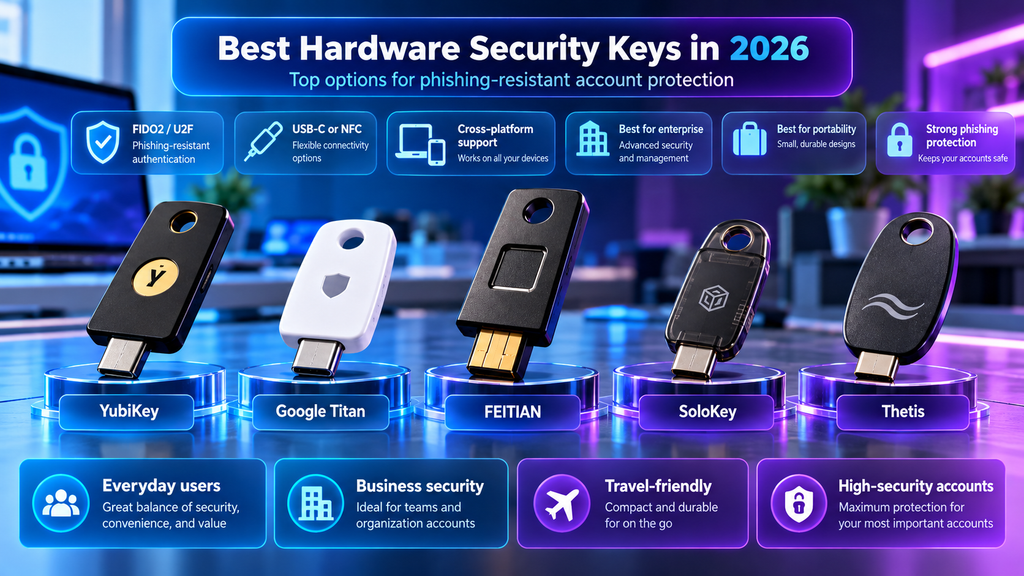
The three major options considered here are YubiKey, Google Titan Security Key, and FEITIAN’s FIDO2-compatible security-key families.
YubiKey
Yubico offers one of the broadest hardware-security-key product families available in 2026.
The YubiKey 5 Series supports FIDO2/WebAuthn and hardware-bound passkeys, while also supporting additional authentication protocols such as:
- FIDO U2F
- OATH-TOTP
- OATH-HOTP
- Yubico OTP
- Smart Card / PIV
- OpenPGP
This makes the YubiKey 5 Series more versatile than security keys designed only for FIDO authentication. (yubico.com)
YubiKey 5C NFC
One of the most practical models for modern users is the YubiKey 5C NFC.
It combines:
- USB-C
- NFC
- FIDO2 / WebAuthn
- FIDO U2F
- Passkeys
- Smart Card / PIV
- OpenPGP
- OTP authentication
The current model supports up to 100 FIDO2 passkey slots and uses firmware supporting CTAP 2.1. (yubico.com)
NFC makes the key particularly convenient for mobile devices because users can authenticate by tapping the key against a compatible phone instead of connecting it physically.
Cross-Platform Compatibility
YubiKey supports major desktop operating systems, including:
- Windows
- macOS
- ChromeOS
- Linux
NFC-enabled models can also work with compatible Android and iOS devices.
Yubico lists support across a large ecosystem of services including Google, Microsoft, password managers, identity providers, cloud services, and business applications. (yubico.com)
Durability
YubiKey devices do not require batteries or network connectivity.
The YubiKey 5C NFC is designed to resist water, dust, and physical damage and carries an IP68 rating according to Yubico’s current specifications. (yubico.com)
This makes it suitable for users who want a security key they can carry on a keychain every day.
YubiKey Bio
Users who prefer biometric verification can consider the YubiKey Bio Series.
These models combine FIDO authentication with fingerprint recognition, adding local user verification before the key can complete supported authentication requests. (yubico.com)
Biometric models can be attractive in environments where organizations want stronger assurance that possession of the key alone is not enough.
Key Strengths
- Broad FIDO2 and WebAuthn support
- Hardware-bound passkeys
- USB-A, USB-C, NFC, and other form factors depending on model
- Strong cross-platform compatibility
- Multi-protocol support
- No battery required
- Durable physical design
- Biometric options available
- Suitable for both individuals and enterprise environments
Limitations
- More expensive than basic FIDO-only security keys
- Some advanced protocols may be unnecessary for typical consumers
- Users need to understand which connector type fits their devices
- Losing the only registered key without another recovery method can create account-access problems
Best for: Users who want a versatile hardware authenticator for multiple platforms and authentication standards.
Google Titan Security Key
Google’s Titan Security Key is designed around strong FIDO authentication and phishing resistance.
The current Titan family includes:
- USB-C + NFC
- USB-A + NFC
Both models support FIDO2 passkeys and can be used across computers and compatible mobile devices. (support.google.com)
Passkey Storage
Google redesigned the current Titan Security Keys to support passkeys directly on the hardware.
Google states that the latest generation can store more than 250 unique passkeys, allowing the key to serve as a portable passwordless authenticator for a large number of accounts. (blog.google)
When creating a passkey on the key, users can configure a PIN that is used as part of the authentication process.
NFC and USB Connectivity
Both current Titan models include NFC.
This allows compatible smartphones to authenticate by tapping the physical key.
Desktop users can choose between USB-A and USB-C depending on their hardware.
Google currently documents compatibility with:
- Chrome
- Firefox
- Edge
- Safari
- Android
- iPhone and iPad
- Windows
- Other WebAuthn-compatible environments (support.google.com)
Advanced Protection Program
Titan Security Keys are closely integrated with Google’s Advanced Protection Program, which is designed for users who face a higher risk of targeted attacks.
Examples may include:
- Journalists
- Activists
- Political campaign staff
- Business executives
- Security professionals
- Other high-risk users
Google recommends using a primary security key and keeping at least one backup key available. (support.google.com)
Secure Element
Google’s current Titan keys use a dedicated secure element designed for high-assurance security products. (store.google.com)
This helps protect the cryptographic material stored on the device.
Key Strengths
- Strong FIDO2 passkey support
- More than 250 passkeys per current key
- NFC included on both current models
- USB-A and USB-C options
- Strong integration with Google Accounts
- Compatible with Google’s Advanced Protection Program
- Dedicated secure element
- Works with many WebAuthn-compatible services
Limitations
- Less multi-protocol flexibility than YubiKey 5 Series
- Product availability varies by country
- Users outside the Google ecosystem may find YubiKey or another FIDO2 key more flexible
- Physical-key loss requires appropriate backup and recovery planning
Best for: Google users and individuals who want a straightforward FIDO2 security key with strong passkey storage and phishing protection.
FEITIAN FIDO2 Security Keys
FEITIAN offers a broad family of FIDO-compatible security keys covering basic FIDO2 authentication, NFC, USB-C, biometric verification, and enterprise-focused features.
The company’s current product range includes:
- ePass FIDO
- ePass FIDO NFC
- ePass FIDO Plus
- BioPass FIDO2
- BioPass FIDO2 Pro
- Other specialized FIDO authenticators (fido.ftsafe.com)
This variety makes FEITIAN particularly interesting for users or organizations that want alternatives to Yubico and Google.
FEITIAN ePass FIDO NFC
The ePass FIDO NFC family supports:
- FIDO2
- FIDO U2F
- NFC
- USB-A or USB-C depending on model
- HOTP
- TOTP
Current models include options such as the K9B and K40, providing USB-A or USB-C connectivity while retaining NFC for mobile authentication. (ftsafe.com)
The keys are recognized as standard HID devices and can work without proprietary drivers on major desktop operating systems.
BioPass FIDO2
FEITIAN’s BioPass family adds fingerprint verification to FIDO2 authentication.
The fingerprint data is protected within the security key’s embedded secure architecture and is used locally rather than transmitted to the online service. (ftsafe.com)
This provides an additional user-verification layer beyond possession of the key itself.
BioPass FIDO2 Pro
The BioPass FIDO2 Pro adds support for:
- FIDO2
- FIDO U2F
- HOTP
- TOTP
- PIV
- Fingerprint verification
- USB-A or USB-C depending on model
FEITIAN lists dedicated secure-element functionality and protection against phishing and man-in-the-middle attacks. (ftsafe.com)
Enterprise Compatibility
Several FEITIAN authenticators appear in Microsoft’s current list of supported and attested FIDO2 hardware vendors, including BioPass and ePass models. (learn.microsoft.com)
This can make them relevant for organizations using Microsoft Entra ID and other enterprise identity environments.
Key Strengths
- Wide range of FIDO2 products
- USB-A and USB-C options
- NFC models available
- Biometric models available
- FIDO2 and U2F support
- Some models include OTP and PIV features
- Enterprise-focused options
- Competitive alternative to better-known brands
Limitations
- Product lineup can be more complicated to understand
- Model names are less familiar to many consumers
- Features vary significantly between models
- Availability and regional support may vary
- Users should verify FIDO certification and compatibility for the exact model they purchase
Best for: Users and organizations that want a broader range of FIDO2 hardware options, including NFC and biometric models.
Quick Comparison of Hardware Security Keys in 2026
| Security Key | FIDO2 / Passkeys | NFC | USB-C Option | Biometric Option | Additional Protocols | Standout Feature |
|---|---|---|---|---|---|---|
| YubiKey 5 Series | Yes | Yes on selected models | Yes | Separate Bio models | Extensive | Broad multi-protocol support |
| Google Titan Security Key | Yes | Yes | Yes | No | Primarily FIDO | Stores 250+ passkeys |
| FEITIAN ePass FIDO NFC | Yes | Yes | Yes | No | OTP on selected models | Flexible FIDO2 alternative |
| FEITIAN BioPass FIDO2 Pro | Yes | Model-dependent | Yes | Yes | OTP, PIV and others | Fingerprint authentication |
Which Type of Hardware Key Should You Choose?
Users who want maximum protocol flexibility may prefer a multi-protocol key such as the YubiKey 5 Series.
Users primarily focused on FIDO2 passkeys and Google account protection may find Titan Security Keys straightforward and easy to understand.
Users who want more hardware variety, biometric authentication, or enterprise deployment options can also consider FEITIAN’s FIDO2 product families.
Regardless of brand, users should verify that the exact security-key model supports FIDO2 / WebAuthn, the connector types they need, and the online services they intend to protect.
For important accounts, purchasing two compatible security keys is often sensible: one for regular use and another stored securely as a backup. Google also recommends having a primary security key and at least one backup when relying on physical keys for strong account protection. (support.google.com)
Passkeys vs. Hardware Security Keys
Passkeys and hardware security keys use the same core FIDO authentication principles, but they are designed for different priorities.
A synced passkey is optimized for convenience. It can move securely between trusted devices through a credential provider such as Apple Passwords, Google Password Manager, 1Password, Bitwarden, or Microsoft Password Manager.
A hardware security key stores credentials on a dedicated physical device. The private credential remains tied to that authenticator rather than being automatically synchronized through a cloud account.
Convenience
Synced passkeys are generally easier for everyday users.
Once a passkey is saved to a trusted credential manager, it may become available automatically across supported phones, tablets, laptops, and browsers.
This makes them particularly convenient when:
- Replacing a phone
- Signing in from multiple devices
- Moving between a laptop and smartphone
- Using several browsers
- Managing many everyday accounts
Hardware security keys require the physical authenticator to be available when authentication is needed.
This adds friction, but the extra step can be desirable for highly sensitive accounts.
Security Assurance
Both synced and device-bound passkeys provide strong phishing resistance.
However, hardware-bound credentials can provide stronger assurance that authentication requires possession of a specific physical device.
This is particularly valuable in environments where organizations need stronger proof of device possession or want to reduce dependence on cloud synchronization.
Recovery
Synced passkeys usually provide easier recovery.
If a phone is lost, the user may regain access to synchronized credentials by securely signing in to the credential-provider account on a replacement device.
Hardware security keys require more careful recovery planning.
If the only registered hardware key is lost and no backup method exists, the user may lose access to the protected account.
For this reason, users who rely heavily on security keys should register at least one backup authenticator where the service allows it.
Cross-Platform Use
Modern passkey managers increasingly support multiple operating systems and browsers, but interoperability still varies.
Third-party managers such as 1Password and Bitwarden can be attractive for users who regularly move between Apple, Windows, Android, and Linux environments.
Hardware security keys can also work across many platforms because FIDO2 and WebAuthn are broadly supported by modern browsers and operating systems.
The main consideration is physical connectivity.
Before purchasing a security key, check whether your devices need:
- USB-A
- USB-C
- NFC
- Another supported interface
Cost
Synced passkeys can often be used without purchasing additional hardware.
Built-in options from Apple, Google, and Microsoft may already be available on devices users own.
Dedicated password managers may require a subscription for some advanced features.
Hardware security keys involve an upfront purchase, and security-conscious users may want two keys so that one can be kept as a backup.
Privacy and Control
Synced passkeys depend on the security and recovery model of the credential provider.
The passkeys themselves may be end-to-end encrypted, but users should still understand how the provider protects the account that controls synchronization.
Hardware security keys reduce reliance on synchronized credential storage because the credential remains on the physical device.
This can be attractive to users who want stronger separation between authentication credentials and cloud accounts.
Quick Comparison
| Feature | Synced Passkeys | Hardware Security Keys |
|---|---|---|
| Phishing resistance | Strong | Strong |
| Multi-device convenience | Excellent | Moderate |
| Automatic synchronization | Yes | No |
| Dedicated physical device required | No | Yes |
| Recovery convenience | Generally easier | Requires planning |
| Cloud dependence | Usually yes | Lower |
| Best for everyday accounts | Excellent | Good |
| Best for high-security accounts | Good | Excellent |
| Upfront hardware cost | Usually none | Yes |
| Portability between platforms | Improving | Strong with FIDO2-compatible devices |
The Practical Difference
Synced passkeys are designed to make strong authentication easy enough for everyday use.
Hardware security keys prioritize stronger possession assurance and isolation.
Neither approach replaces the other completely.
For many users, the strongest practical setup is to use synchronized passkeys for routine accounts while reserving hardware security keys for the most sensitive accounts and recovery scenarios.
Which Option Is Best for Everyday Users?
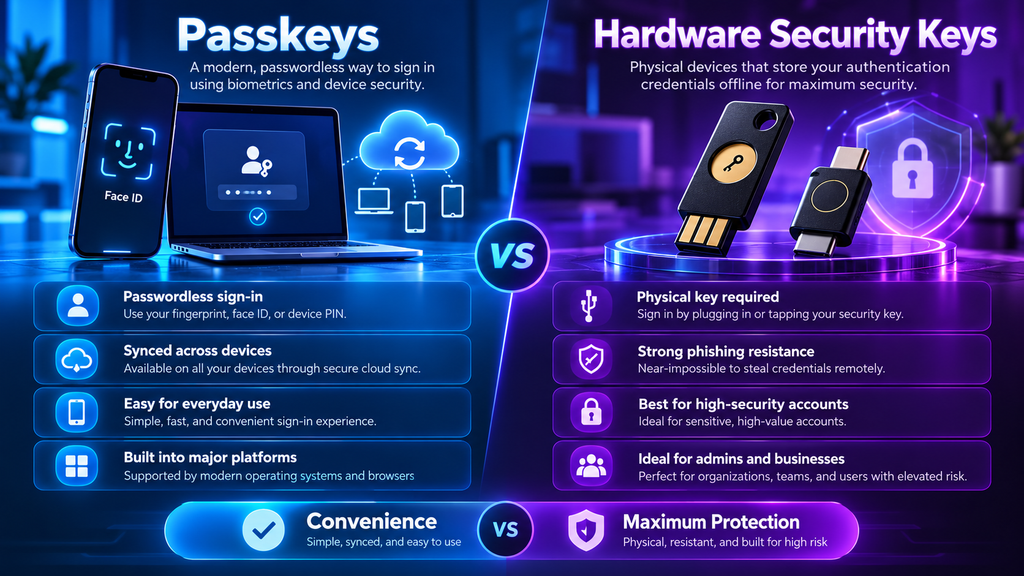
For most consumers, synced passkeys provide the best balance between security and convenience.
They eliminate the need to remember passwords while allowing credentials to remain available across multiple trusted devices.
A typical everyday setup may include:
- Apple Passwords for an Apple-focused household
- Google Password Manager for Android and Chrome users
- Microsoft Password Manager for Windows-centric users
- 1Password or Bitwarden for mixed-device environments
Synced passkeys are especially suitable for:
- Social media
- Shopping accounts
- Streaming services
- Productivity tools
- Everyday cloud services
- Personal apps
The most important factor is choosing a credential manager that works reliably across every device the user depends on.
Which Option Is Best for High-Security Accounts?
Hardware security keys become more attractive when the consequences of account compromise are significantly higher.
Examples include:
- Primary email accounts
- Financial services
- Cloud-administration accounts
- Developer platforms
- Domain registrars
- Password-manager accounts
- Cryptocurrency-related services
- Business administrator accounts
- Identity-provider administrator access
A physical security key provides strong phishing resistance while requiring possession of the authenticator.
For very sensitive accounts, users may register more than one hardware key and store the backup securely in a separate location.
For a broader security setup, see our guide to the best cybersecurity tools in 2026.
Use More Than One Security Key
Relying on a single physical key can create unnecessary recovery risk.
A practical setup is:
- Primary key: carried or used regularly
- Backup key: stored securely in another location
Some users may also register a synchronized passkey or another approved recovery method as an additional fallback, depending on the service’s security model.
When Hardware Keys Matter Most
Hardware security keys are particularly useful when users face:
- Targeted phishing
- Business-email compromise attempts
- Administrator credential theft
- High-value financial risks
- Sensitive corporate access
- Elevated personal security threats
In these situations, the small inconvenience of carrying a physical key can be worthwhile.
A Hybrid Strategy Works Best for Many Users
Most users do not need a hardware security key for every account.
A more practical model is:
Everyday accounts:
Use synchronized passkeys.
Important personal accounts:
Use synced passkeys plus strong account recovery and multi-factor authentication.
Critical accounts:
Use one or more hardware security keys where supported.
This approach keeps authentication convenient without sacrificing stronger protection where it matters most.
Example Security Setup
A user might configure:
- Apple Passwords, Google Password Manager, 1Password, or Bitwarden for everyday passkeys
- A YubiKey or Titan Security Key for the primary email account
- A second hardware key stored securely as backup
- Additional hardware-key protection for the password manager, domain registrar, and administrative accounts
This creates multiple layers of protection without requiring physical-key authentication for every routine login.
Final Recommendation for Account Types
Use synchronized passkeys when convenience, device replacement, and multi-device access are priorities.
Use hardware security keys when possession assurance, phishing resistance, and stronger isolation matter more than convenience.
For the strongest real-world setup, combine both rather than treating them as competing technologies.
Cross-Platform Compatibility
Passkey support has improved significantly across major operating systems and browsers, but the experience still depends on where the passkey is stored and which devices the user relies on.
A passkey manager that works perfectly inside one ecosystem may become less convenient when the user regularly switches between Windows, macOS, Android, iOS, and Linux.
Apple Ecosystem
Apple Passwords works most naturally across:
- iPhone
- iPad
- Mac
- Safari
Passkeys can synchronize through iCloud Keychain across approved Apple devices.
Apple also provides some Windows support through iCloud for Windows, but the overall experience is still strongest for users who stay primarily inside the Apple ecosystem.
Google Ecosystem
Google Password Manager integrates closely with:
- Android
- Chrome
- Chromebooks
- Google Accounts
Users who already rely on Chrome and Android generally get a smooth passkey experience with little additional setup.
Cross-platform support continues to improve, but users who frequently move between several ecosystems may prefer a dedicated third-party credential manager.
Microsoft Ecosystem
Microsoft provides passkey support through:
- Windows Hello
- Microsoft Password Manager
- Microsoft Edge
- Microsoft personal accounts
- Microsoft Entra environments
Windows users can authenticate with biometrics or a device PIN through Windows Hello, while synchronized credentials can be managed through supported Microsoft services.
This is particularly useful for organizations already invested in Microsoft identity infrastructure.
1Password and Bitwarden
Dedicated password managers such as 1Password and Bitwarden are often the most flexible option for users with mixed-device environments.
They support combinations of:
- Windows
- macOS
- Linux
- Android
- iOS
- Chrome
- Firefox
- Edge
- Safari
- Other Chromium-based browsers
This makes them attractive to users who do not want their passkeys tied too closely to one operating-system ecosystem.
Hardware Security Keys
FIDO2-compatible hardware keys can work across many platforms as long as the operating system, browser, and online service support WebAuthn or FIDO2.
The main compatibility consideration is physical connectivity.
Users should check whether their devices require:
- USB-A
- USB-C
- NFC
For example, a USB-C and NFC key may be easier to use across modern laptops and smartphones than a USB-A-only model.
Browser Support Matters
Modern browsers generally provide strong WebAuthn support, but behavior can vary depending on:
- Operating system
- Browser version
- Passkey provider
- Device type
- Website implementation
Users should keep browsers and operating systems updated to ensure the best compatibility.
Best Approach for Mixed Devices
If your devices come from several ecosystems, a cross-platform passkey manager such as 1Password or Bitwarden may provide a more consistent experience.
If most of your devices are from one ecosystem, the built-in solution from Apple, Google, or Microsoft may be simpler and more convenient.
For hardware security keys, choose a model with connector options that match the devices you actually use.
Account Recovery and Backup Considerations
Passkeys reduce many of the risks associated with passwords, but recovery planning remains essential.
A strong authentication method can become a problem if the user loses access to the device, credential manager, or physical security key that stores the passkey.
Recovery for Synced Passkeys
Synced passkeys are generally easier to recover because they can be restored through the user’s credential-provider account.
Examples include:
- Apple Account recovery
- Google Account recovery
- Microsoft Account recovery
- 1Password account recovery
- Bitwarden recovery mechanisms
When a user replaces a phone or computer, synchronized passkeys may become available again after securely signing in to the provider account.
This convenience is one of the biggest advantages of synced passkeys.
However, it also means the security of the credential-provider account becomes extremely important.
Protect the Passkey Provider Account
The account that controls synchronization should be protected with strong security measures.
Users should consider:
- Multi-factor authentication
- Hardware security keys
- Recovery codes
- Trusted devices
- Secure recovery email addresses
- Account-recovery contacts where supported
If an attacker gains control of the synchronization account, the impact could extend to many passkeys stored inside it.
Recovery for Hardware Security Keys
Hardware security keys require more planning because the credential may remain physically bound to the device.
If the key is lost, damaged, or stolen, the user may not be able to recover the credential from the key itself.
The safest approach is usually to register more than one authenticator.
For example:
- Primary hardware key for everyday use
- Backup hardware key stored securely
- Additional approved recovery method where available
Do Not Keep Both Keys Together
If two security keys are used, avoid storing both in the same wallet, bag, or location.
If both keys are lost at the same time, the backup provides no benefit.
A better approach is to keep the backup in a secure location separate from the primary key.
Store Recovery Codes Securely
Many online services provide recovery codes when strong authentication is enabled.
These codes should be stored securely and should not be kept only on the same device that holds the passkeys.
Possible storage options include:
- An encrypted password manager
- Secure offline storage
- A protected physical copy
- Encrypted backup storage
Plan Before Removing Passwords
Some services allow users to remove password sign-in after enabling passkeys.
Before doing this, confirm that:
- More than one recovery method exists
- Passkeys work across required devices
- Backup hardware keys are registered
- Recovery codes are safely stored
- The credential-provider account is protected
Removing passwords can improve security, but doing so without a recovery plan may create unnecessary lockout risk.
Recovery for Business Accounts
Organizations should document recovery procedures before deploying passkeys or hardware keys at scale.
Important considerations include:
- Lost employee devices
- Lost hardware keys
- Employee offboarding
- Administrator recovery
- Emergency access
- Identity-provider policies
- Backup authenticators
Enterprise deployments should avoid relying on a single administrator or a single physical key.
Test Recovery Before You Need It
A recovery plan should be tested before an emergency occurs.
Users should periodically confirm that:
- Backup keys still work
- Recovery codes are accessible
- Trusted devices remain valid
- Account-recovery information is current
- Stored backups are readable
A recovery method that has never been tested may fail when it is needed most.
The Practical Rule
Passkeys improve authentication security, but they do not eliminate the need for recovery planning.
Synced passkeys are easier to restore after device loss, while hardware security keys provide stronger isolation but require more deliberate backup strategies.
The strongest setup combines secure authentication with a recovery method that is both protected and realistically usable.
Privacy and Security Considerations
Passkeys are designed to reduce many of the risks associated with passwords, but users should still understand how their credentials are stored, synchronized, and recovered.
Understand Where the Passkey Is Stored
A passkey may be stored:
- On a phone or computer
- In a synchronized credential manager
- On a hardware security key
- Inside an enterprise identity platform
The storage model affects convenience, recovery, and privacy.
Users who prefer cloud synchronization should understand how the credential provider protects synchronized passkeys. Users who prefer stronger isolation may choose device-bound passkeys stored on physical security keys.
Protect the Credential Manager Account
When passkeys synchronize through Apple, Google, Microsoft, 1Password, Bitwarden, or another provider, the account controlling that synchronization becomes highly important.
Protect it with:
- Strong authentication
- Hardware security keys where possible
- Recovery codes
- Trusted devices
- Secure recovery information
A passkey system is only as resilient as the account and recovery process surrounding it.
Keep Devices Updated
Passkey support depends on modern operating systems, browsers, and authentication frameworks.
Keep:
- Phones
- Computers
- Browsers
- Password managers
- Security-key firmware and management software
up to date.
Updates can improve compatibility, security, and support for newer FIDO and WebAuthn features.
Use Device Locks
A passkey stored on a phone or computer is usually unlocked using the device’s authentication mechanism.
Protect devices with:
- Strong PINs
- Biometrics
- Screen locks
- Full-device encryption
- Automatic lock timers
A weak device lock can undermine otherwise strong passkey protection.
Be Careful with Recovery
Attackers may target account-recovery processes when direct passkey theft is difficult.
Users should protect:
- Recovery email accounts
- Backup phone numbers
- Recovery codes
- Trusted contacts
- Backup security keys
Recovery should be convenient enough to use but difficult for an attacker to abuse.
Avoid Untrusted Devices
Do not create or store important passkeys on shared, public, or untrusted devices.
Use temporary cross-device authentication when available rather than permanently saving credentials on computers that are not under your control.
Verify Hardware Security Keys
When buying a physical security key, purchase from reputable sellers and verify that the exact model supports the authentication standards you need.
Look for:
- FIDO2
- WebAuthn
- Appropriate connector type
- NFC if required
- Compatibility with your target services
Avoid unknown devices that provide little documentation or unclear security certification.
Physical Security Still Matters
A hardware security key can provide strong cryptographic protection, but users still need to protect the physical device.
Keep backup keys in secure locations and consider labeling them in a way that helps you identify them without revealing which accounts they protect.
Privacy Tradeoffs
Synced passkeys can provide excellent convenience, but users may prefer different credential providers based on:
- Privacy policy
- Account metadata collection
- Cloud infrastructure
- Open-source transparency
- Jurisdiction
- Enterprise requirements
The cryptographic credential itself may remain strongly protected, but the provider can still process some account and device metadata.
Passkeys Reduce Phishing, Not Every Threat
Passkeys provide strong resistance against credential phishing, but they do not protect users from every online threat.
Users should still watch for:
- Malware
- Social engineering
- Fake support calls
- Session theft
- Compromised devices
- Fraudulent recovery requests
Passkeys are an important security layer, not a complete replacement for broader cybersecurity practices.
Free vs. Paid Passkey Solutions
Passkey adoption does not necessarily require a paid subscription.
Many users already have access to passkey management through operating systems and services they use every day.
Free Built-In Options
Several major ecosystems provide passkey support without requiring a separate subscription.
Examples include:
- Apple Passwords
- Google Password Manager
- Microsoft Password Manager
- Windows Hello
These options can be sufficient for users who primarily stay within one ecosystem.
Free and Low-Cost Third-Party Options
Some dedicated password managers also provide passkey support through free or relatively inexpensive plans.
Bitwarden is a strong example because it combines passkey management with an open-source password-management platform and broad device support.
The exact features available in free plans can change, so users should verify current limitations before relying on a service.
Paid Password Managers
Paid services such as 1Password can provide additional advantages including:
- Cross-platform consistency
- Family sharing
- Security monitoring
- Advanced recovery options
- Shared vaults
- Administrative controls
The subscription is not necessarily paying for stronger cryptography alone. It often pays for convenience, support, sharing, and management features.
Hardware Security Keys
Physical security keys require an upfront purchase.
The total cost depends on:
- Brand
- Connector type
- NFC support
- Biometric features
- Enterprise capabilities
Users who rely on hardware keys for critical accounts should consider buying at least two compatible keys.
This increases upfront cost but significantly improves recovery resilience.
Free Does Not Mean Insecure
A free passkey manager can still provide strong authentication.
Security depends more on:
- Cryptographic design
- FIDO compliance
- Credential storage model
- Account protection
- Recovery process
- Device security
than on whether a subscription fee is charged.
When Paying Makes Sense
A paid solution may be worthwhile if you need:
- Strong cross-platform support
- Family or team sharing
- Business administration
- Priority support
- Advanced security monitoring
- Easier recovery
- Better migration tools
For users with simple needs, a built-in free passkey manager may already provide excellent protection.
The Cost Question
The best solution is not necessarily the most expensive one.
Choose the option that provides enough security, compatibility, and recovery support for your actual needs.
For critical accounts, spending money on reliable hardware security keys may provide more practical value than upgrading to a premium software plan that adds features you do not use.
How to Choose the Right Passkey or Security Key
Choosing between synced passkeys, dedicated password managers, and hardware security keys depends on your devices, threat level, and recovery needs.
1. Start with Your Devices
Identify the operating systems and browsers you use regularly.
If you mostly use Apple devices, Apple Passwords may be the simplest option.
Android and Chrome users may prefer Google Password Manager.
Windows-focused users may prefer Microsoft Password Manager and Windows Hello.
Mixed-device users may benefit from 1Password or Bitwarden.
2. Decide How Much Convenience You Need
Synced passkeys are ideal if you want credentials to follow you automatically across multiple devices.
Hardware security keys are better when stronger physical possession assurance matters more than convenience.
3. Consider Your Most Sensitive Accounts
Not every account requires the same protection.
For low-risk accounts, synced passkeys may be enough.
For critical accounts, consider hardware security keys.
Examples include:
- Primary email
- Password manager
- Domain registrar
- Financial services
- Cloud administration
- Developer accounts
4. Plan Recovery Before Deployment
Ask:
- What happens if my phone is lost?
- What happens if my security key breaks?
- Do I have a backup authenticator?
- Are recovery codes stored safely?
- Can I access my credentials from another device?
Do not wait until account loss to discover the answer.
5. Check Cross-Platform Support
Verify support for:
- Windows
- macOS
- Linux
- Android
- iOS
- Chrome
- Firefox
- Edge
- Safari
The best credential manager is one that works everywhere you actually need it.
6. Check Hardware Connectivity
For physical keys, choose the connector carefully.
Common options include:
- USB-A
- USB-C
- NFC
A USB-C + NFC key is often one of the most flexible choices for modern laptops and smartphones.
7. Verify FIDO2 and WebAuthn Support
For modern passwordless authentication, make sure the hardware key supports:
- FIDO2
- WebAuthn
Older authentication standards can still be useful, but FIDO2 support is the key requirement for modern passkeys.
8. Consider Biometric Verification
Some hardware keys include fingerprint sensors.
Biometric verification can be useful in environments where the organization wants confirmation that the authorized person is physically using the key.
However, biometric models usually cost more.
9. Consider Open-Source Preferences
Users who prefer open-source software may find Bitwarden attractive.
Users who prefer local or physical credential control may lean toward hardware keys.
The best choice depends on how much transparency and control you want over the credential system.
10. Think About Long-Term Portability
Passkey portability is improving, but not every provider offers the same migration experience.
Before committing heavily to one ecosystem, consider:
- Export capabilities
- Import capabilities
- Credential Exchange support
- Cross-platform migration
- Hardware-key compatibility
11. Use More Than One Authentication Method for Critical Accounts
For highly important accounts, avoid depending on a single device.
A strong configuration might include:
- Synced passkey
- Primary hardware security key
- Backup hardware security key
- Secure recovery codes
This reduces the chance that one lost device causes permanent account loss.
A Simple Decision Guide
Choose Apple Passwords if you primarily use Apple devices.
Choose Google Password Manager if you mainly use Android and Chrome.
Choose Microsoft Password Manager if Windows and Microsoft services are central to your workflow.
Choose 1Password if you want a polished premium cross-platform experience.
Choose Bitwarden if you want open-source flexibility and strong value.
Choose YubiKey if you want broad protocol support and enterprise-grade flexibility.
Choose Google Titan if you want straightforward FIDO2 protection with strong Google integration.
Choose FEITIAN if you want more hardware variety, including biometric models.
The Best Overall Strategy
For most users, the strongest practical setup is not choosing only one solution.
Use synced passkeys for everyday convenience and hardware security keys for critical accounts.
That combination provides strong phishing resistance while preserving reasonable recovery and multi-device access.
Frequently Asked Questions About Passkeys and Security Keys
Are passkeys safer than passwords?
In most situations, yes.
Passkeys are designed to resist phishing and eliminate many risks associated with reused, weak, or stolen passwords. Instead of sending a reusable secret to a website, passkeys use public-key cryptography and keep the private credential protected on the user’s device, credential manager, or hardware security key.
Can a hacker steal my passkey from a website breach?
A website stores the public portion of the passkey rather than the private authentication credential.
If the website is breached, the public key alone cannot normally be used to impersonate the user.
This is one of the major advantages passkeys have over traditional password databases.
Can passkeys be phished?
Passkeys are specifically designed to provide strong resistance to phishing.
The credential is associated with the legitimate website or application, so a fake domain cannot simply collect and reuse the passkey in the same way it could steal a password or one-time code.
However, users still need to protect their devices and account-recovery processes from malware, social engineering, and other threats.
Do passkeys completely replace passwords?
Not yet.
Many services now support passkeys, but password adoption remains widespread and some websites still require passwords as a backup or recovery method.
During the transition, most users will manage a combination of passwords and passkeys.
What is the difference between a passkey and a hardware security key?
A passkey is the cryptographic credential used for authentication.
A hardware security key is a physical device that can store device-bound passkeys and other authentication credentials.
Passkeys can therefore be stored either in software-based credential managers or on compatible physical security keys.
Are synced passkeys secure?
Yes, when implemented correctly.
Synced passkeys use strong cryptography and can be protected with end-to-end encryption by the credential provider.
Their main advantage is that the credential can become available across trusted devices without requiring the user to manually copy it.
FIDO distinguishes synced passkeys from device-bound passkeys, but both are designed to provide phishing-resistant authentication. (fidoalliance.org)
Which passkey manager is best for Apple users?
Apple Passwords and iCloud Keychain provide the most integrated experience for users who primarily use iPhone, iPad, and Mac.
Passkeys can synchronize across approved Apple devices and can be unlocked using Face ID, Touch ID, or the device passcode. Apple states that passkeys stored in iCloud Keychain are protected with end-to-end encryption. (support.apple.com)
Which passkey manager is best for Android users?
Google Password Manager is one of the simplest choices for users who mainly rely on Android and Chrome.
It can create, store, manage, and autofill passkeys associated with a Google Account. (support.google.com)
Which passkey manager is best for mixed devices?
Dedicated cross-platform managers such as 1Password and Bitwarden can be particularly useful for users who regularly switch between Windows, macOS, Android, iOS, Linux, and multiple browsers.
They reduce dependence on a single operating-system ecosystem.
Which hardware security key should I buy?
The best choice depends on your devices and security requirements.
A YubiKey 5 Series model is useful for users who want broad protocol support.
Google Titan Security Keys are straightforward FIDO-focused options.
FEITIAN offers a wider variety of models, including biometric and enterprise-oriented keys.
Always confirm connector type, FIDO2 support, NFC requirements, and compatibility with the accounts you plan to protect.
Should I buy one or two hardware security keys?
For important accounts, two keys are usually safer than one.
Use one key regularly and store the second in a separate secure location.
A backup key reduces the risk of losing access if the primary device is lost, damaged, or unavailable.
Can I use a hardware security key with my phone?
Yes, depending on the model.
Security keys with NFC can authenticate with many compatible smartphones simply by tapping the key against the device.
USB-C keys can also connect directly to many modern Android phones, tablets, and newer devices.
Does a hardware security key need a battery?
Most common USB and NFC FIDO security keys do not require a battery for normal authentication.
They receive power from the connected device or use NFC communication when tapped against compatible hardware.
Do passkeys work offline?
The authentication process itself depends on the website or application being accessed, but locally stored passkeys do not need to download a password from a server every time they are used.
Synced credential managers may require connectivity for synchronization between devices.
Hardware keys keep their cryptographic credentials on the physical authenticator.
What happens if I lose my phone containing passkeys?
If the passkeys are synchronized through a credential provider, they may become available again after securely signing in to the provider account on a replacement device.
The exact recovery process depends on Apple, Google, Microsoft, 1Password, Bitwarden, or another provider.
Users should understand the recovery process before relying exclusively on passkeys.
What happens if I lose my hardware security key?
If the lost key was your only registered authentication method, account recovery may be difficult.
This is why critical accounts should usually have:
- A backup hardware key
- Secure recovery codes
- Another approved recovery method
Do not wait until the key is lost to configure recovery.
Can passkeys be moved between password managers?
Passkey portability is improving.
Some credential managers are beginning to support secure migration through standards such as the FIDO Credential Exchange Protocol, reducing reliance on older plaintext export methods.
However, support still varies between providers and platforms, so users should verify migration capabilities before switching services.
Should I use passkeys for banking accounts?
If a trusted financial institution officially supports passkeys, they can provide strong phishing-resistant authentication.
However, availability depends on the bank or financial service, and users should understand the institution’s recovery process before removing older sign-in methods.
Should I use a hardware security key for my password manager?
For users with highly sensitive accounts, this can be a strong security measure.
Because a password manager controls access to many other credentials, protecting it with phishing-resistant authentication such as a hardware security key can reduce account-takeover risk.
Are biometric security keys better?
Biometric hardware keys can provide additional local user verification by requiring a fingerprint before completing authentication.
They can be useful in environments where simply possessing the key should not be enough.
However, biometric models are generally more expensive and may not be necessary for every user.
Can passkeys protect me from malware?
Passkeys reduce credential theft and phishing risk, but they do not prevent malware from compromising a device.
Users should still maintain secure devices, apply software updates, use device encryption, and avoid untrusted applications or browser extensions.
Do I need both passkeys and a hardware security key?
Not necessarily, but combining them can provide an excellent balance.
Synced passkeys are convenient for everyday accounts.
Hardware security keys provide stronger isolation for critical accounts.
For many users, using both technologies selectively is the most practical security strategy.
Final Thoughts
Passkeys represent one of the most important changes in account authentication in years.
Instead of relying on reusable passwords that can be guessed, reused, leaked, or phished, passkeys use cryptographic authentication tied to trusted devices, credential managers, or hardware security keys.
For most everyday users, synchronized passkeys provide the best combination of security and convenience. Apple Passwords, Google Password Manager, Microsoft Password Manager, 1Password, and Bitwarden can all reduce dependence on traditional passwords while making authentication easier across supported devices.
Hardware security keys remain especially valuable for sensitive accounts. YubiKey, Google Titan Security Keys, and FEITIAN FIDO2 devices provide strong phishing-resistant authentication while keeping credentials tied to physical hardware.
The best approach does not have to be all-or-nothing.
Use synchronized passkeys where convenience matters, and consider hardware security keys for accounts where compromise would have serious consequences.
Whichever approach you choose, plan recovery before you need it. Register backup authenticators, secure recovery codes, protect your credential-provider account, and keep devices updated.
Passwordless authentication is becoming increasingly practical in 2026. The strongest security strategy is one that combines phishing-resistant authentication with reliable recovery and an approach simple enough to use consistently.
Sources and Further Reading
- FIDO Alliance — Passkeys and Passwordless Authentication
- FIDO Alliance — The State of Passkeys 2026
- Apple — Use Passkeys to Sign In to Websites and Apps
- Google — Google Password Manager
- Microsoft — What Are Passkeys and Why They Matter
- 1Password — Save and Sign In with Passkeys
- Bitwarden — Passkeys and Browser Autofill
- Yubico — YubiKey 5C NFC
- Google — Titan Security Key Help
- FEITIAN — FIDO Security Keys






Comments 2