
Cloud storage has become an essential part of everyday digital life.
Photos, documents, work projects, videos, backups, and shared files increasingly need to remain accessible across phones, laptops, tablets, and multiple operating systems.
In 2026, the major cloud storage platforms offer much more than simple online file space. They combine automatic synchronization, backup tools, document collaboration, family sharing, security features, artificial intelligence, file recovery, and increasingly sophisticated productivity tools.
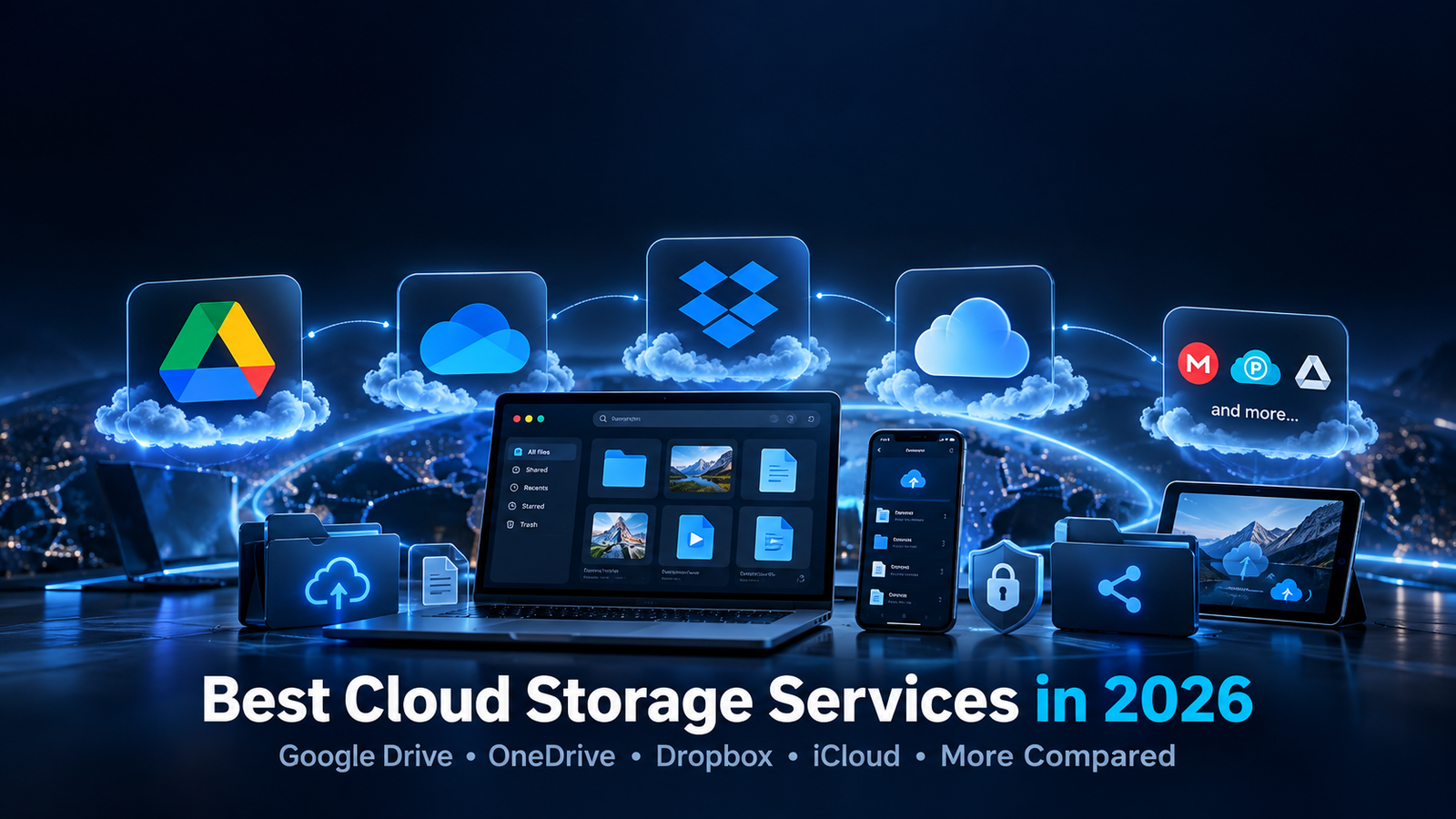
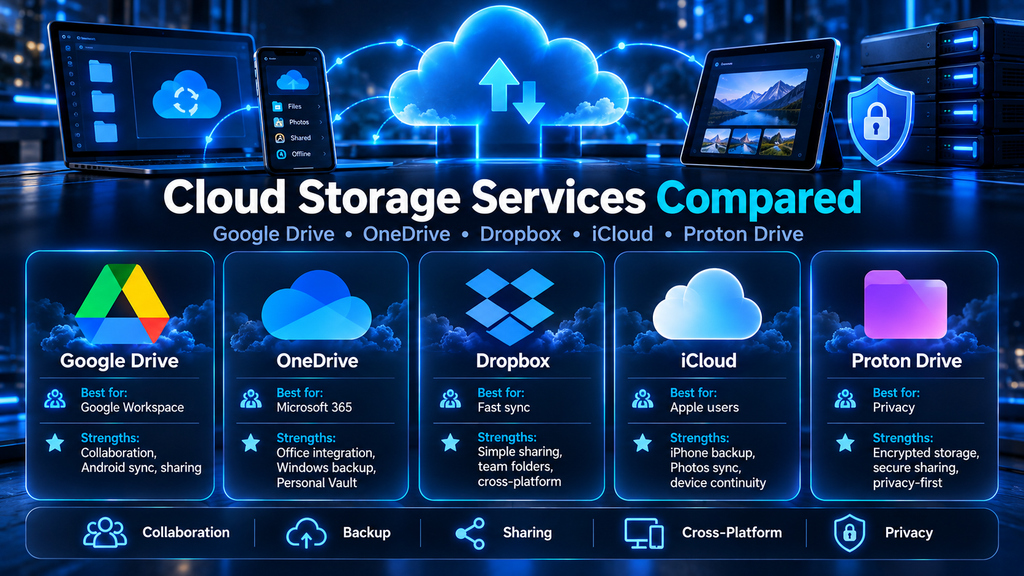
Google Drive, Microsoft OneDrive, Dropbox, Apple iCloud+, Proton Drive, and pCloud all approach cloud storage differently.
Some focus on productivity and collaboration.
Others prioritize privacy, device integration, large storage capacities, or flexible payment models.
This guide compares the major cloud storage services available in 2026 and explains which features matter most before choosing a platform.
Table of Contents
Best Cloud Storage Services in 2026: Quick Overview
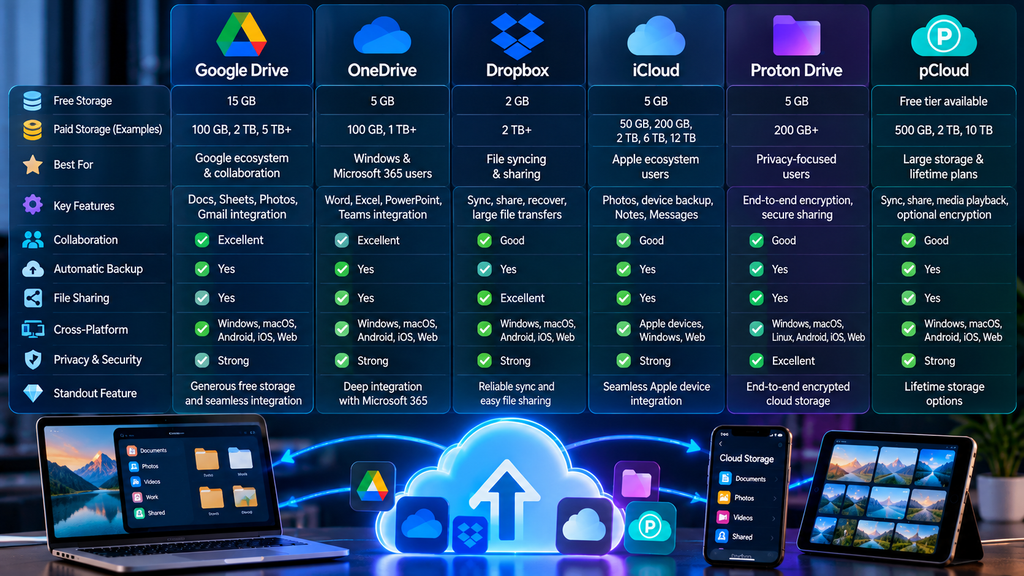
| Service | Free Storage | Notable Paid Storage | Key Strength |
|---|---|---|---|
| Google Drive / Google One | 15 GB | 100 GB, 2 TB, 5 TB and more | Google ecosystem and collaboration |
| Microsoft OneDrive | Free tier available | 100 GB, 1 TB and more | Windows and Microsoft 365 integration |
| Dropbox | 2 GB | 2 TB and team plans | File syncing and sharing |
| Apple iCloud+ | 5 GB | 50 GB, 200 GB, 2 TB, 6 TB, 12 TB | Apple ecosystem integration |
| Proton Drive | 5 GB | 200 GB and larger bundled plans | End-to-end encrypted storage |
| pCloud | Free tier available | 500 GB, 2 TB, 10 TB | Lifetime-plan options and cross-platform storage |
Storage capacities and prices can vary by region, promotion, and subscription configuration.
For that reason, storage size should not be the only factor considered.
1. What Makes a Good Cloud Storage Service in 2026?
A good cloud storage platform should make files easy to access without making them difficult to protect.
Important factors include:
- Storage capacity
- File synchronization
- Automatic backup
- Security
- Privacy
- File recovery
- Sharing controls
- Collaboration tools
- Mobile applications
- Desktop synchronization
- Family sharing
- Large-file support
- Cross-platform compatibility
- Price
- Integration with productivity software
The right balance depends heavily on how the service will be used.
A photographer may need large amounts of storage.
A business user may care more about collaboration.
A privacy-focused user may prioritize encryption.
A family may simply want one storage plan shared between several people.
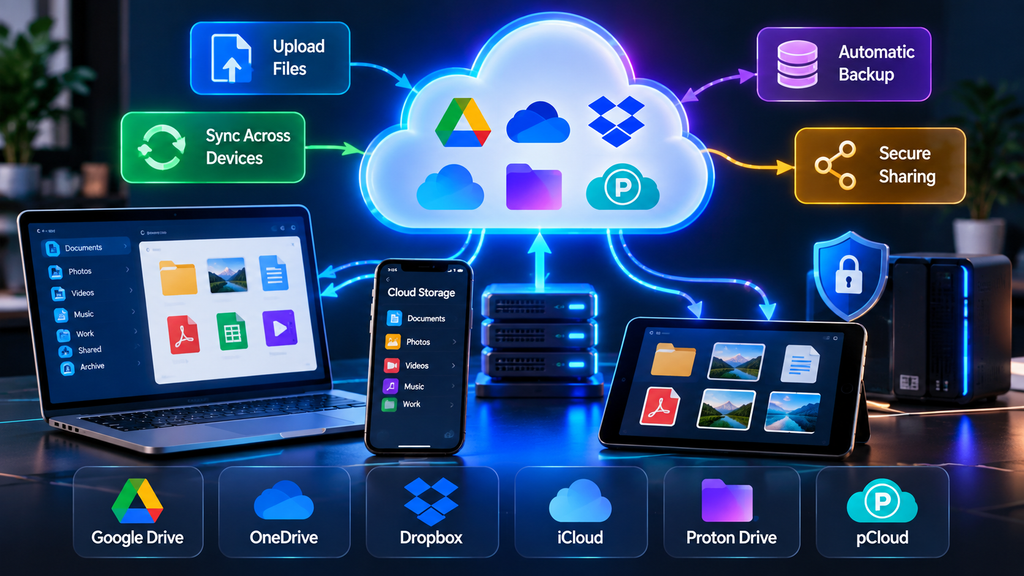
2. Cloud Storage, Sync, and Backup Are Not the Same Thing
These terms are often used interchangeably, but they serve different purposes.
Cloud storage keeps files on remote servers so they can be accessed online.
File synchronization keeps selected files and folders updated across multiple devices.
Backup creates additional copies that can be restored if files are deleted, damaged, encrypted by malware, or lost with a device.
A synchronization service should not automatically be treated as a complete backup strategy.
If an unwanted file deletion synchronizes across every connected device, a separate backup or file-version history may still be necessary.
3. Google Drive and Google One
Google Drive is deeply integrated with Google’s productivity ecosystem.
It connects naturally with:
- Gmail
- Google Docs
- Google Sheets
- Google Slides
- Google Photos
- Google Meet
- Android
- Chrome
- Gemini-powered Google tools
Every standard Google Account includes 15 GB of storage shared between Google Drive, Gmail, and Google Photos.
Users who need more storage can upgrade through Google One.
4. Google Drive Storage Plans
Google’s free 15 GB allowance remains one of the more generous free allocations among major mainstream providers.
Paid Google One plans add additional storage.
Depending on region and available subscription options, plans can include capacities such as:
- 100 GB
- 2 TB
- 5 TB
- Larger storage tiers in selected configurations
Some newer Google One subscriptions also combine storage with expanded access to Gemini and other AI-powered Google services.
This makes Google One increasingly more than a simple storage subscription.
5. Google Drive Collaboration
Collaboration is one of Google Drive’s strongest capabilities.
Multiple users can work on the same Google Docs, Sheets, or Slides file simultaneously.
Changes can appear in real time.
Users can also:
- Add comments
- Suggest edits
- Assign tasks
- Review version history
- Control sharing permissions
- Share folders
- Restrict access
This makes Google Drive particularly practical for schools, remote teams, freelancers, and organizations already using Google Workspace.
6. Google Drive and AI Integration
Google continues integrating artificial intelligence across its productivity services.
Depending on the user’s plan, AI capabilities may assist with tasks such as:
- Writing
- Summarization
- Document analysis
- Email productivity
- Research
- File-based workflows
For users already working heavily inside Gmail, Docs, Sheets, and other Google tools, this can make cloud storage part of a broader productivity environment rather than a standalone file locker.
7. Who Should Consider Google Drive?
Google Drive is particularly suitable for:
- Android users
- Gmail users
- Students
- Schools
- Google Workspace users
- Teams using Docs and Sheets
- Users who frequently collaborate online
- People who want generous free storage
Its biggest advantage is how naturally it integrates with the wider Google ecosystem.
8. Microsoft OneDrive
OneDrive is Microsoft’s cloud storage platform.
It is deeply integrated into Windows and Microsoft 365.
For Windows users, OneDrive can feel less like a separate cloud service and more like part of the operating system.
Files stored in OneDrive can appear directly inside File Explorer.
Microsoft also integrates OneDrive with:
- Word
- Excel
- PowerPoint
- Outlook
- Microsoft Teams
- Microsoft Defender
- Microsoft 365
- Copilot
9. OneDrive and Windows Integration
Windows integration is one of OneDrive’s strongest advantages.
Users can synchronize important folders and access cloud files without opening a separate website.
Files On-Demand can display cloud files inside File Explorer while downloading full copies only when required.
This can reduce local disk usage while still keeping large file collections accessible.
For people who spend most of their time on Windows PCs, this integration can be extremely convenient.
10. OneDrive Storage Options
Microsoft offers several storage configurations.
Microsoft 365 Basic includes 100 GB of cloud storage for one person.
Microsoft 365 Personal includes 1 TB of OneDrive storage for one person together with Microsoft 365 desktop applications and other services.
Family subscriptions can provide storage to multiple users, with each person receiving their own allocation depending on the plan.
Because OneDrive is often bundled with Microsoft 365, users should evaluate the complete subscription rather than the storage component alone.
11. OneDrive for Microsoft Office Users
For people who regularly work with Word, Excel, and PowerPoint, OneDrive provides a particularly integrated experience.
Documents can be saved directly to OneDrive and accessed across multiple devices.
Cloud-based collaboration also allows several users to work on compatible files.
This is useful for:
- Businesses
- Universities
- Remote teams
- Students
- Professionals
- Microsoft 365 households
Users already paying for Microsoft 365 may find that they already have enough OneDrive storage without needing a separate storage subscription.
12. Who Should Consider OneDrive?
OneDrive is especially suitable for:
- Windows users
- Microsoft 365 subscribers
- Word and Excel users
- Office-based professionals
- Students
- Families using Microsoft services
- Businesses centered around Microsoft tools
Its integration with Windows and Microsoft 365 is the main reason many users choose it.
13. Dropbox
Dropbox helped popularize modern cloud file synchronization.
Its interface remains strongly focused on storing, synchronizing, recovering, and sharing files across devices.
Dropbox works across major platforms, making it attractive to users who move frequently between different operating systems.
14. Dropbox Free and Paid Storage
Dropbox Basic provides 2 GB of starting storage.
That is relatively limited compared with Google’s free allowance.
Dropbox Plus increases storage substantially to 2 TB for one person.
Dropbox also offers larger team-oriented plans for professional and business environments.
Rather than competing mainly on free storage, Dropbox focuses heavily on synchronization, sharing, file transfer, and workflow features.
15. Dropbox File Synchronization
Synchronization remains central to the Dropbox experience.
Users can keep folders synchronized across:
- Windows
- macOS
- Mobile devices
- Web browsers
Dropbox also offers tools designed to help users recover deleted or modified files within the recovery period supported by their plan.
This can be valuable when a file is accidentally overwritten or removed.
16. Dropbox Sharing and File Transfer
Dropbox is particularly well known for file sharing.
Users can create shared links without requiring every recipient to become part of the same workspace.
Some plans also support large file transfers.
This can be useful for:
- Designers
- Photographers
- Video editors
- Agencies
- Freelancers
- Clients exchanging large files
For workflows involving frequent external collaborators, convenient sharing can matter more than the amount of free storage.
17. Dropbox and Modern Productivity Tools
Dropbox continues expanding beyond traditional synchronization.
Its ecosystem now includes tools for document handling, signatures, PDFs, sharing, collaboration, and integrations with other productivity platforms.
Dropbox also increasingly connects with AI-enabled tools.
This reflects a broader trend in cloud storage: storage platforms are becoming productivity hubs rather than passive online folders.
18. Who Should Consider Dropbox?
Dropbox is particularly suitable for:
- Freelancers
- Creative professionals
- Cross-platform users
- Teams sharing large files
- Agencies
- Users who prioritize synchronization
- People frequently sharing files outside their organization
Its 2 GB free tier is relatively small, but its file-sync and sharing capabilities remain important strengths.
19. Apple iCloud+
iCloud is built directly into Apple’s ecosystem.
It handles more than ordinary files.
Depending on device settings, iCloud can synchronize or back up information such as:
- Photos
- Videos
- Device backups
- Documents
- Notes
- Contacts
- Messages
- Application data
- Password-related data
Every Apple account includes 5 GB of free iCloud storage.
Users can upgrade through iCloud+.
20. iCloud+ Storage Plans
Apple currently offers several iCloud+ storage tiers, including:
- 50 GB
- 200 GB
- 2 TB
- 6 TB
- 12 TB
The larger tiers are particularly useful for users with extensive photo and video libraries.
Paid iCloud+ plans can also be shared with family members through Apple’s Family Sharing system.
21. iCloud+ Privacy Features
iCloud+ includes additional privacy-oriented features beyond extra storage.
Depending on regional availability, these can include:
- iCloud Private Relay
- Hide My Email
- Custom Email Domain
- HomeKit Secure Video support
These features make iCloud+ more than simply additional storage for Apple devices.
22. iCloud and Apple Device Backups
One of iCloud’s biggest practical advantages is device integration.
iPhone and iPad users can automatically back up supported device data to iCloud.
Photos and documents can also synchronize between iPhone, iPad, and Mac.
For a user who owns several Apple devices, the system can operate with relatively little manual management.
23. Who Should Consider iCloud+?
iCloud+ is especially appropriate for:
- iPhone users
- iPad users
- Mac users
- Apple families
- Users with large Apple Photos libraries
- People who want automatic Apple-device synchronization
Its value is significantly greater inside the Apple ecosystem than outside it.
24. Proton Drive
Proton Drive approaches cloud storage from a privacy-first perspective.
Its major differentiator is end-to-end encrypted cloud storage.
Proton states that files are protected so that even Proton cannot access their contents.
The service comes from the same ecosystem as Proton Mail, Proton VPN, Proton Pass, and Proton Calendar.
25. Proton Drive Free Storage
Proton Drive provides a free plan with 5 GB of storage.
Paid Drive plans expand storage.
One personal Drive Plus tier provides 200 GB, while larger Proton bundles can include considerably more cloud storage alongside other Proton services.
Storage configurations can vary according to the chosen subscription.
26. Proton Drive and End-to-End Encryption
End-to-end encryption changes the privacy model.
With traditional cloud services, providers generally protect data during transmission and storage but retain technical control over parts of the storage infrastructure.
Proton’s model is designed so file contents remain encrypted in a way that prevents the provider itself from reading them.
For users storing sensitive personal or professional files, this can be an important distinction.
27. Proton Drive Productivity Features
Proton Drive has expanded beyond basic encrypted storage.
The platform now includes tools such as:
- Proton Docs
- Proton Sheets
- File sharing
- Photo storage
- Desktop applications
- Mobile applications
In 2026 Proton also introduced command-line functionality for Proton Drive, enabling more technical users to integrate encrypted storage into automated backup and scripting workflows.
28. Who Should Consider Proton Drive?
Proton Drive is particularly suitable for:
- Privacy-focused users
- Security-conscious professionals
- Users storing sensitive documents
- Proton ecosystem subscribers
- People who want end-to-end encrypted storage
- Technical users interested in secure automated workflows
Its biggest differentiator is privacy rather than maximum free storage.
29. pCloud
pCloud takes a somewhat different approach from the major ecosystem providers.
It offers traditional subscription plans but is particularly notable for its Lifetime storage options.
This allows users to make a larger one-time payment instead of maintaining a recurring subscription for the supported period defined by pCloud’s terms.
30. pCloud Storage Options
pCloud offers several large-capacity plans.
Common tiers include:
- 500 GB
- 2 TB
- 10 TB
These capacities are available through different billing models, including annual and Lifetime options.
This flexibility can appeal to users who dislike recurring monthly subscriptions.
31. pCloud Cross-Platform Support
pCloud works across several major platforms.
Users can access files from computers, mobile devices, and web browsers.
The service also includes sharing and media-oriented features.
This makes it a practical alternative for users who do not want their storage tied closely to Google, Microsoft, or Apple.
32. Who Should Consider pCloud?
pCloud may appeal to:
- Users interested in Lifetime storage options
- People needing several terabytes
- Cross-platform users
- Media libraries
- Users avoiding large ecosystem subscriptions
- People who prefer a one-time-payment option
However, anyone considering a Lifetime plan should read the provider’s current terms carefully before purchasing.
33. Google Drive vs. OneDrive
Google Drive and OneDrive compete strongly in productivity.
The choice often depends on which office ecosystem you already use.
Choose based primarily on:
Google Drive
- Google Docs
- Google Sheets
- Gmail
- Android
- Google Workspace
- Google collaboration
OneDrive
- Windows
- Word
- Excel
- PowerPoint
- Microsoft 365
- Microsoft Teams
For many users, ecosystem compatibility matters more than minor differences in storage specifications.
34. Dropbox vs. Google Drive
Google Drive places greater emphasis on integrated online productivity.
Dropbox places greater emphasis on file synchronization and external file sharing.
A student collaborating on documents may naturally prefer Google Drive.
A creative agency exchanging large design and video files with external clients may find Dropbox particularly practical.
Neither approach is universally better.
They solve somewhat different workflow problems.
35. iCloud+ vs. Google Drive
For iPhone and Mac users, iCloud can provide deeper device-level integration.
For cross-platform collaboration, Google Drive can be more flexible.
Many Apple users actually use both:
- iCloud for device backups, photos, and Apple synchronization
- Google Drive for collaborative documents and cross-platform sharing
Using more than one cloud service is not necessarily a problem when each has a clearly defined role.
36. Proton Drive vs. Mainstream Cloud Storage
Proton Drive’s strongest distinction is privacy.
Google, Microsoft, Dropbox, and Apple focus heavily on ecosystem integration, collaboration, and convenience.
Proton places end-to-end encryption at the center of the service.
For ordinary shared work, mainstream collaboration platforms may provide broader integrations.
For sensitive files, Proton’s security model may be more attractive.
37. Which Cloud Storage Is Better for Photos?
Photo storage depends heavily on the user’s phone ecosystem.
Android and Google Photos users may naturally prefer Google storage.
iPhone and Mac users may prefer iCloud Photos.
Dropbox and pCloud can store photo libraries but are less tightly integrated with smartphone photo-management systems.
Users with very large photo collections should pay particular attention to storage expansion options.
38. Which Cloud Storage Is Better for Office Work?
For office productivity, Google Drive and OneDrive are particularly strong because they integrate directly with major document suites.
Google Drive works naturally with Docs, Sheets, and Slides.
OneDrive works naturally with Word, Excel, and PowerPoint.
The better choice often depends on which productivity suite an organization already uses.
39. Which Cloud Storage Is Better for Large Files?
Users working with:
- 4K video
- RAW photography
- Design projects
- Software archives
- Large datasets
should consider more than total storage capacity.
Important factors include:
- Maximum file size
- Upload speed
- Download speed
- Sharing limits
- Transfer quotas
- Synchronization performance
Dropbox and pCloud can be attractive for file-centric workflows, while larger Google, Microsoft, and iCloud plans can also provide substantial capacity.
40. Which Cloud Storage Is Better for Families?
Families should look for plans that support multiple individual accounts rather than forcing everyone to share one login.
Google One can share eligible plans with additional family members.
Apple iCloud+ supports Family Sharing.
Microsoft 365 Family provides separate storage allocations for multiple users depending on the plan.
Dropbox also offers a Family plan with shared storage for multiple members.
The important distinction is that each person should maintain their own account and privacy.
41. Which Cloud Storage Is Better for Privacy?
Privacy-sensitive users should examine:
- Encryption model
- Account security
- Sharing controls
- Recovery options
- Data-processing policies
- Whether end-to-end encryption is used
- Two-factor authentication support
Proton Drive makes end-to-end encryption a central feature.
Other platforms provide strong security systems but may follow different encryption and data-processing models.
Users storing particularly sensitive information should evaluate the provider’s security documentation rather than relying only on marketing claims.
42. How Much Cloud Storage Do You Actually Need?
Storage needs vary dramatically.
50–100 GB may be enough for:
- Documents
- Small photo libraries
- School files
- Basic backups
200–500 GB may be appropriate for:
- Larger photo libraries
- Multiple devices
- Moderate video storage
1–2 TB can suit:
- Professionals
- Families
- Large photo collections
- Video projects
- Full laptop file libraries
5–10 TB or more may be needed for:
- Large creative projects
- Professional video
- Extensive archives
- Multiple high-capacity devices
Buying far more storage than you use can waste money.
43. Is 2 TB the Practical Sweet Spot?
For many power users, 2 TB has become a practical balance.
It can accommodate:
- Large photo libraries
- Documents
- Smartphone backups
- Personal video
- Work files
- Multiple computers
Several major providers offer options around this capacity.
However, users storing mostly documents may need far less.
44. Should You Use Free Cloud Storage?
Free storage is useful for testing a service before subscribing.
It can also be enough for users with modest requirements.
However, free tiers often have limitations involving:
- Storage capacity
- Recovery periods
- Sharing
- advanced features
- collaboration
- customer support
Users should avoid creating a complicated collection of many free accounts simply to avoid paying for storage.
That can make files harder to manage and protect.
45. Cloud Storage Security Basics
Regardless of provider, users should protect accounts carefully.
Enable:
- Strong unique passwords
- Two-factor authentication
- Recovery methods
- Device screen locks
- Security notifications
Avoid sharing permanent public links to sensitive files.
Review account sessions periodically.
Remove access for old devices.
Cloud storage security depends partly on the provider and partly on how the account is managed.
46. Cloud Storage Is Not a Complete Backup Strategy
Storing files in the cloud can greatly improve resilience, but important files may still benefit from additional backups.
A common strategy is the 3-2-1 approach:
- Keep three copies of important data
- Use two different storage types
- Keep at least one copy in a separate location
For example:
- Working copy on a computer
- Backup on an external drive
- Additional copy in cloud storage
This provides protection against more types of failure.
47. How to Move Between Cloud Storage Services
Changing providers does not have to happen all at once.
A practical migration process is:
- Review existing cloud files.
- Delete unnecessary duplicates.
- Download or synchronize a complete local copy.
- Create the new cloud account.
- Upload the most important folders first.
- Verify file counts and important documents.
- Update shared links.
- Keep the old account temporarily.
- Cancel the old subscription only after confirming the migration.
Large libraries can take considerable time to transfer.
48. Common Cloud Storage Mistakes to Avoid
Avoid these common mistakes:
Using one password everywhere:
Cloud accounts often contain highly valuable personal information.
Ignoring storage limits:
Full storage can interrupt backups and synchronization.
Treating sync as backup:
Deleted files may synchronize across devices.
Sharing entire folders unnecessarily:
Give users access only to what they actually need.
Keeping old devices connected:
Remove devices that are no longer used.
Choosing solely by price:
A cheaper service may not integrate properly with your workflow.
49. A Practical Cloud Storage Buying Guide for 2026
Start with your existing devices.
If you use Android, Gmail, and Google Docs heavily, Google Drive is an obvious platform to evaluate.
If your workflow revolves around Windows and Microsoft Office, OneDrive deserves strong consideration.
If synchronization and client file sharing are central to your work, examine Dropbox.
If you live almost entirely inside the Apple ecosystem, iCloud+ provides particularly convenient device integration.
If privacy is your main concern, evaluate Proton Drive.
If you want large storage options and are interested in Lifetime pricing, pCloud may be worth examining.
Then determine how much storage you realistically need.
Finally, compare current regional pricing before subscribing.
Frequently Asked Questions
Which cloud storage service offers the most free storage?
Google Accounts currently include 15 GB of storage shared across Google Drive, Gmail, and Google Photos, which is larger than the standard free allocations of several major competitors.
How much free storage does Dropbox provide?
Dropbox Basic currently starts with 2 GB of free storage.
How much free storage does iCloud provide?
Apple provides 5 GB of free iCloud storage with an Apple account.
How much free storage does Proton Drive provide?
Proton Drive currently offers a 5 GB free storage plan.
Is OneDrive included with Microsoft 365?
Yes. Microsoft 365 plans include OneDrive storage, with Microsoft 365 Personal currently providing 1 TB for one user.
Can I use Google Drive on an iPhone?
Yes. Google Drive and other Google cloud services are available on iPhone and iPad.
Can I use iCloud on Windows?
Yes. Apple provides Windows support for accessing and synchronizing selected iCloud services.
Is Proton Drive more private than ordinary cloud storage?
Proton Drive is designed around end-to-end encryption, meaning file contents are protected so that Proton says it cannot access them. Other providers use different security and encryption models.
Is pCloud Lifetime really a one-time payment?
pCloud offers Lifetime plans that use a one-time-payment model under the company’s current terms. Users should review the latest terms and pricing before purchasing.
Is cloud storage safe from ransomware?
Cloud storage can help with recovery, particularly when file-version history or recovery features are available, but it should not be considered complete protection against ransomware. Independent backups remain important.
Should I use more than one cloud storage provider?
It can make sense when the services have different roles. For example, a user might use iCloud for Apple-device backups and Google Drive for collaborative work.
Final Thoughts
Cloud storage in 2026 is no longer simply about buying online disk space.
Google Drive combines generous free storage with strong collaboration and integration across Google’s ecosystem.
Microsoft OneDrive fits naturally into Windows and Microsoft 365 workflows.
Dropbox remains focused on reliable file synchronization, sharing, and cross-platform workflows.
Apple iCloud+ provides particularly strong integration for iPhone, iPad, and Mac users.
Proton Drive differentiates itself with end-to-end encrypted storage and a privacy-focused ecosystem.
pCloud provides another cross-platform alternative and stands out for offering Lifetime storage options alongside traditional subscriptions.
The right choice therefore depends less on finding one universal winner and more on matching the service to your devices, storage requirements, privacy needs, collaboration habits, and budget.
Sources
- Google — Google One Storage Plans
- Microsoft — OneDrive Plans and Pricing
- Dropbox — Dropbox Storage Plans and Free Storage
- Apple — iCloud+ Plans and Pricing
- Apple — iCloud Storage and Security
- Proton — Proton Drive: Secure Cloud Storage
- Proton — Proton Drive CLI
- pCloud — Cloud Storage Pricing and Lifetime Plans